


Can my PC run Windows 11? PC Health Check says no and blames TPM 2.0, but my desktop is not that old and runs games fine. Do I really need new hardware or is this some setting I'm missing? I'd rather not buy anything if I can avoid it.
Can my PC run Windows 11? How to fix the TPM 2.0 and requirements check
Concerns & risks
Windows Update won't offer the upgrade, or PC Health Check throws a red X. The machine is fast enough for everything you do, so the verdict feels random.
| Message | What it usually means | Fix |
|---|---|---|
| TPM 2.0 missing | TPM is off in firmware | Enable fTPM (AMD) or PTT (Intel) |
| Secure Boot not enabled | Legacy BIOS mode | Switch to UEFI, then enable Secure Boot |
| Processor not supported | CPU not on Microsoft's list | Hardware limit; consider ESU or upgrade |
| Not enough storage | Below 64GB free | Free space or bigger drive |

Causes & evidence
Microsoft's Windows 11 requirements page lists a set of minimums, including 4 GB of RAM, a 64 GB or larger storage device, and Trusted Platform Module (TPM) version 2.0, plus processor and firmware requirements such as UEFI and Secure Boot capability. Many desktops have a firmware TPM built into the CPU platform that ships disabled, and some older installs use legacy BIOS (CSM) mode instead of UEFI. In those cases the hardware is capable, but the settings make it look like it isn't. Truly unsupported processors are a different story and aren't something a settings change fixes.
A quick way to separate 'settings problem' from 'hardware problem': if the check fails only on TPM or Secure Boot, there's a good chance firmware settings are the fix. If it fails on the processor, no amount of toggling changes that, and you're looking at ESU or new hardware. Writing down the exact failure saves you from an evening of guesswork.
Half the 'unsupported' PCs I've seen were just one BIOS toggle away from passing.
What to do
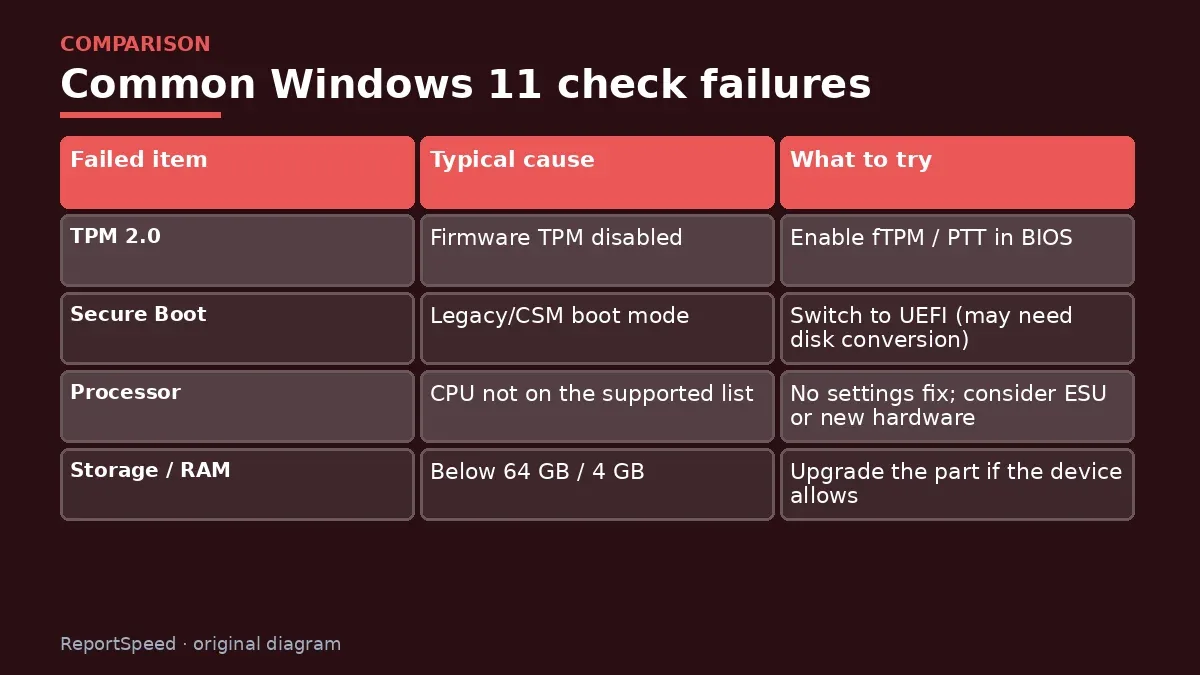
| Failed item | Typical cause | What to try |
|---|---|---|
| TPM 2.0 | Firmware TPM disabled | Enable fTPM / PTT in BIOS |
| Secure Boot | Legacy/CSM boot mode | Switch to UEFI (may need disk conversion) |
| Processor | CPU not on the supported list | No settings fix; consider ESU or new hardware |
| Storage / RAM | Below 64 GB / 4 GB | Upgrade the part if the device allows |
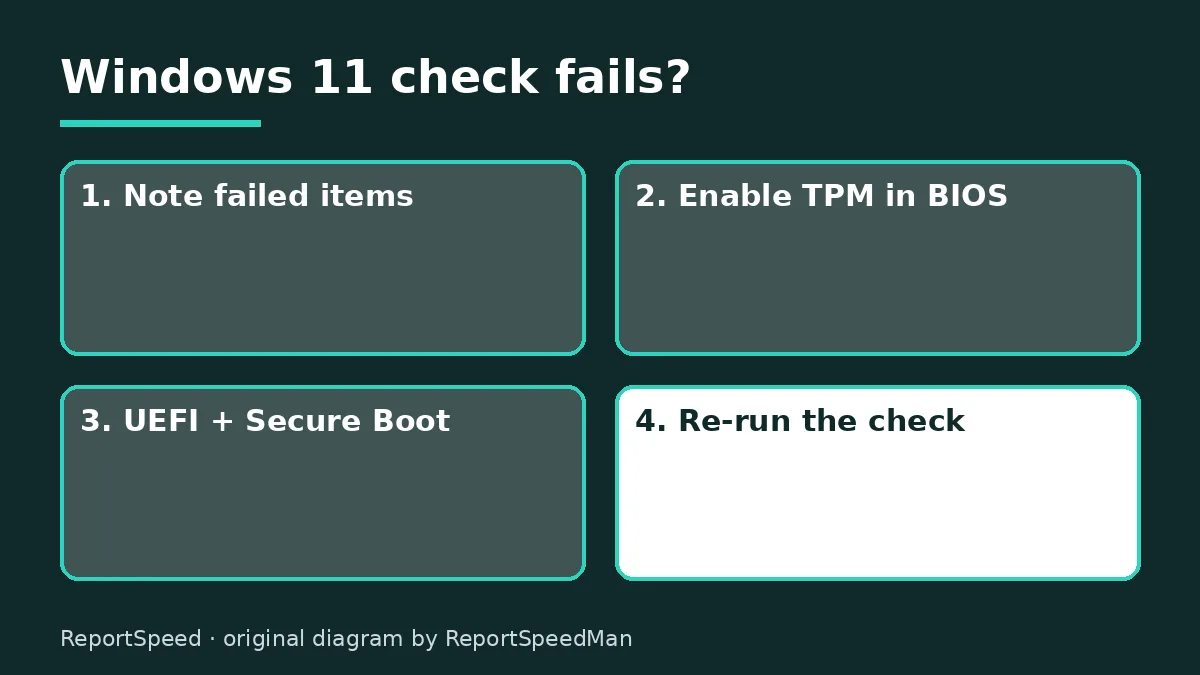
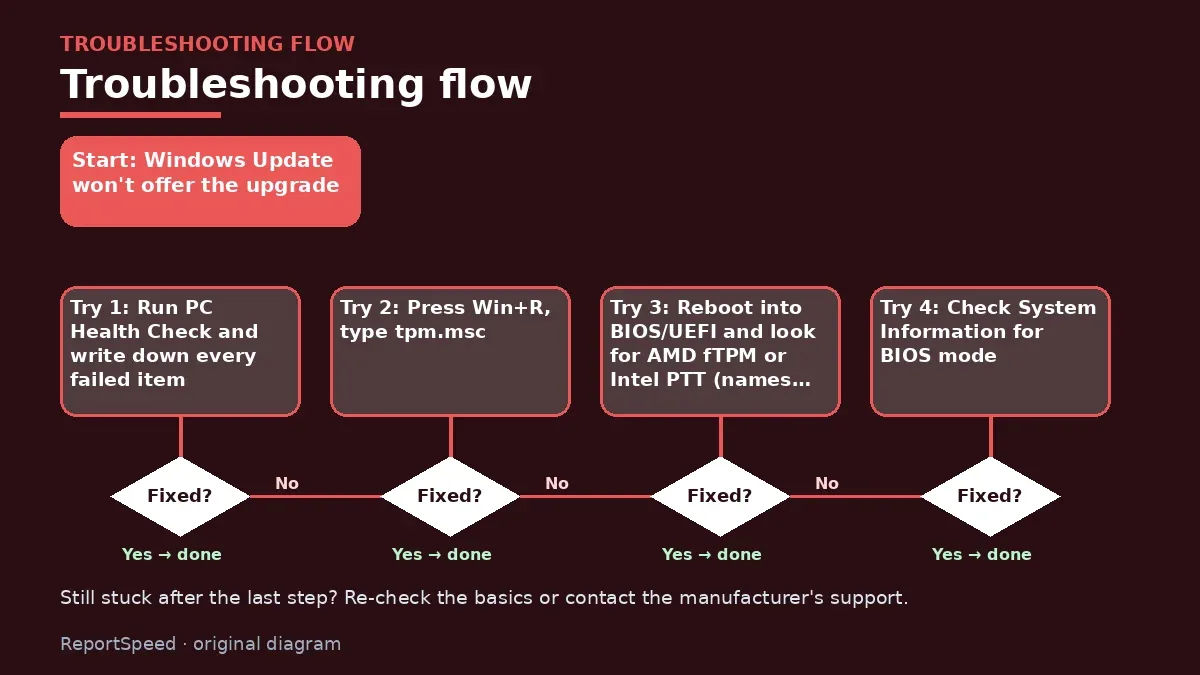
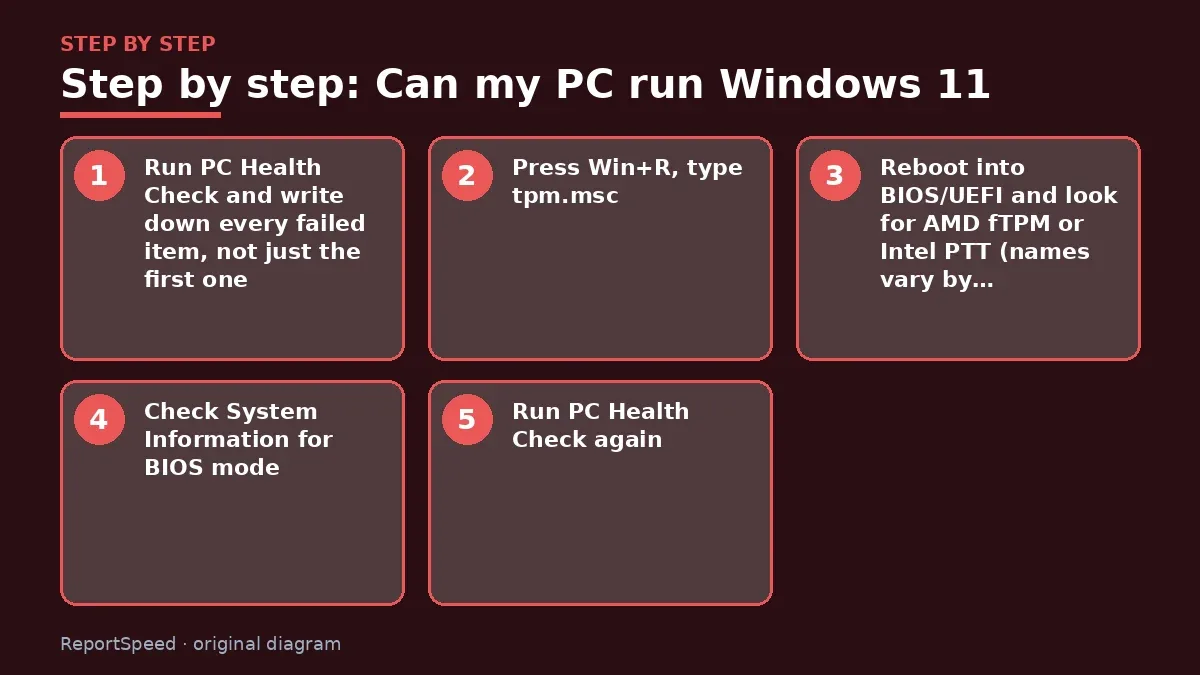
- Run PC Health Check and write down every failed item, not just the first one.
- Press Win+R, type tpm.msc. If it says no compatible TPM is found, it may simply be disabled in firmware.
- Reboot into BIOS/UEFI and look for AMD fTPM or Intel PTT (names vary by motherboard). Enable it and save.
- Check System Information for BIOS mode. If it says Legacy, switching to UEFI may require converting the disk from MBR to GPT, so back up first and follow your motherboard maker's guide.
- Run PC Health Check again. If only the processor fails, that's a hardware limitation.

Common mistakes:
- Flipping to UEFI on an MBR disk without converting, which leaves the PC unable to boot
- Using unofficial bypass ISOs from unknown sources
- Updating BIOS without a stable power source
ReportSpeedMan tip: Take a phone photo of every BIOS screen before you change anything. If something goes wrong, you can put it back exactly how it was.
What I would actually do
open the firmware setup and look for fTPM or PTT before anything else. On many 'unsupported' desktops it is just switched off.
The trade-off people miss: bypass tricks for unsupported CPUs may leave you without guaranteed updates. Saving money that way can cost you security later.
How to tell it worked
It worked when PC Health Check shows all green and Windows Update offers the Windows 11 upgrade. Back up again before upgrading, then check drivers afterward.
Quick FAQ
What is fTPM or PTT?
Firmware-based TPM built into many AMD (fTPM) and Intel (PTT) platforms, often disabled by default.
Do I need to reinstall Windows to switch to UEFI?
Not always; Windows includes a tool to convert MBR to GPT, but back up before trying.
Is Secure Boot required to run Windows 11?
Microsoft's requirements list a UEFI, Secure Boot capable system.
Wrap-up: Find the exact failing requirement, enable TPM and UEFI/Secure Boot if the hardware supports them, and recheck. If the CPU itself is unsupported, ESU or new hardware are the honest options.
Wiki: Windows End of Support.
Can my PC run Windows 11: where the facts come from
Step-by-step photos
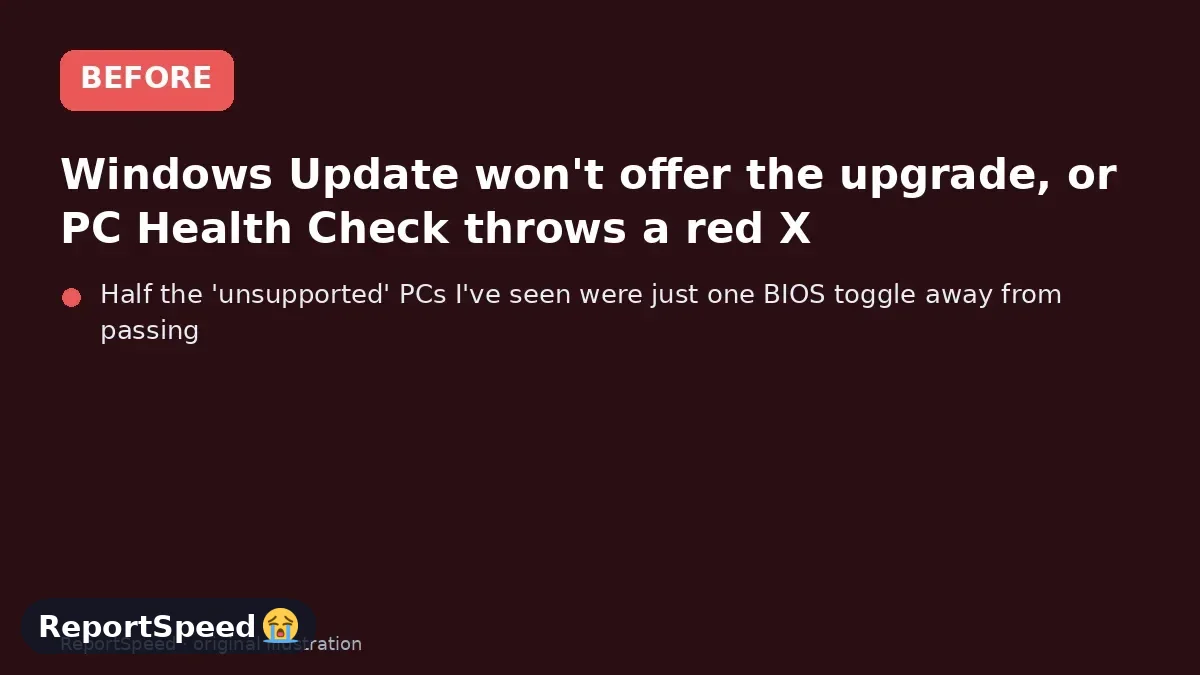
1. Before The problem 
2. Why it happens The cause 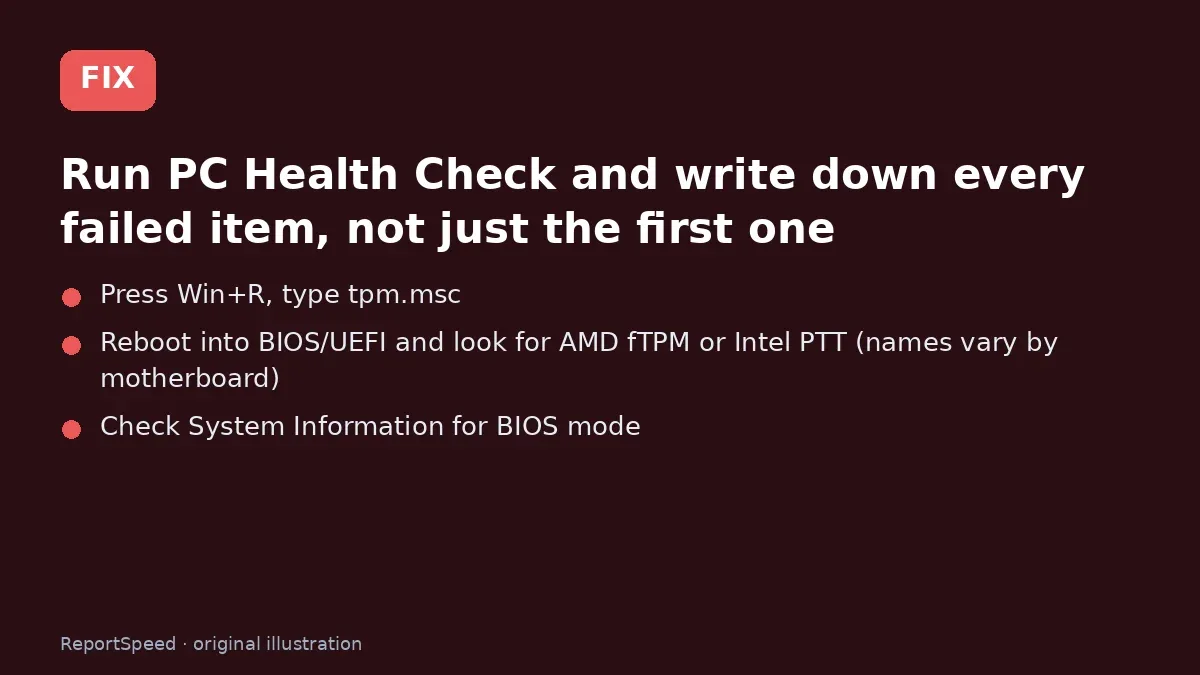
3. The fix The fix 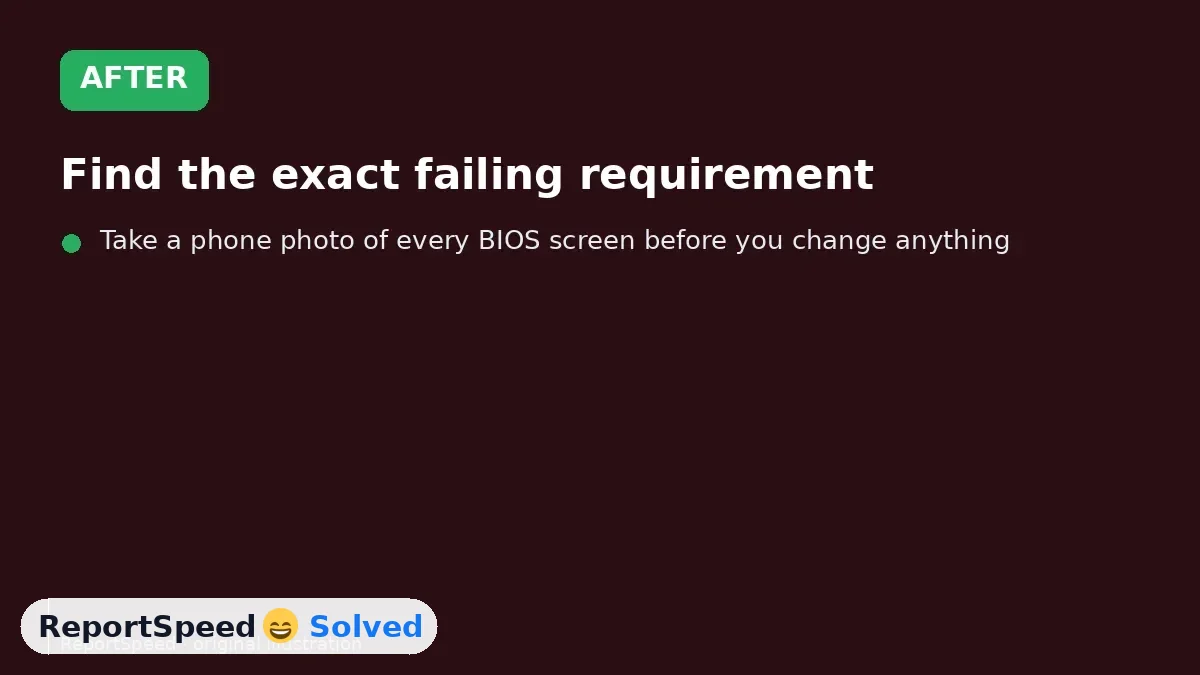
4. After The result
⚡ Speed Summary
- Find the exact failing requirement, enable TPM and UEFI/Secure Boot if the hardware supports them, and recheck.
- Take a phone photo of every BIOS screen before you change anything. If something goes wrong, you can put it back exactly how it was.
- Half the 'unsupported' PCs I've seen were just one BIOS toggle away from passing.

Was this answer helpful?
Tap a star to rate this answer.
Related questions
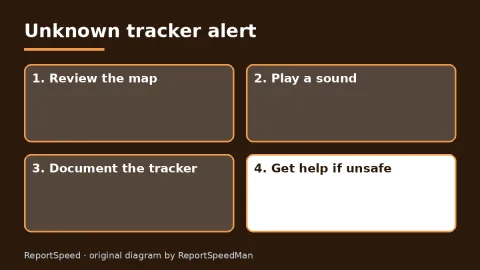
Got an 'AirTag found moving with you' alert? What to do next
Find the tracker, document it, identify the owner, and disable it.
Rate itSolved
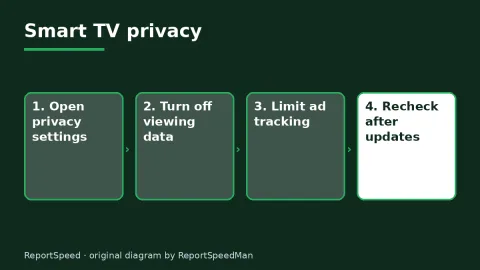
Is my smart TV tracking what I watch? How to turn off ACR
Smart TVs may use ACR to track viewing.
Rate itSolved
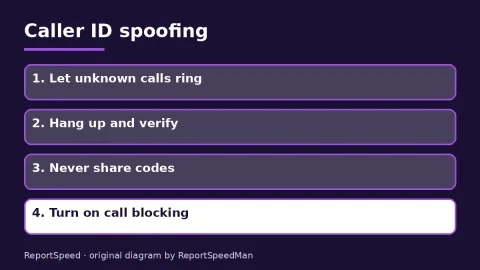
Caller ID spoofing: why scammers show a local number and how to protect yourself
Caller ID can be faked, and spoofing to defraud is illegal.
Rate itSolved

How do I stop spam emails without making it worse?
Mark spam, block repeat senders, unsubscribe only from known companies, and report phishing.
Rate itSolved
Real experiences
No experiences yet. Be the first to share.