


My 11-year-old is getting her first phone for school. I want to limit screen time, block mature apps and know where she is, but without spying on every message. What built-in tools should I use on iPhone or Android, and what settings matter most?
How do I set up parental controls on my kid's first phone?
Concerns & risks
Your child is getting a first phone, you want sensible limits and safety features, and you're not sure which built-in settings to use.
| Age | Common approach |
|---|---|
| Under 10 | Approve all apps, short limits |
| 10–12 | Approvals, downtime, content filters |
| 13+ | Fewer limits, regular check-ins |
| All ages | Charging outside bedroom overnight |
Causes & evidence
Both major platforms include free family tools. Apple's Family Sharing with Screen Time lets parents set app limits, downtime, content restrictions and require approval for purchases with Ask to Buy. Google Family Link does similar for Android, including app approvals, screen time limits and location sharing. These tools work best when set up from the start on a child account. Experts also suggest talking with kids about why limits exist, since the goal is gradually building good judgement around screen time.
Apple and Google update family controls regularly, so check settings after major updates. Location sharing and content filters work best combined with open conversation.
Handing over a phone with an adult account and no family setup makes adding controls later much harder.
What to do

| Feature | Apple (Family Sharing + Screen Time) | Google (Family Link) |
|---|---|---|
| Screen time limits | Downtime and app limits | Daily limits and bedtime |
| App approvals | Ask to Buy | Approve app downloads |
| Content filters | Content & Privacy Restrictions | Google Play and Chrome filters |
| Location | Find My | Location sharing |
| Cost | Free | Free |
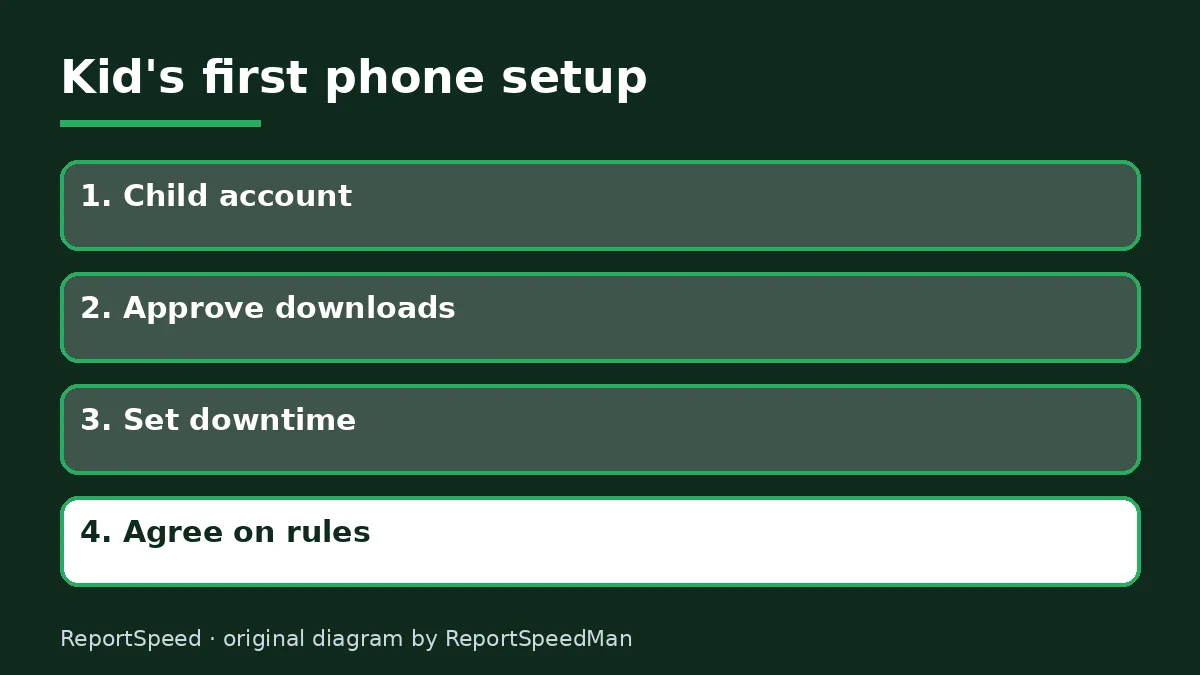
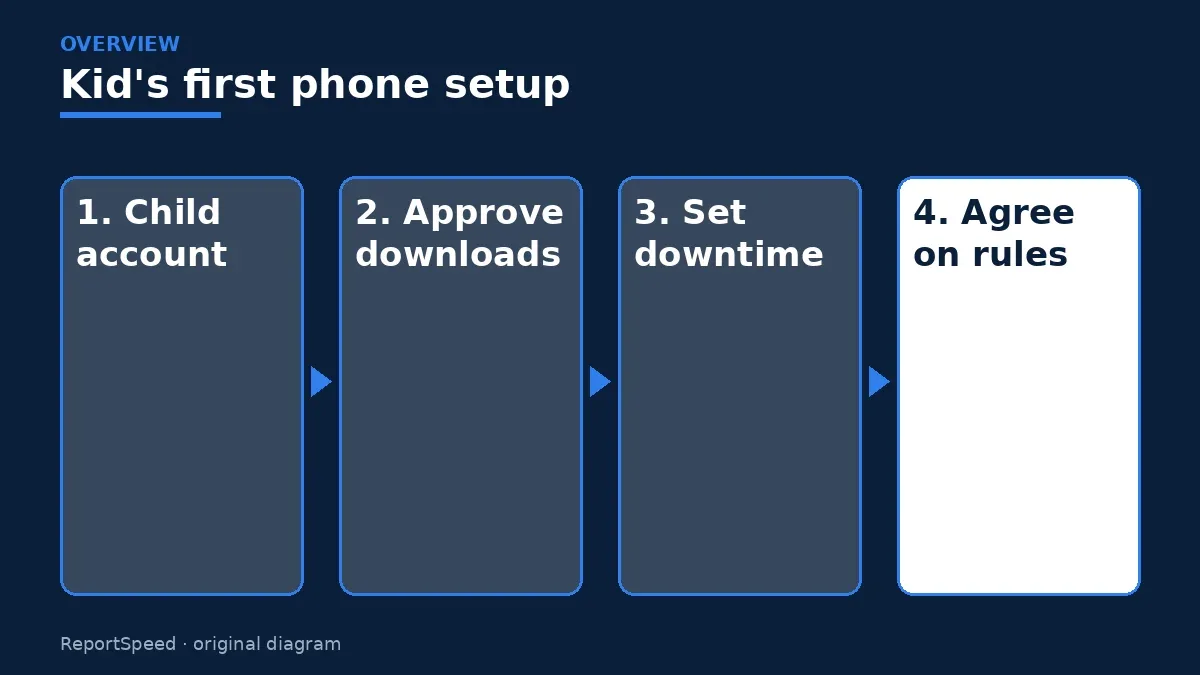
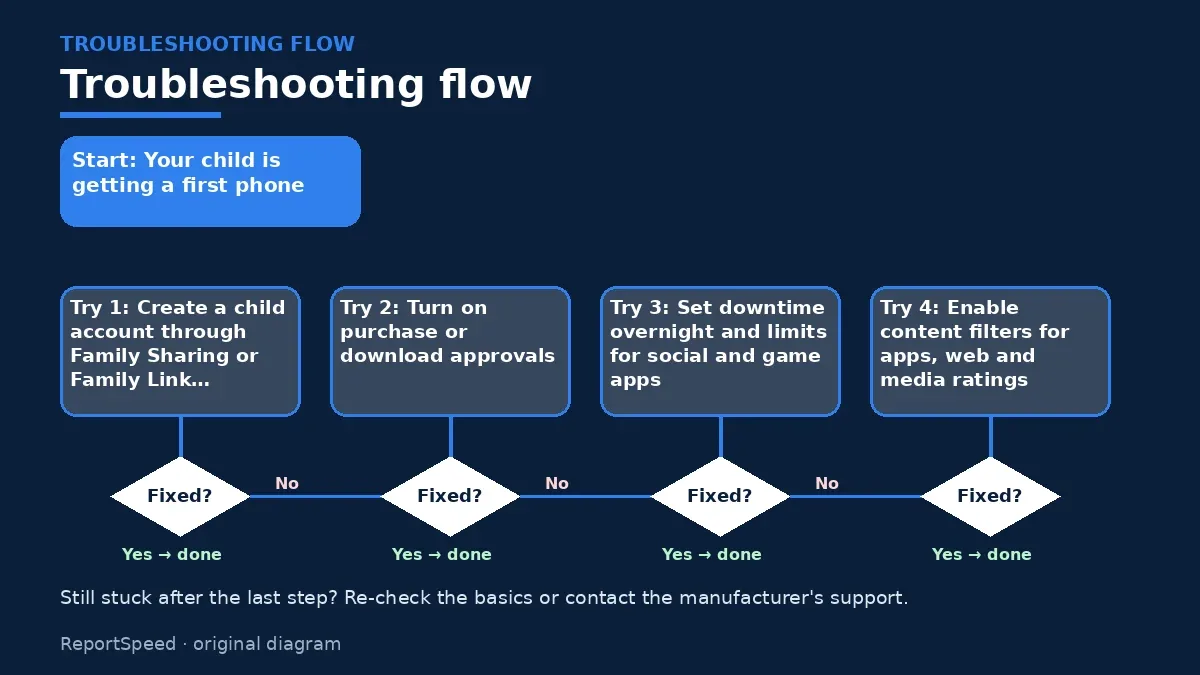
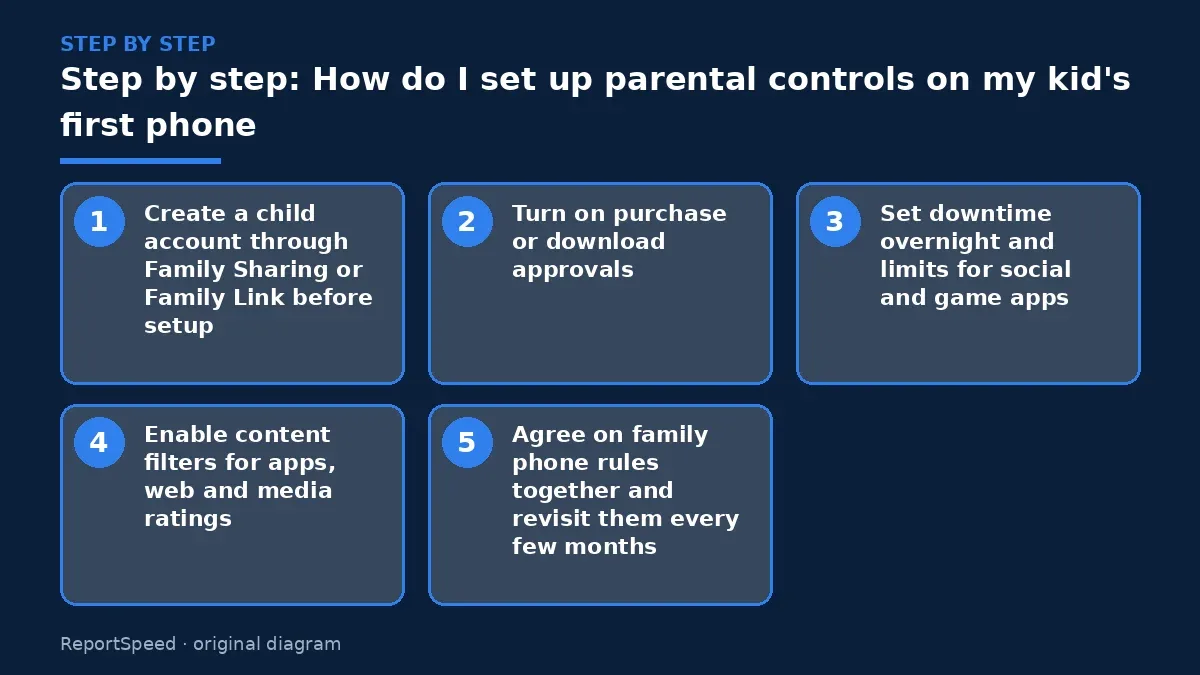
- Create a child account through Family Sharing or Family Link before setup.
- Turn on purchase or download approvals.
- Set downtime overnight and limits for social and game apps.
- Enable content filters for apps, web and media ratings.
- Agree on family phone rules together and revisit them every few months.
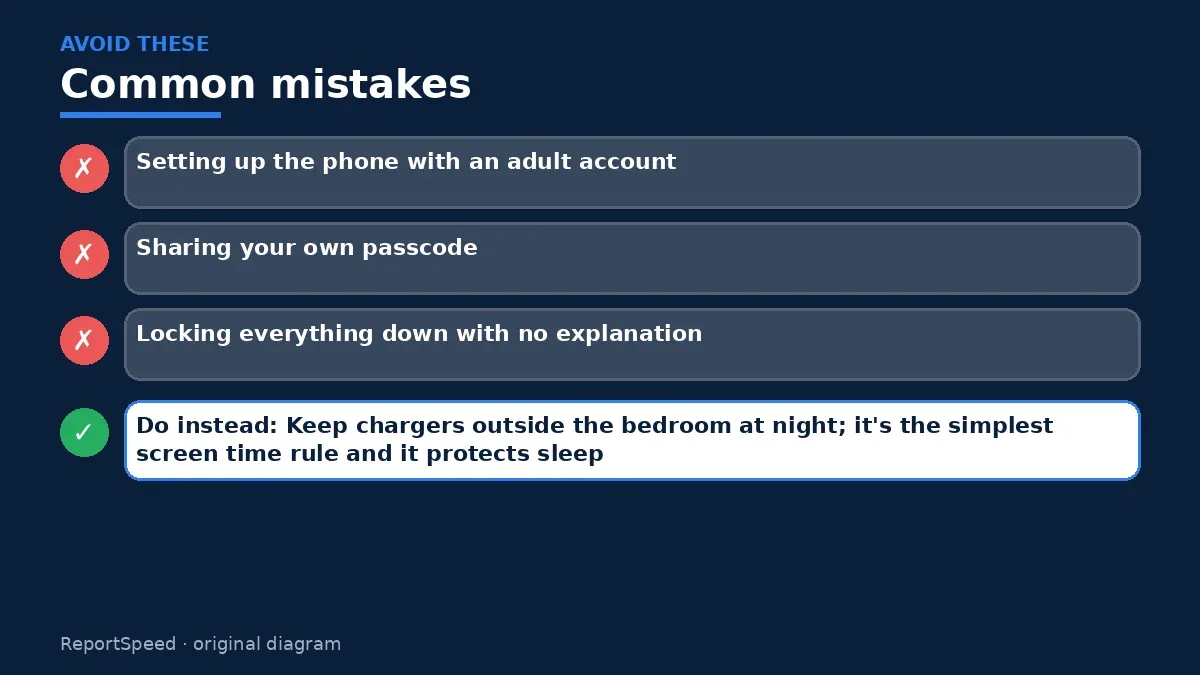
Common mistakes:
- Setting up the phone with an adult account
- Sharing your own passcode
- Locking everything down with no explanation
ReportSpeedMan tip: Keep chargers outside the bedroom at night; it's the simplest screen time rule and it protects sleep.
What I would actually do
create a child account, turn on approvals, overnight downtime and content filters, then sit down together and agree on the rules.
The trade-off people miss: heavy restrictions with no explanation can push kids to workarounds; trust and gradual freedom work better long term.
Signs it worked
Your child's phone runs on a child account with approvals, downtime and filters set.
Quick FAQ
Can my child turn controls off?
Not without the parent's passcode or account.
Do I need paid apps?
Built-in tools cover most needs.
What age for social media?
Check each app's age rules and your family's comfort.
Wrap-up: Use the free built-in family tools, set them up on a child account from day one and pair them with honest conversations.
Wiki: Multi-Factor Authentication (MFA).
How do I set up parental controls on my kid's first phone: official pages behind this answer
Step-by-step photos
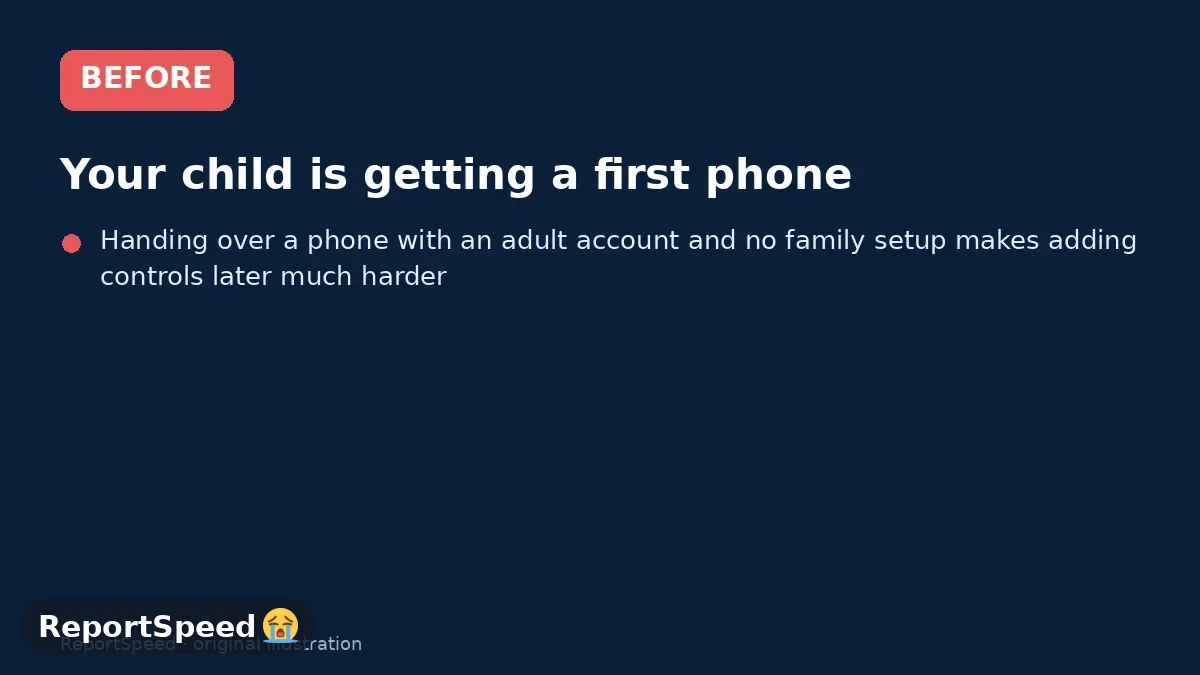
1. Before The problem 
2. Why it happens The cause 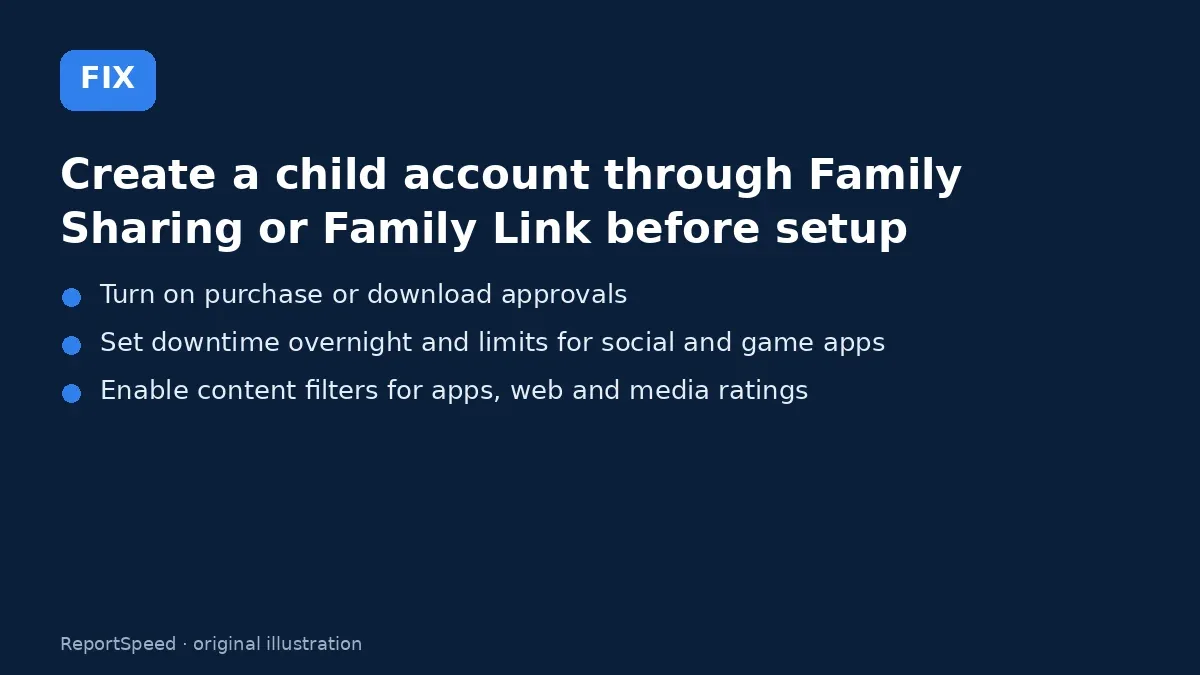
3. The fix The fix 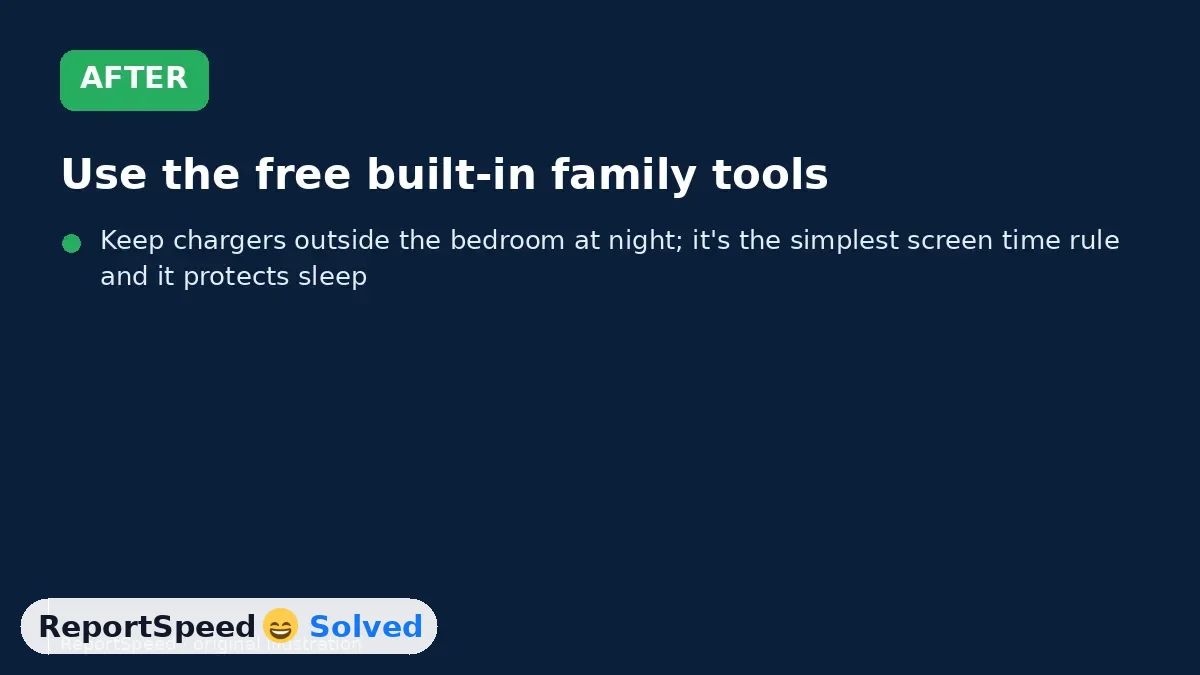
4. After The result
⚡ Speed Summary
- Use the free built-in family tools, set them up on a child account from day one and pair them with honest conversations.
- Keep chargers outside the bedroom at night; it's the simplest screen time rule and it protects sleep.
- Handing over a phone with an adult account and no family setup makes adding controls later much harder.

Was this answer helpful?
Tap a star to rate this answer.
Related questions
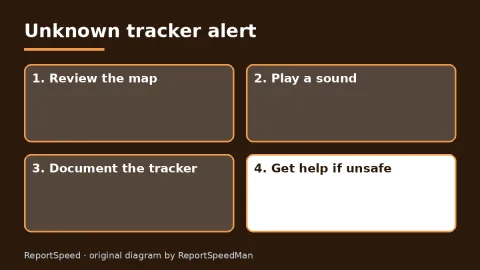
Got an 'AirTag found moving with you' alert? What to do next
Find the tracker, document it, identify the owner, and disable it.
Rate itSolved
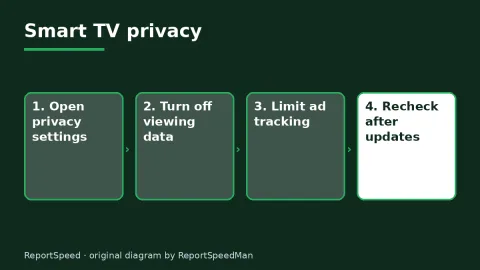
Is my smart TV tracking what I watch? How to turn off ACR
Smart TVs may use ACR to track viewing.
Rate itSolved
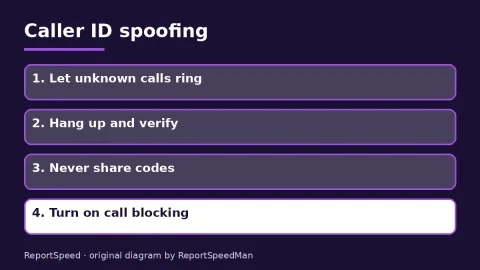
Caller ID spoofing: why scammers show a local number and how to protect yourself
Caller ID can be faked, and spoofing to defraud is illegal.
Rate itSolved
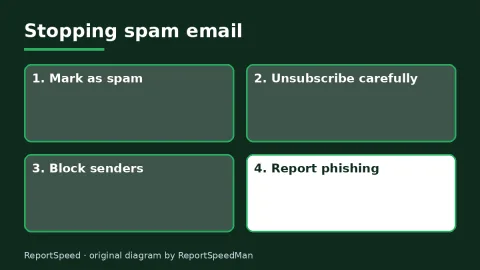
How do I stop spam emails without making it worse?
Mark spam, block repeat senders, unsubscribe only from known companies, and report phishing.
Rate itSolved
Real experiences
No experiences yet. Be the first to share.