


How much VRAM do I need for 1440p (and maybe 4K later)? My current card has a modest amount and in a couple of newer games I get these random hitches and blurry textures that pop in late, even though average FPS looks okay. Is that the VRAM running out or something else? I'm shopping for a new card and spec sheets all throw memory numbers at me, so I'd like to understand what actually matters.
How much VRAM do I need for 1440p and 4K gaming? How to check if you're running out
Concerns & risks
You're on 1440p or 4K, settings menus show a VRAM bar going red, and you notice muddy textures, sudden hitches when turning the camera, or a game that crashes only on its highest texture setting.
| Symptom | Likely VRAM issue? | Fix to try |
|---|---|---|
| Textures load blurry or pop in late | Yes | Drop texture quality one step |
| Sudden stutter after new areas load | Often | Lower texture or RT settings |
| Steady low FPS everywhere | Unlikely | That is raw GPU or CPU limit |
| Game warns memory usage exceeds budget | Yes | Trust the in-game VRAM meter |

Causes & evidence
Video memory holds textures, geometry and effects the GPU needs right now. When a game wants more than the card has, data spills over to slower system memory and you get hitches or downgraded textures. Higher resolution, ray tracing, high-resolution texture packs and frame generation all increase VRAM use. There isn't one magic number, because each game is different, so compare the game's official requirements with your card's listed memory on the manufacturer page.
Running out of VRAM tends to show up as sudden stutter, textures that look blurry or pop in late, or big frame-time spikes when you turn quickly, rather than a steady low frame rate. Texture quality is usually the setting that uses the most memory, so it's the first slider to try. Upscaling at a lower internal resolution can also reduce memory pressure.
Before you blame the card, there's one in-game slider that usually fixes this instantly.
What to do
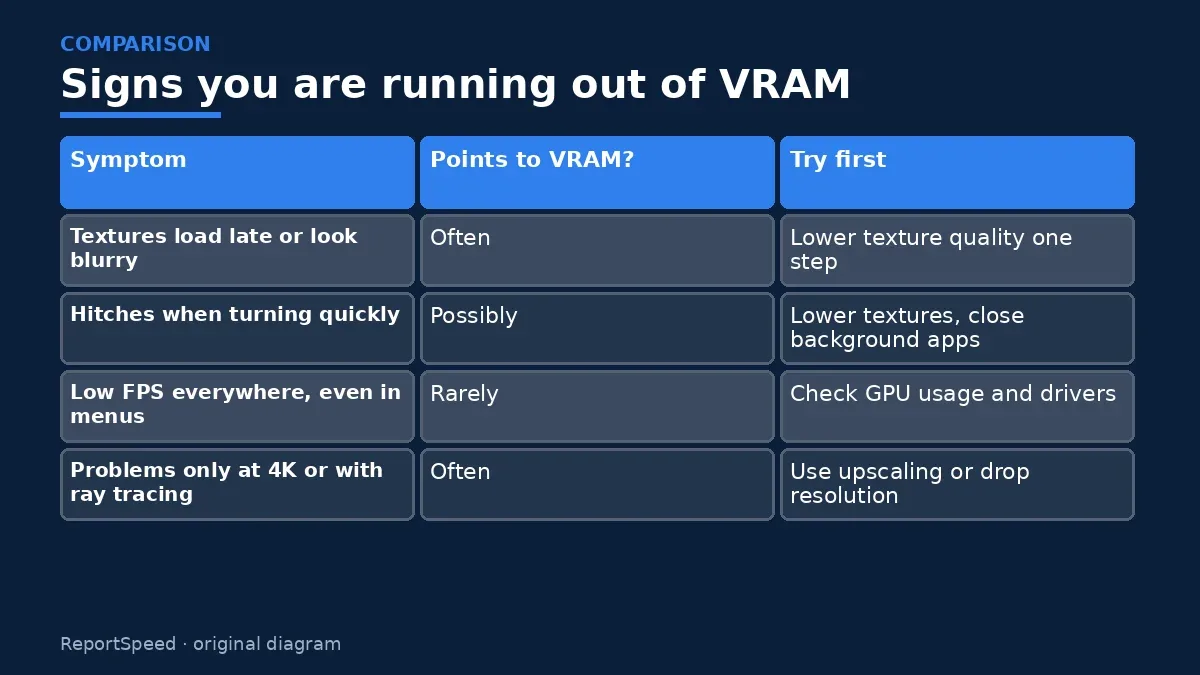
| Symptom | Points to VRAM? | Try first |
|---|---|---|
| Textures load late or look blurry | Often | Lower texture quality one step |
| Hitches when turning quickly | Possibly | Lower textures, close background apps |
| Low FPS everywhere, even in menus | Rarely | Check GPU usage and drivers |
| Problems only at 4K or with ray tracing | Often | Use upscaling or drop resolution |
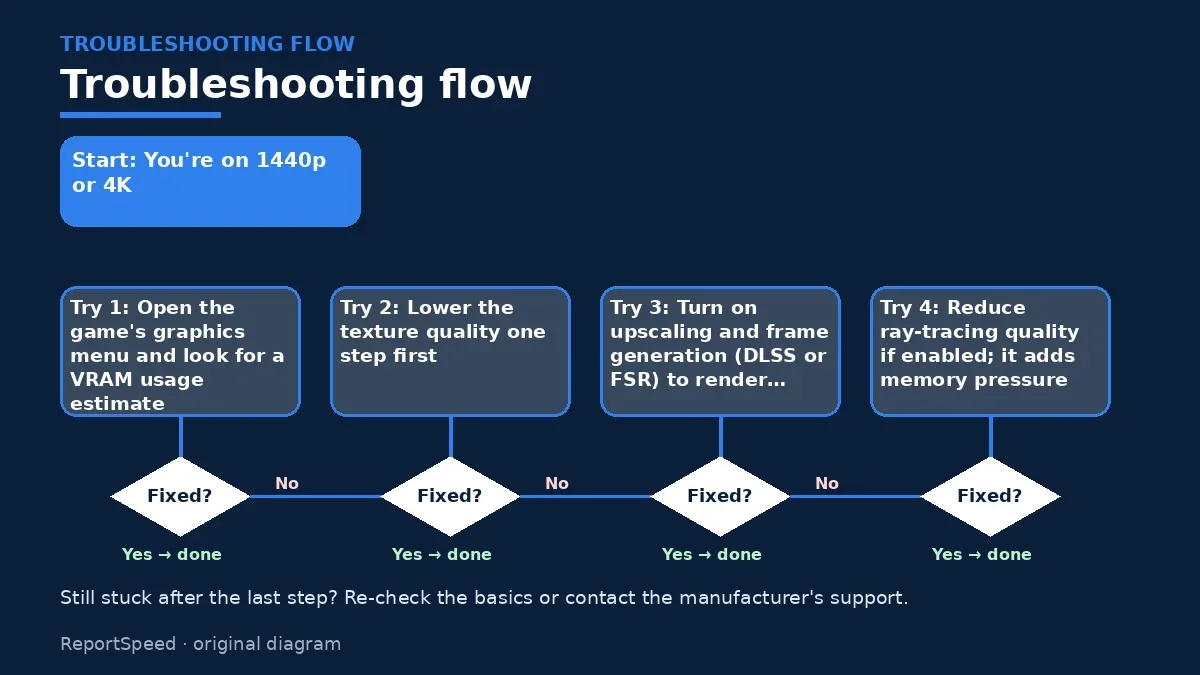
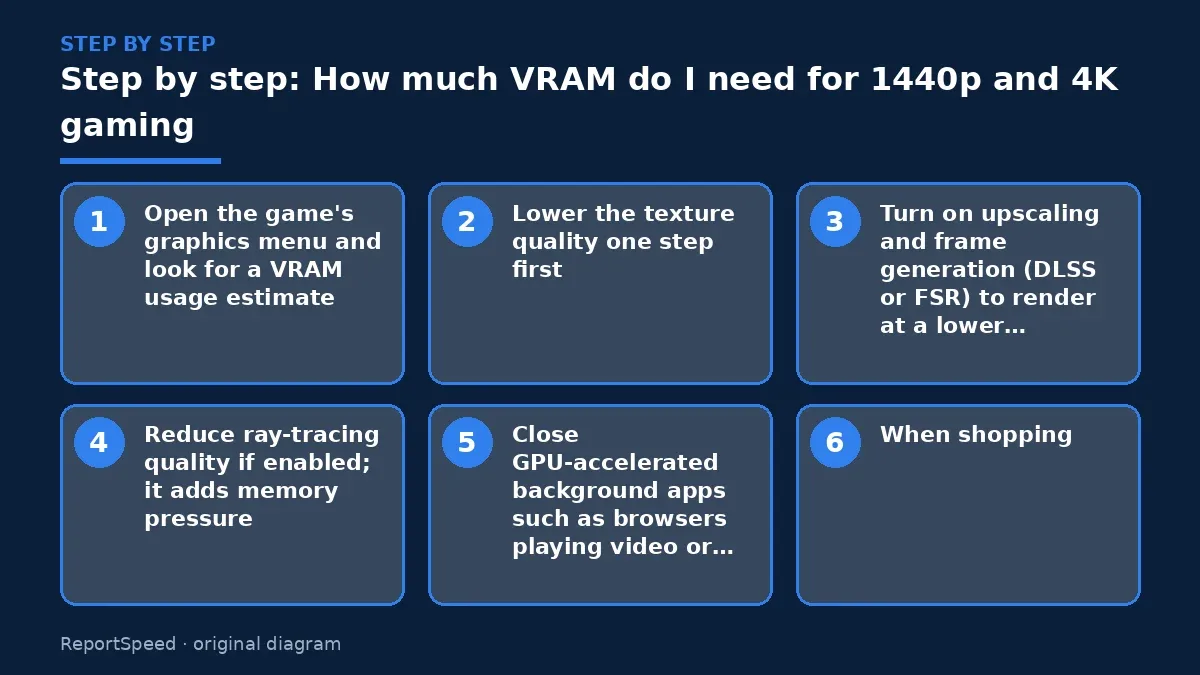
- Open the game's graphics menu and look for a VRAM usage estimate.
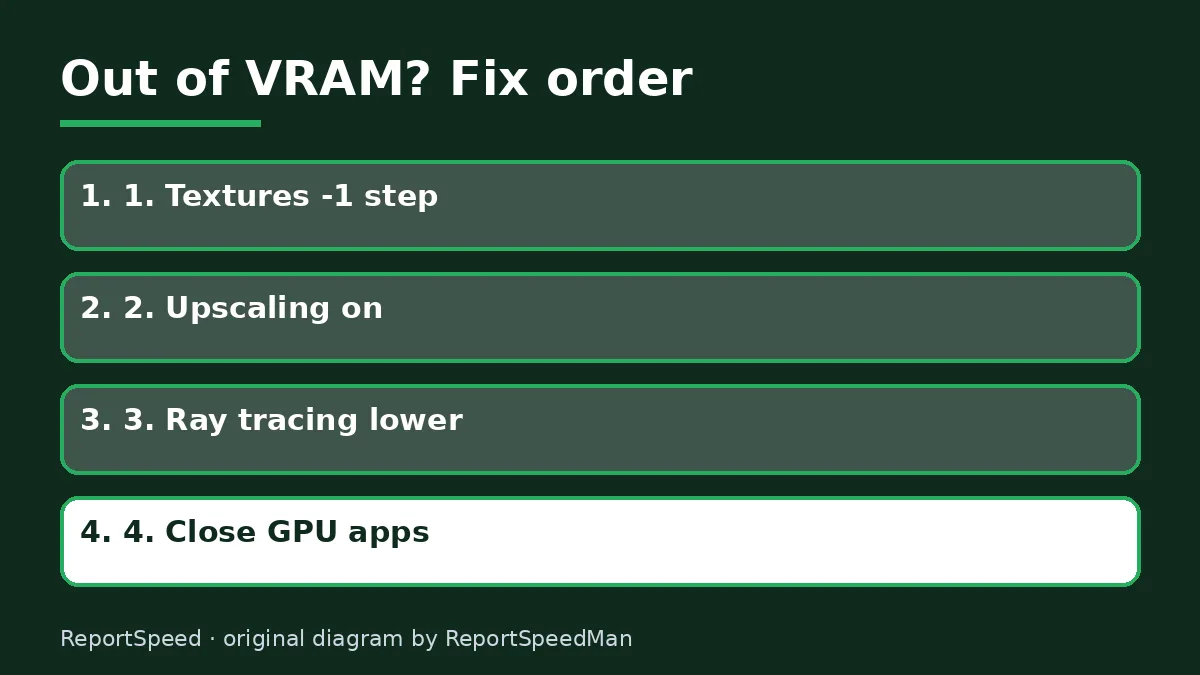
- Lower the texture quality one step first. It's usually the biggest VRAM consumer and often looks nearly identical.
- Turn on upscaling and frame generation (DLSS or FSR) to render at a lower internal resolution.
- Reduce ray-tracing quality if enabled; it adds memory pressure.
- Close GPU-accelerated background apps such as browsers playing video or streaming overlays.
- When shopping, check the game's official recommended specs and the card's memory capacity on the official spec page.

Common mistakes: Maxing every slider because the card is new; installing optional 4K texture packs on a card with modest memory; confusing system RAM with VRAM.
ReportSpeedMan tip: If the game shows a VRAM bar, keep a small safety margin under the max instead of filling it to the brim. Stutters often start right at the edge.
What I would actually do
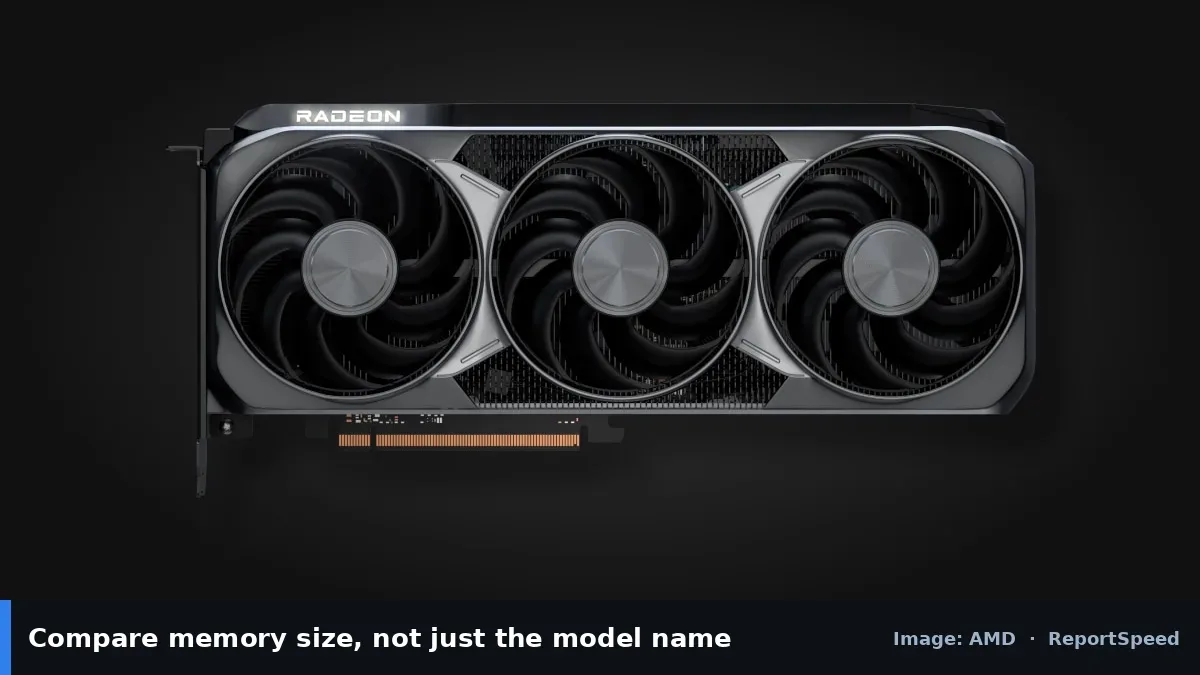
buy for the VRAM your next few years of games need, not the one you play today. When two cards are close, I'd take the one with more memory for 1440p and up.
The trade-off people miss: textures are the setting that eats VRAM but costs little FPS, so more VRAM often buys you better-looking games rather than faster ones.
Quick FAQ
Does more VRAM increase FPS?
Not on its own. It prevents slowdowns when a game needs more memory than the card has.
Is the in-game VRAM meter accurate?
It's an estimate. Use it as a guide, then confirm with real gameplay and frame-time behavior.
Can system RAM replace VRAM?
Games can spill into system memory, but it's much slower, which is exactly what causes the stutter.
Wrap-up: VRAM need depends on resolution, textures and ray tracing. Drop textures one notch, use upscaling, and buy cards based on official requirements for the games you actually play.
Wiki: GPU Upscaling and Frame Generation.
How much VRAM do I need for 1440p and 4K gaming: primary sources
Step-by-step photos
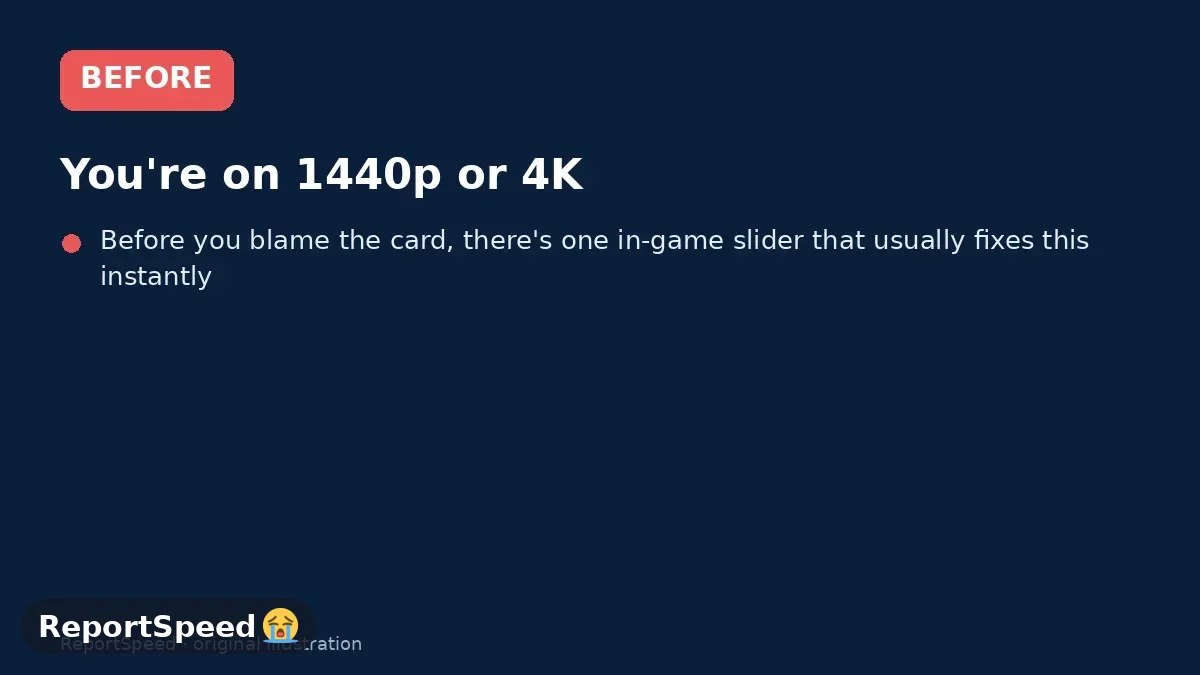
1. Before The problem 
2. Why it happens The cause 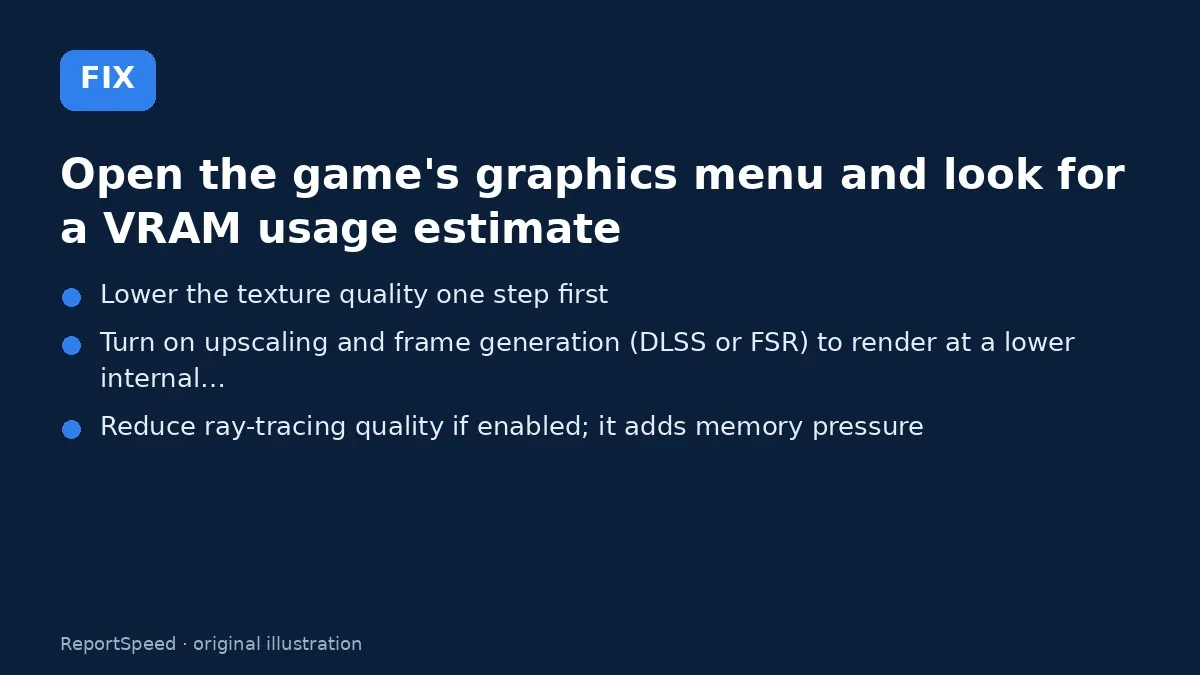
3. The fix The fix 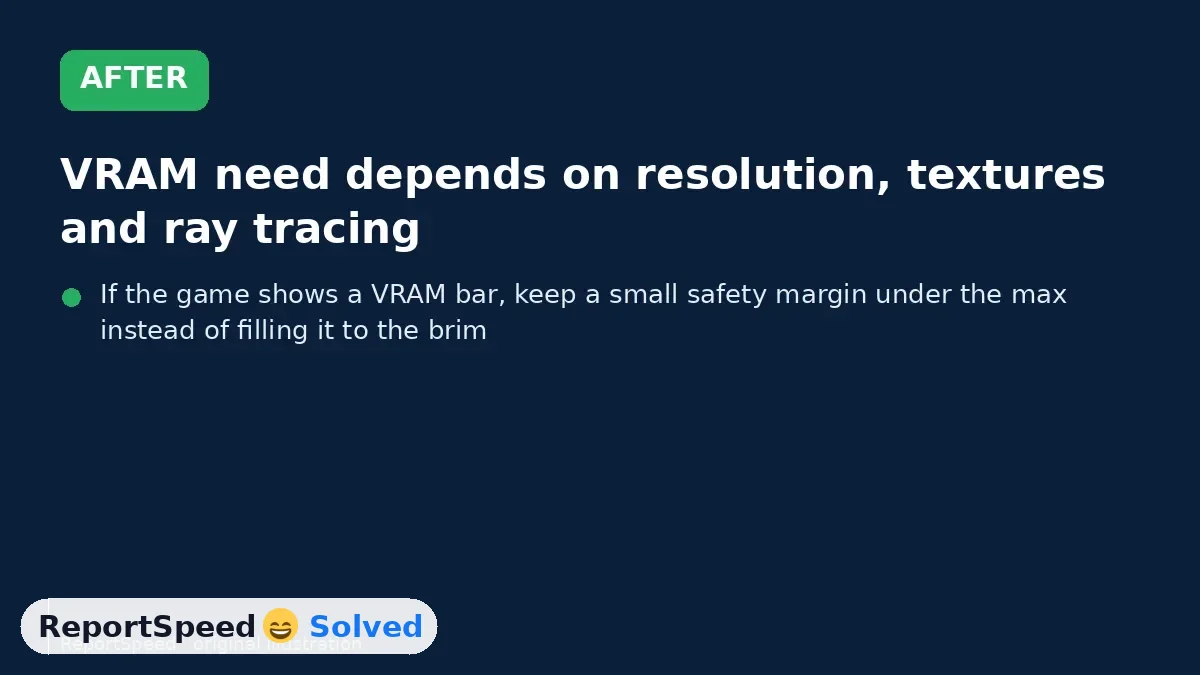
4. After The result
⚡ Speed Summary
- VRAM need depends on resolution, textures and ray tracing.
- If the game shows a VRAM bar, keep a small safety margin under the max instead of filling it to the brim. Stutters often start right at the edge.
- Before you blame the card, there's one in-game slider that usually fixes this instantly.

Was this answer helpful?
Tap a star to rate this answer.
Related questions
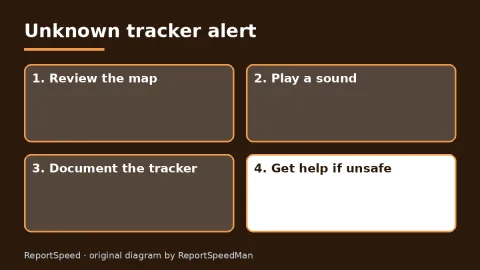
Got an 'AirTag found moving with you' alert? What to do next
Find the tracker, document it, identify the owner, and disable it.
Rate itSolved
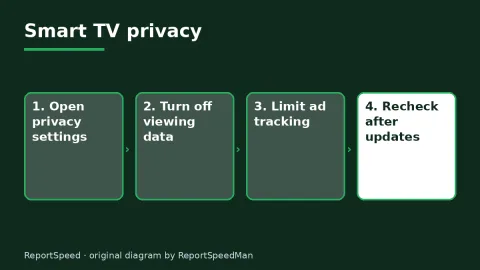
Is my smart TV tracking what I watch? How to turn off ACR
Smart TVs may use ACR to track viewing.
Rate itSolved
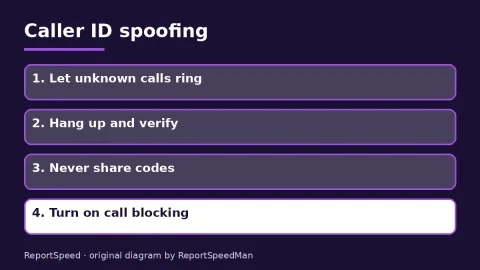
Caller ID spoofing: why scammers show a local number and how to protect yourself
Caller ID can be faked, and spoofing to defraud is illegal.
Rate itSolved

How do I stop spam emails without making it worse?
Mark spam, block repeat senders, unsubscribe only from known companies, and report phishing.
Rate itSolved
Real experiences
No experiences yet. Be the first to share.