


144Hz vs 240Hz monitor, is the jump worth it? I play mostly shooters and some single-player games. My GPU is mid-range. I don't want to pay for frames my PC can't even push. Will I notice 240 or is that a pro gamer thing?
144Hz vs 240Hz monitor: which refresh rate do I actually need?

Concerns & risks
You're picking a gaming monitor and the refresh rate options keep climbing: 144, 165, 240, 360 Hz.
| Player | Pick | Why |
|---|---|---|
| Casual, single-player | 144Hz | Smooth enough, cheaper |
| Competitive shooters, high FPS | 240Hz | Benefit shows only at high FPS |
| Mid-range GPU | 144Hz | Can't feed 240 FPS often |
| Mixed work and play | 144Hz to 180Hz | Best value zone |
Causes & evidence
Refresh rate is how many times per second the screen updates. A higher number only helps if your GPU produces frames close to that rate in your games. In esports titles at modest settings, many mid-range cards hit high frame rates; in demanding single-player games, they may not. Response time also matters, because slow pixel transitions blur motion regardless of refresh rate. Variable refresh technologies (via DisplayPort Adaptive-Sync or HDMI 2.1 VRR) smooth out mismatches between GPU output and the display.
Motion clarity is the combined result of refresh rate, response time and frame rate consistency. A monitor with a high refresh rate but slow pixel response can still smear. Check the response time and overdrive settings in reviews of the exact model, and make sure your GPU drivers support VRR on your connection.
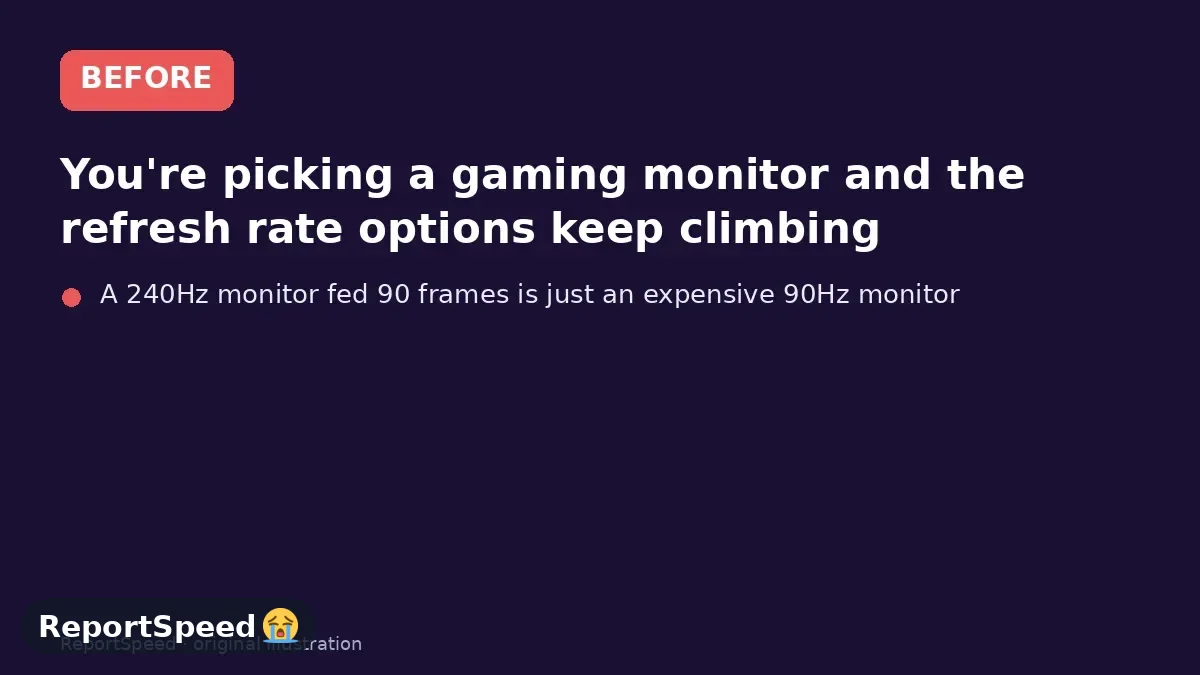
A 240Hz monitor fed 90 frames is just an expensive 90Hz monitor.
What to do
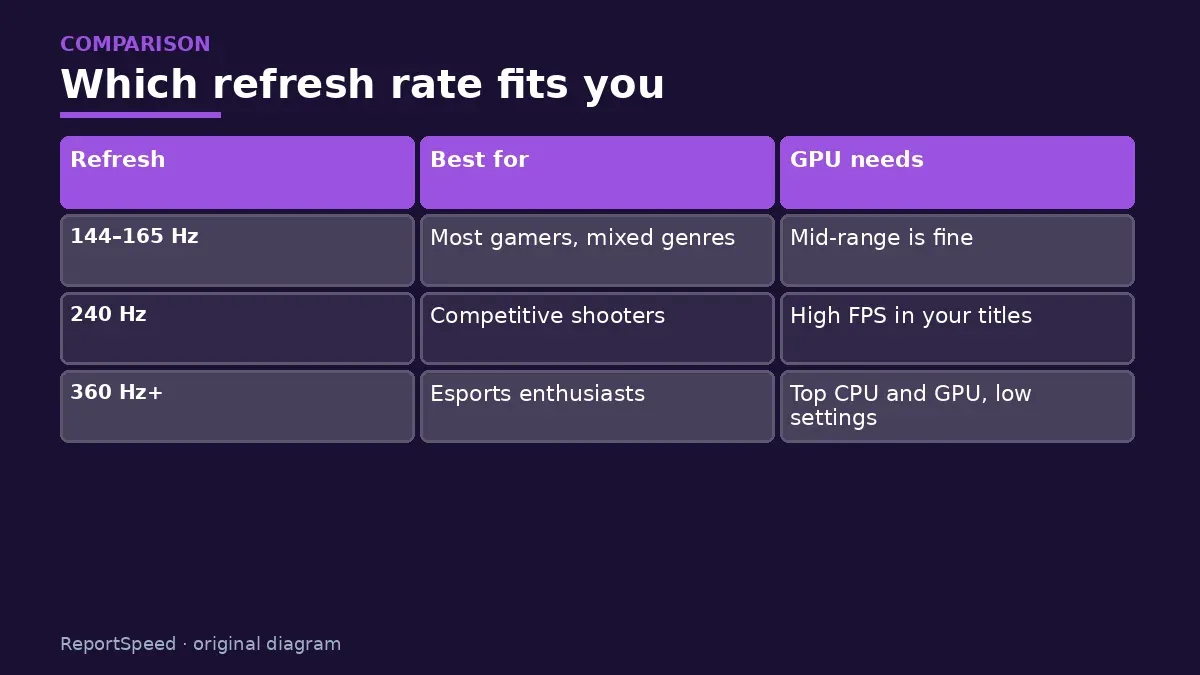
| Refresh | Best for | GPU needs |
|---|---|---|
| 144–165 Hz | Most gamers, mixed genres | Mid-range is fine |
| 240 Hz | Competitive shooters | High FPS in your titles |
| 360 Hz+ | Esports enthusiasts | Top CPU and GPU, low settings |
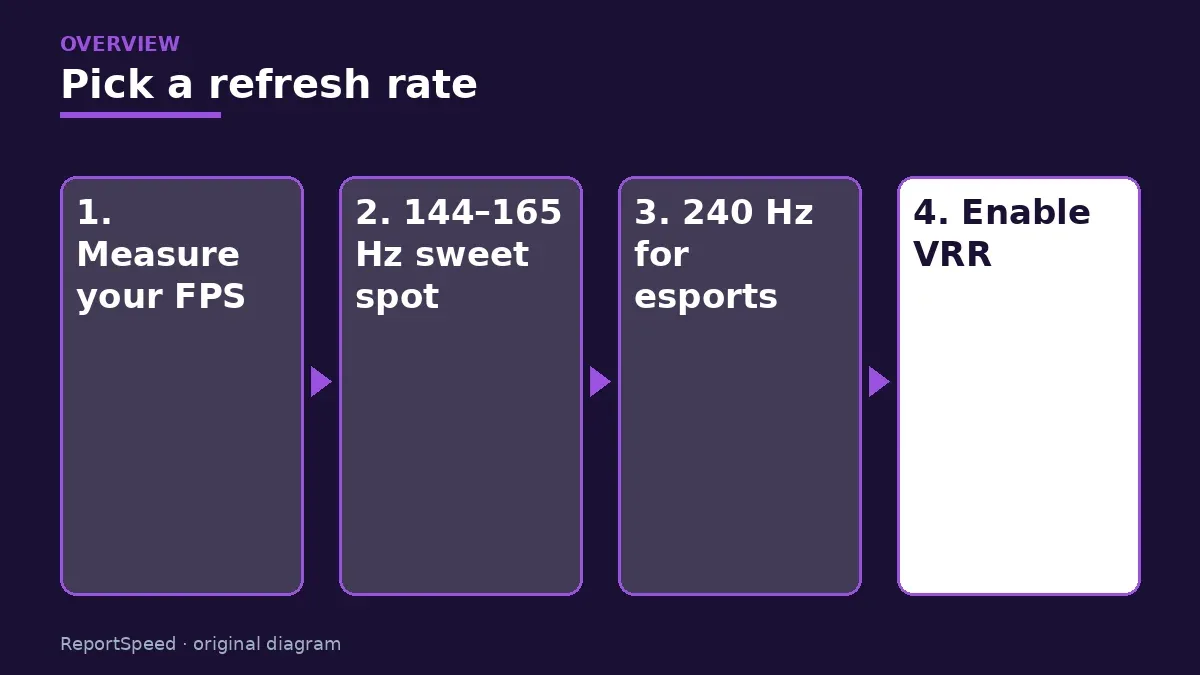
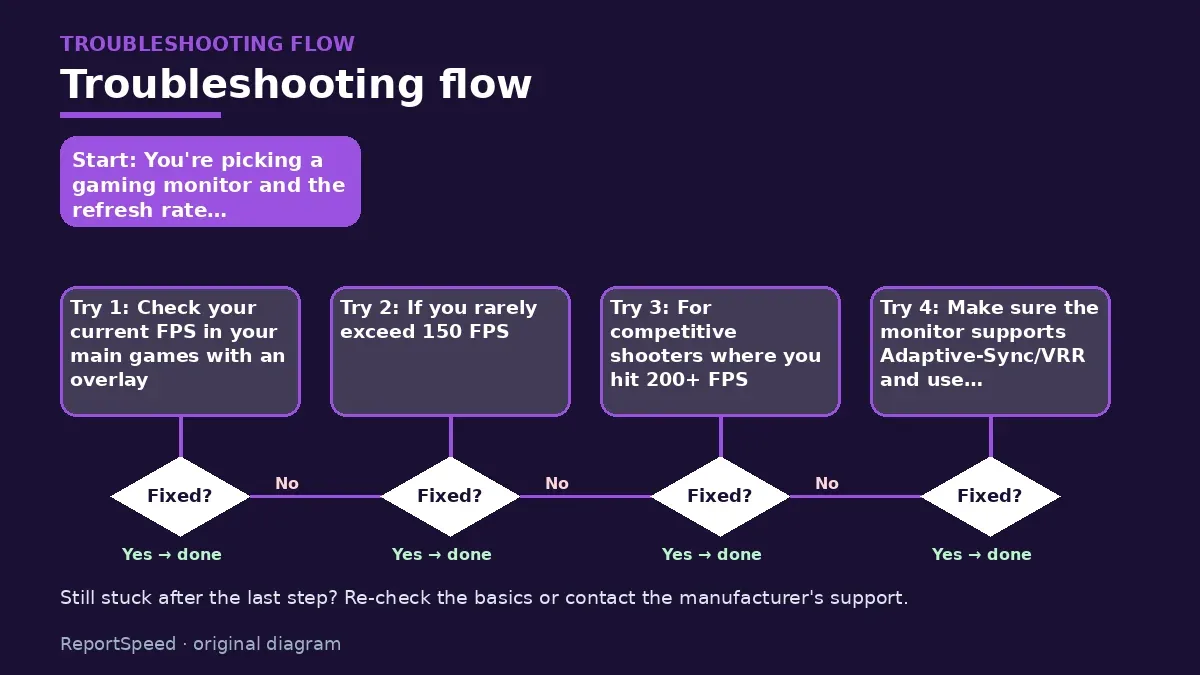
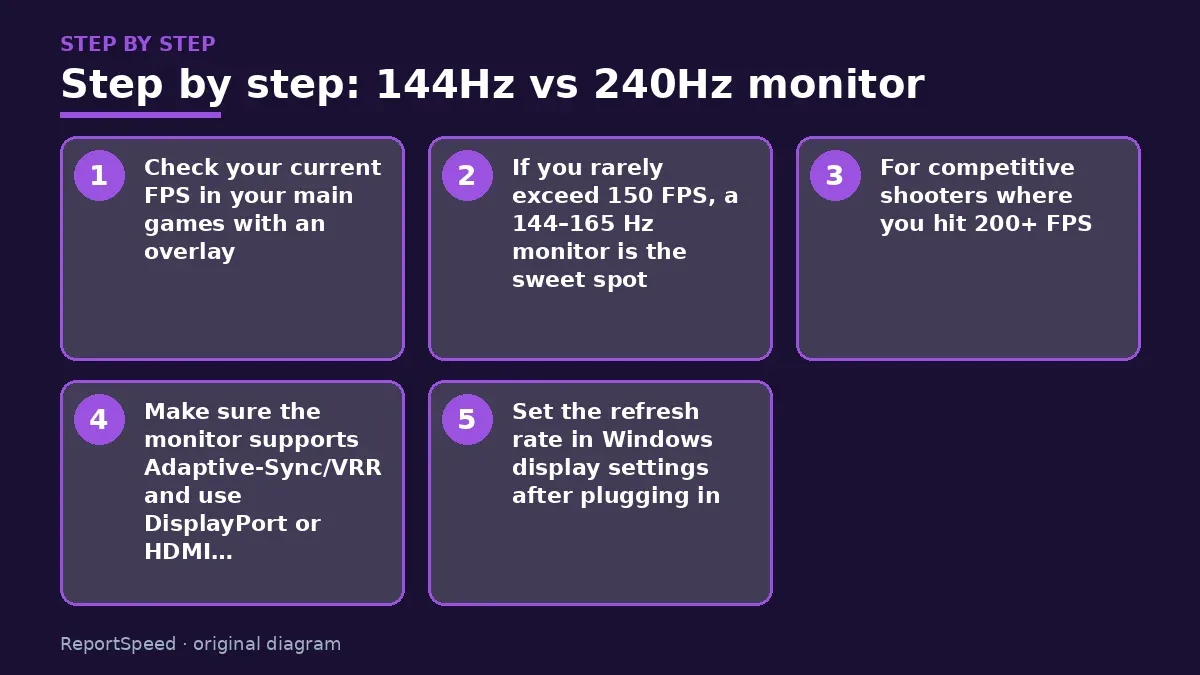
- Check your current FPS in your main games with an overlay.
- If you rarely exceed 150 FPS, a 144–165 Hz monitor is the sweet spot.
- For competitive shooters where you hit 200+ FPS, 240 Hz can feel noticeably smoother.
- Make sure the monitor supports Adaptive-Sync/VRR and use DisplayPort or HDMI 2.1 for high refresh.
- Set the refresh rate in Windows display settings after plugging in, since it can default lower.
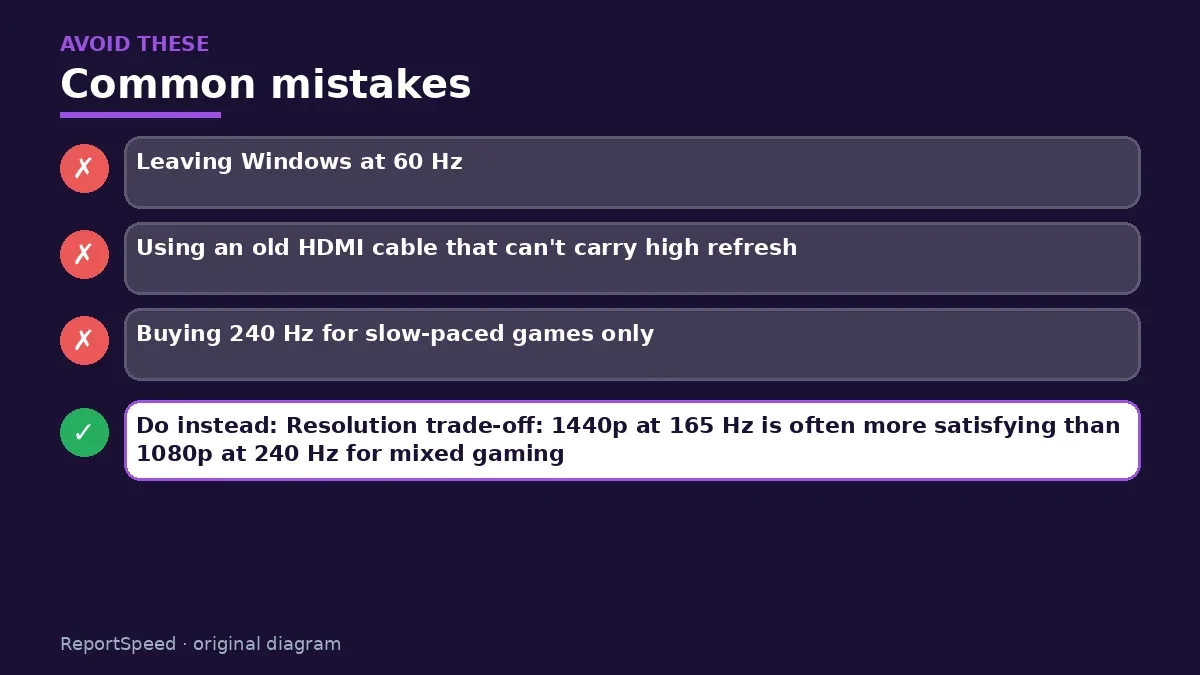
Common mistakes:
- Leaving Windows at 60 Hz
- Using an old HDMI cable that can't carry high refresh
- Buying 240 Hz for slow-paced games only
ReportSpeedMan tip: Resolution trade-off: 1440p at 165 Hz is often more satisfying than 1080p at 240 Hz for mixed gaming.
What I would actually do
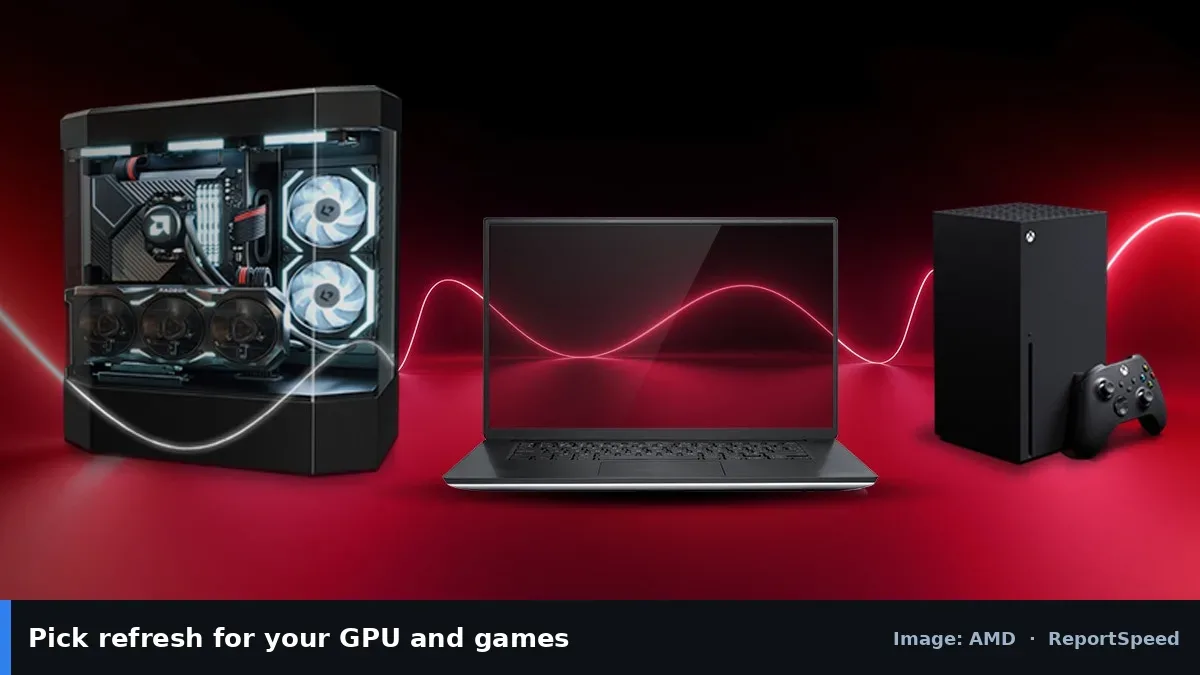
144Hz to 180Hz for most players, and 240Hz only when my GPU regularly delivers that frame rate in the games I play.
The trade-off people miss: a high refresh rate needs matching FPS. Without it, the expensive panel just waits for frames.
How to know it worked
Confirm Windows shows the monitor's full refresh rate, VRR is enabled in the GPU control panel, and motion feels smooth in your main game.
Quick FAQ
Do I need 240 Hz for casual gaming?
Usually no; 144–165 Hz is plenty for most.
Will 240 Hz help on a console?
Consoles typically top out lower; check your console's output specs.
Is G-Sync or FreeSync required?
Not required, but VRR reduces tearing and stutter.
Wrap-up: Match refresh rate to the frame rates your PC actually produces. For most mid-range setups, 144–165 Hz is the smart buy; go 240 Hz for competitive play.
Wiki: Refresh Rate and Response Time.
144Hz vs 240Hz monitor: primary sources
Step-by-step photos
1. Before The problem 
2. Why it happens The cause 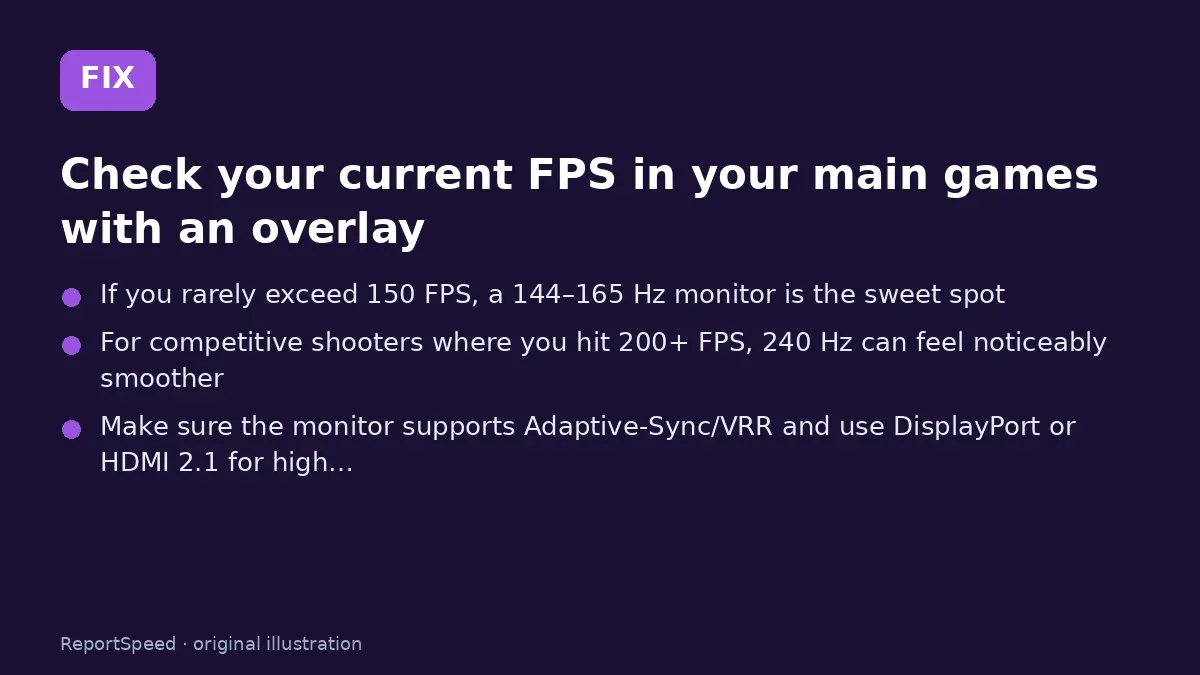
3. The fix The fix 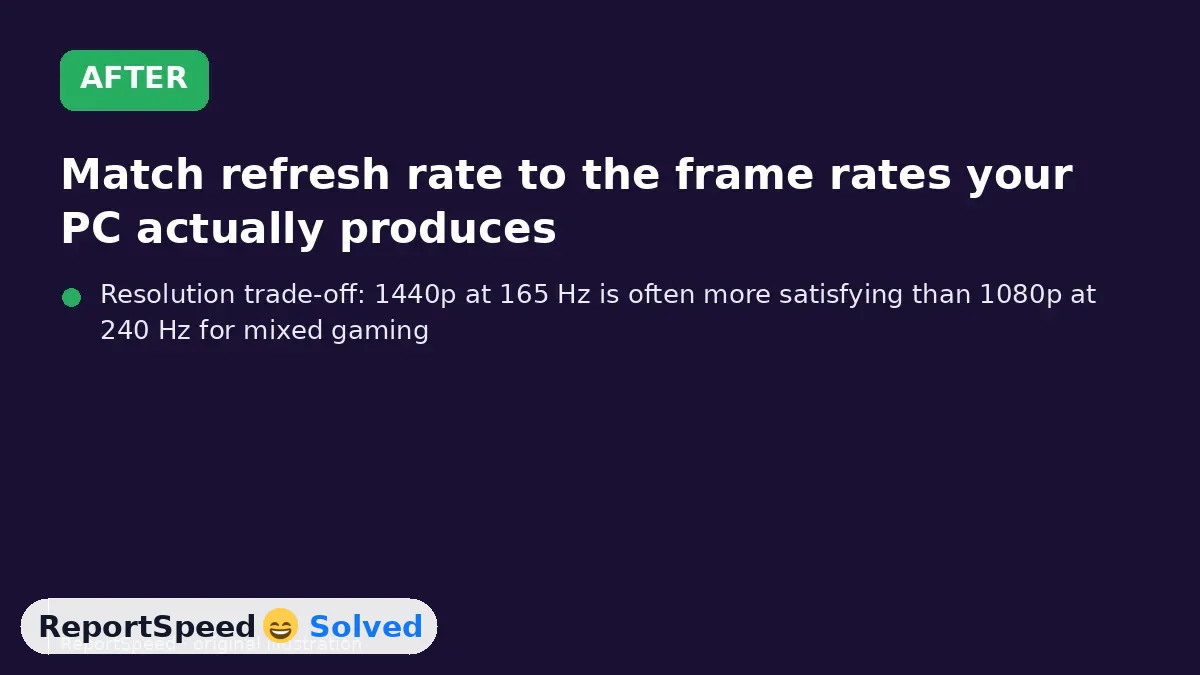
4. After The result
⚡ Speed Summary
- Match refresh rate to the frame rates your PC actually produces.
- Resolution trade-off: 1440p at 165 Hz is often more satisfying than 1080p at 240 Hz for mixed gaming.
- A 240Hz monitor fed 90 frames is just an expensive 90Hz monitor.

Was this answer helpful?
Tap a star to rate this answer.
Related questions
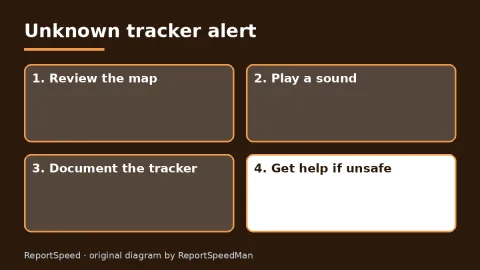
Got an 'AirTag found moving with you' alert? What to do next
Find the tracker, document it, identify the owner, and disable it.
Rate itSolved
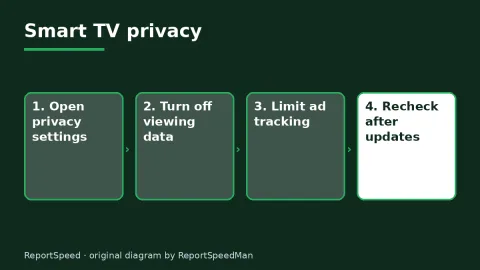
Is my smart TV tracking what I watch? How to turn off ACR
Smart TVs may use ACR to track viewing.
Rate itSolved
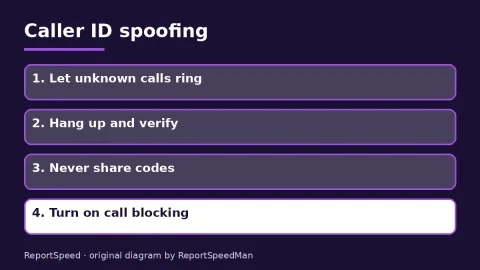
Caller ID spoofing: why scammers show a local number and how to protect yourself
Caller ID can be faked, and spoofing to defraud is illegal.
Rate itSolved
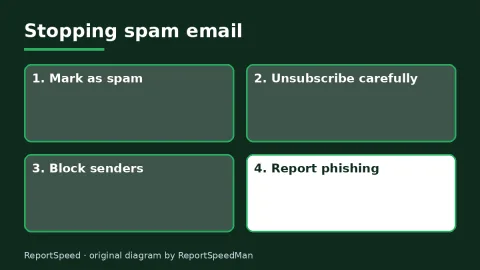
How do I stop spam emails without making it worse?
Mark spam, block repeat senders, unsubscribe only from known companies, and report phishing.
Rate itSolved
Real experiences
No experiences yet. Be the first to share.