


We just got fiber internet and the installer set up a new router with the network name and password printed on a sticker. I've never logged into a router before. How do I secure my home Wi-Fi router properly, and what settings matter most so neighbors or hackers can't get in?
How do I secure my home Wi-Fi router?
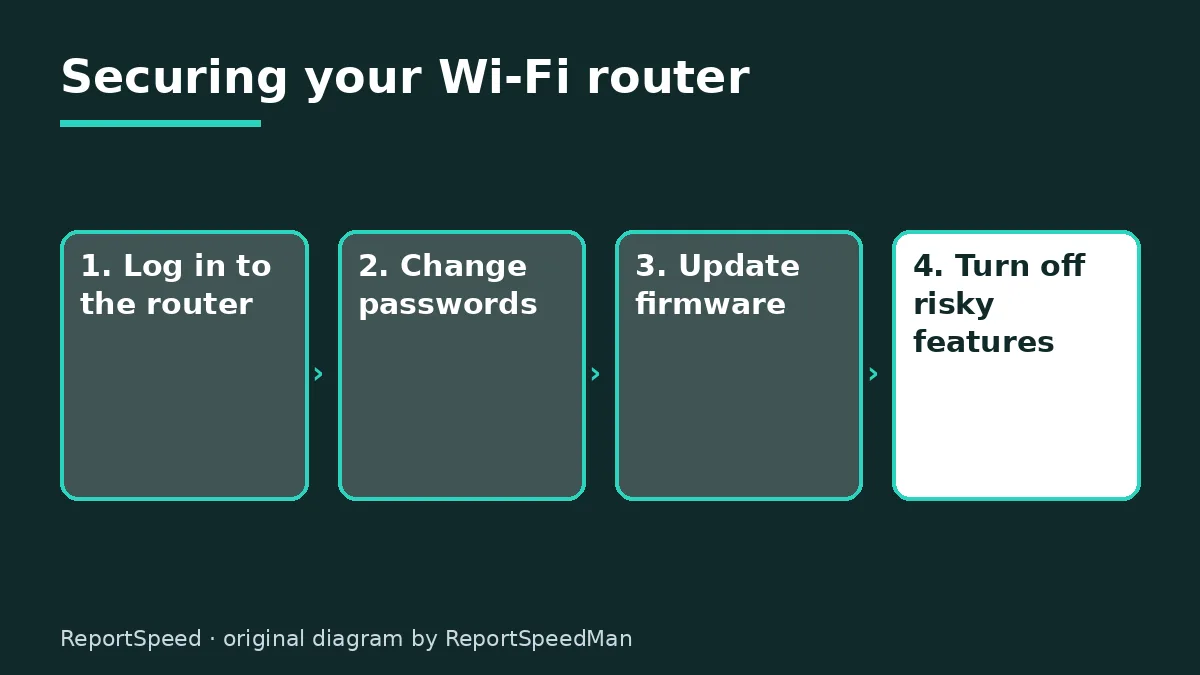
Concerns & risks
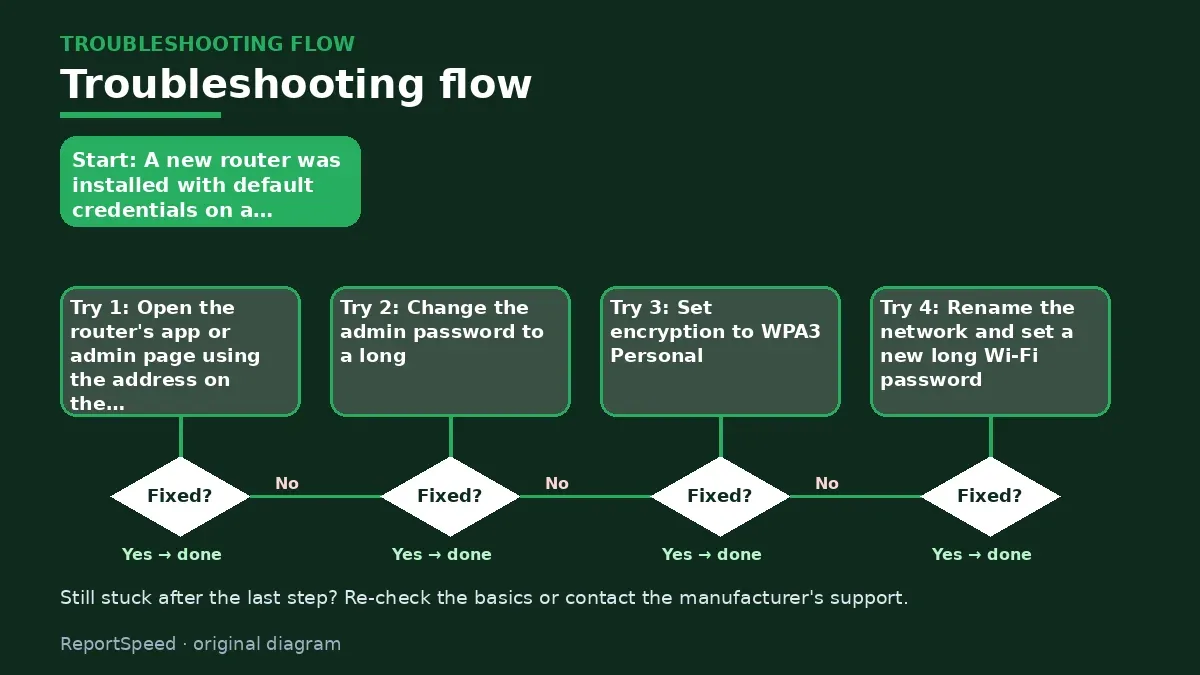
A new router was installed with default credentials on a sticker and you've never logged into it.
| Setting | Typical menu |
|---|---|
| Encryption | Wireless or Wi-Fi security |
| Admin password | Administration or System |
| Firmware | Administration or Update |
| Remote management | Administration or WAN |
| WPS and UPnP | Wireless or Advanced |
| Guest network | Wireless or Guest |
Causes & evidence
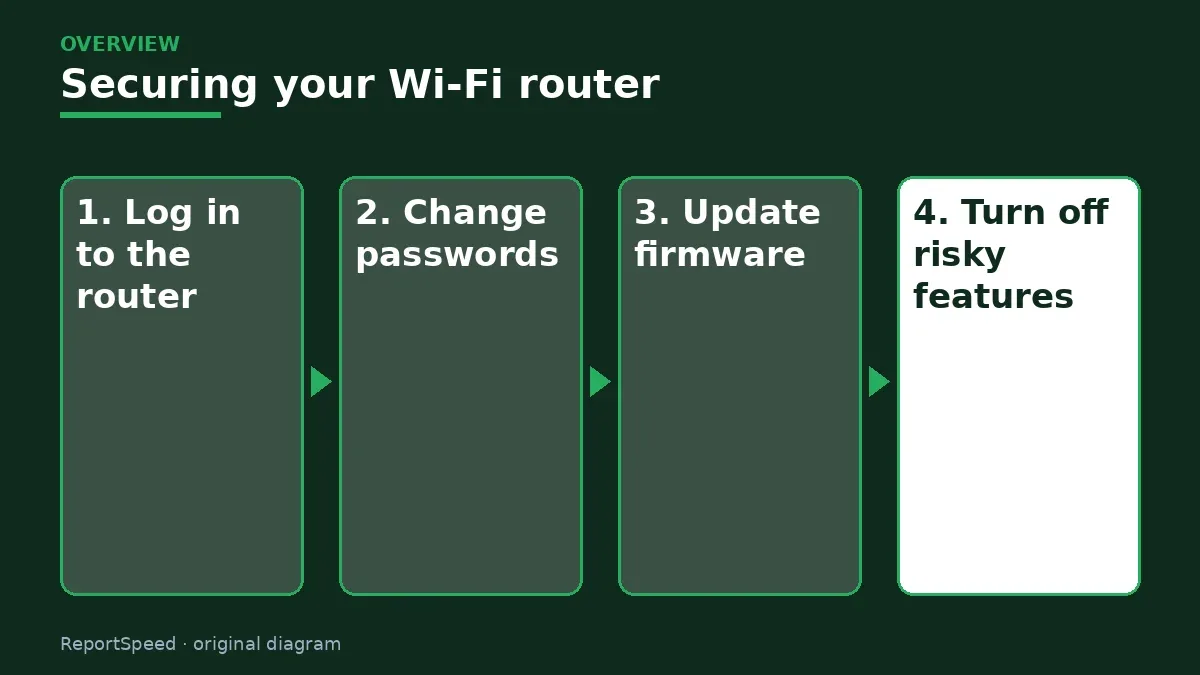
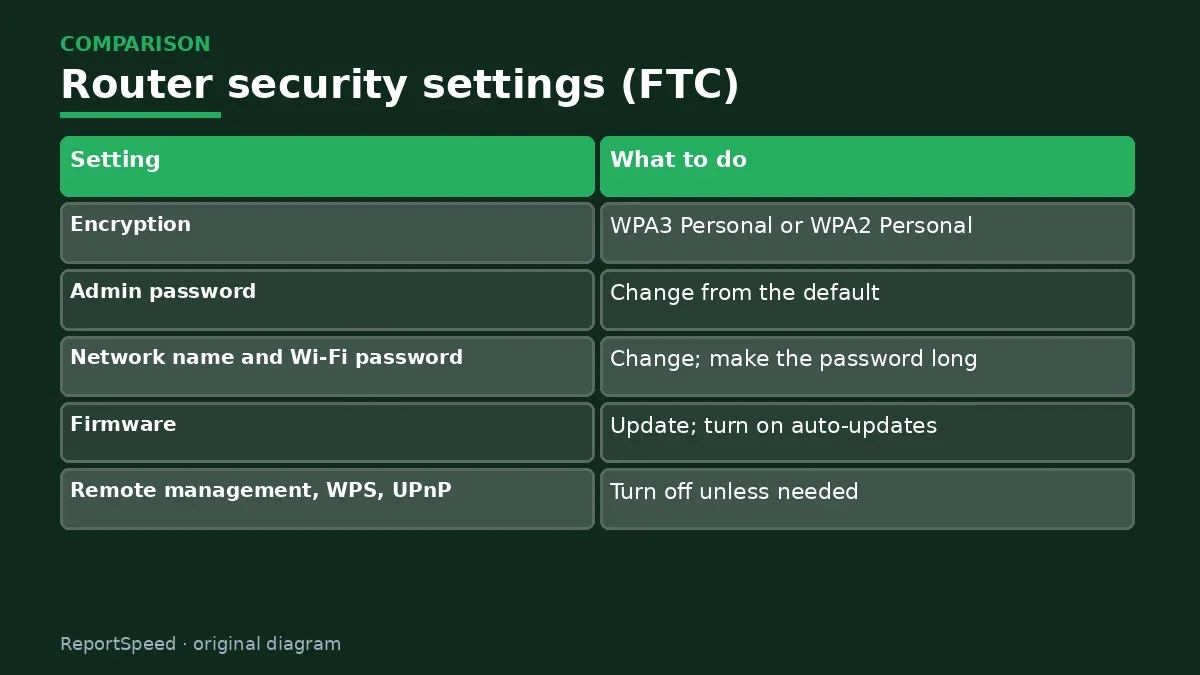
The FTC advises using WPA3 Personal or WPA2 Personal encryption, since older WEP and WPA are outdated and less secure. Change the router's preset administrator password, which is different from your Wi-Fi password, because default admin passwords are easy to find. Change the default network name and set a long, unique Wi-Fi password. Keep the router's firmware up to date, turn on automatic updates if available, and replace a router that no longer gets updates. Turn off remote management, WPS and UPnP if you don't need them, since they can make it easier for attackers to get in. A guest network lets visitors and smart devices connect without access to your main devices. Log out of the router's admin page when finished.
Who this applies to: anyone with a home router, including ones rented from an internet provider. Some provider routers manage updates automatically; check with them. Older routers that no longer get updates should be replaced.
Changing only the Wi-Fi password but leaving the admin password on the default sticker means anyone on your network could change your settings.
What to do
| Setting | What to do |
|---|---|
| Encryption | WPA3 Personal or WPA2 Personal |
| Admin password | Change from the default |
| Network name and Wi-Fi password | Change; make the password long |
| Firmware | Update; turn on auto-updates |
| Remote management, WPS, UPnP | Turn off unless needed |
| Guest network | Use for visitors and smart devices |
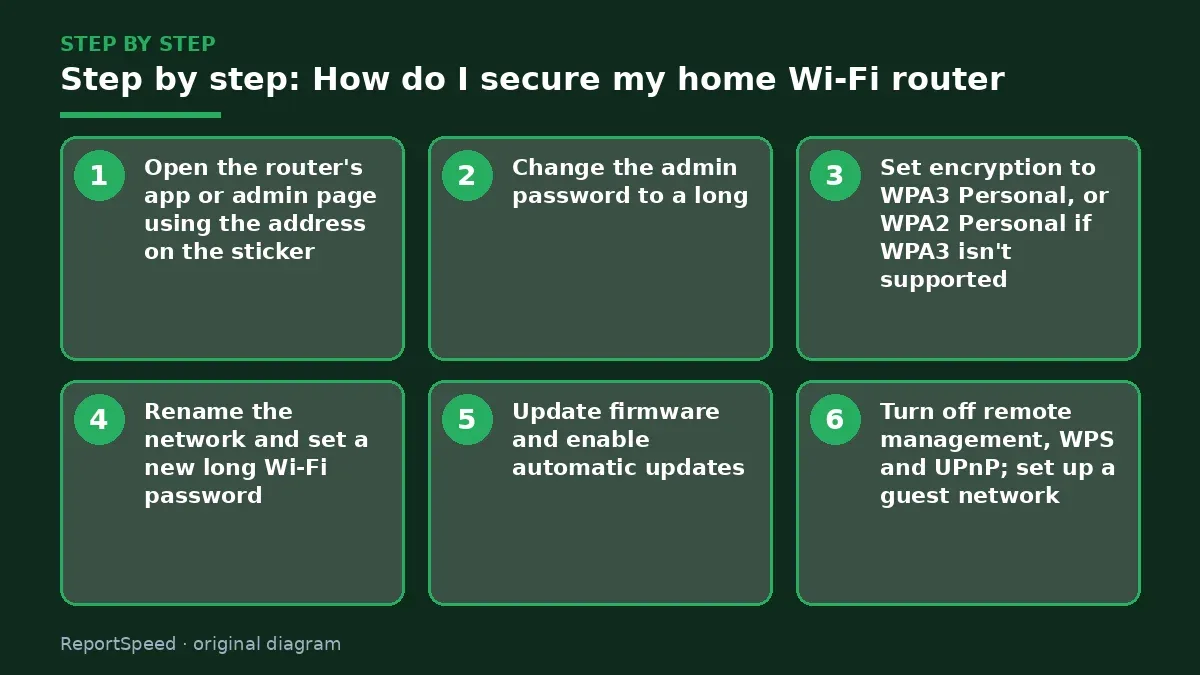
- Open the router's app or admin page using the address on the sticker.
- Change the admin password to a long, unique one and save it in a password manager.
- Set encryption to WPA3 Personal, or WPA2 Personal if WPA3 isn't supported.
- Rename the network and set a new long Wi-Fi password.
- Update firmware and enable automatic updates.
- Turn off remote management, WPS and UPnP; set up a guest network.
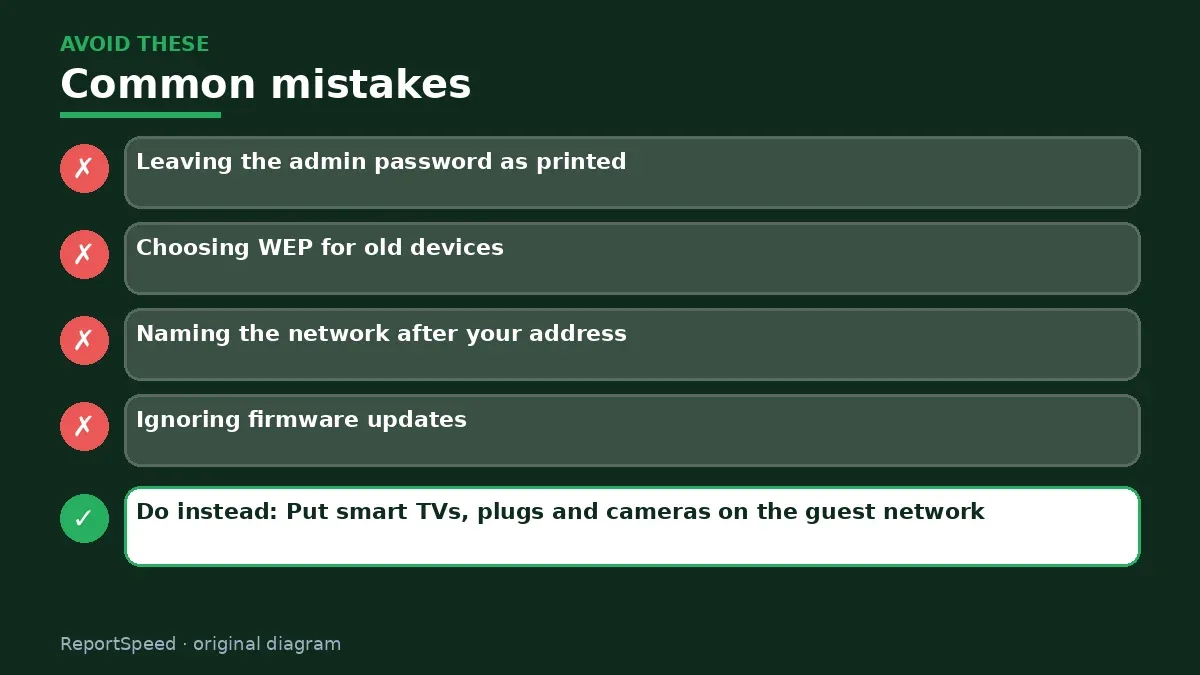
Common mistakes:
- Leaving the admin password as printed
- Choosing WEP for old devices
- Naming the network after your address
- Ignoring firmware updates
ReportSpeedMan tip: Put smart TVs, plugs and cameras on the guest network. If one is ever compromised, it can't easily reach your laptop.
What I would actually do
I'd change the admin password first, set WPA3, update firmware, disable WPS and remote management, and move smart devices to a guest network.
The trade-off people miss: turning off UPnP can break some game consoles or apps; turn it on only if needed and keep firmware updated.
How you can tell it worked
The router uses WPA3 or WPA2 with new passwords and current firmware.
Quick FAQ
Is WPA2 still OK?
Yes, if WPA3 isn't available.
Should I hide my network name?
It's not a strong defense.
What about guest networks?
Great for visitors and smart devices.
Wrap-up: Use WPA3 or WPA2 Personal, change the admin and Wi-Fi passwords, update firmware and turn off remote management, WPS and UPnP.
Wiki: Multi-Factor Authentication (MFA) and Phishing.
How do I secure my home Wi-Fi router: where the facts come from
Step-by-step photos
1. Before The problem 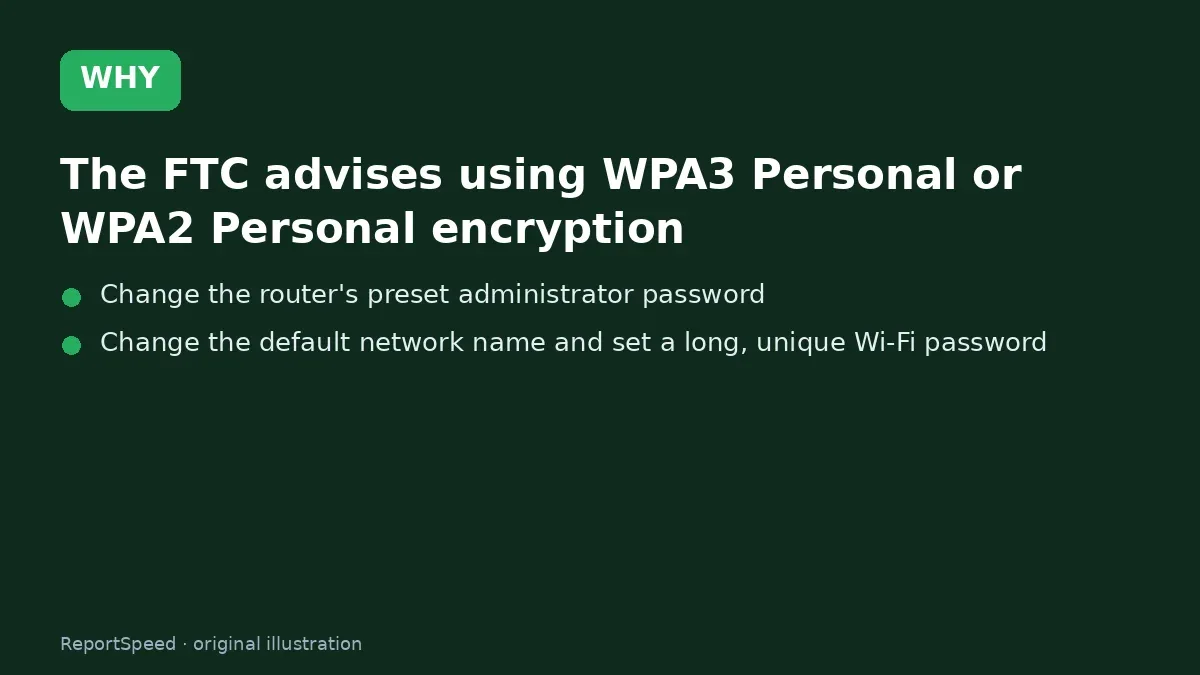
2. Why it happens The cause 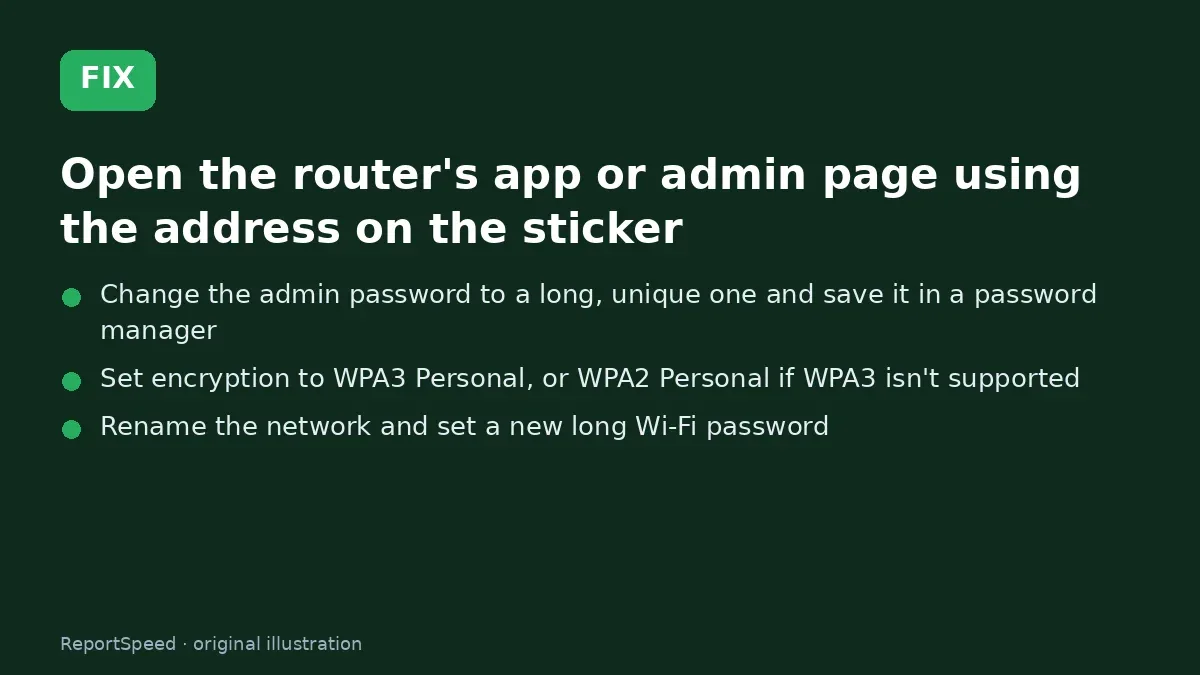
3. The fix The fix 
4. After The result
⚡ Speed Summary
- Use WPA3 or WPA2 Personal, change the admin and Wi-Fi passwords, update firmware and turn off remote management, WPS and UPnP.
- Put smart TVs, plugs and cameras on the guest network. If one is ever compromised, it can't easily reach your laptop.
- Changing only the Wi-Fi password but leaving the admin password on the default sticker means anyone on your network could change your settings.

Was this answer helpful?
Tap a star to rate this answer.
Related questions
Got an 'AirTag found moving with you' alert? What to do next
Find the tracker, document it, identify the owner, and disable it.
Rate itSolved
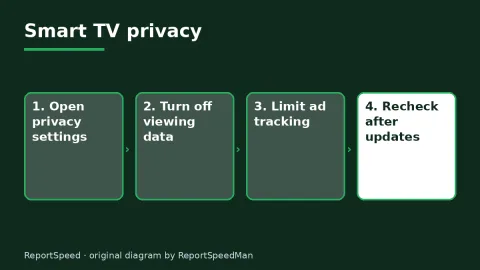
Is my smart TV tracking what I watch? How to turn off ACR
Smart TVs may use ACR to track viewing.
Rate itSolved
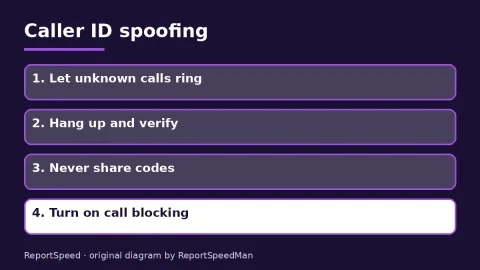
Caller ID spoofing: why scammers show a local number and how to protect yourself
Caller ID can be faked, and spoofing to defraud is illegal.
Rate itSolved
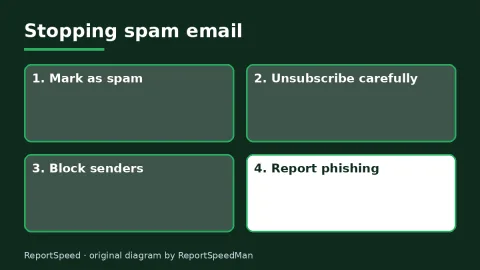
How do I stop spam emails without making it worse?
Mark spam, block repeat senders, unsubscribe only from known companies, and report phishing.
Rate itSolved
Real experiences
No experiences yet. Be the first to share.