


A small business near me lost all its files to ransomware, and it made me realize my family photos and tax documents are only on one laptop and a USB drive that's always plugged in. How do I back up my files so ransomware can't take them too, and how often should I do it?
How do I back up my files so ransomware can't take them?
Concerns & risks
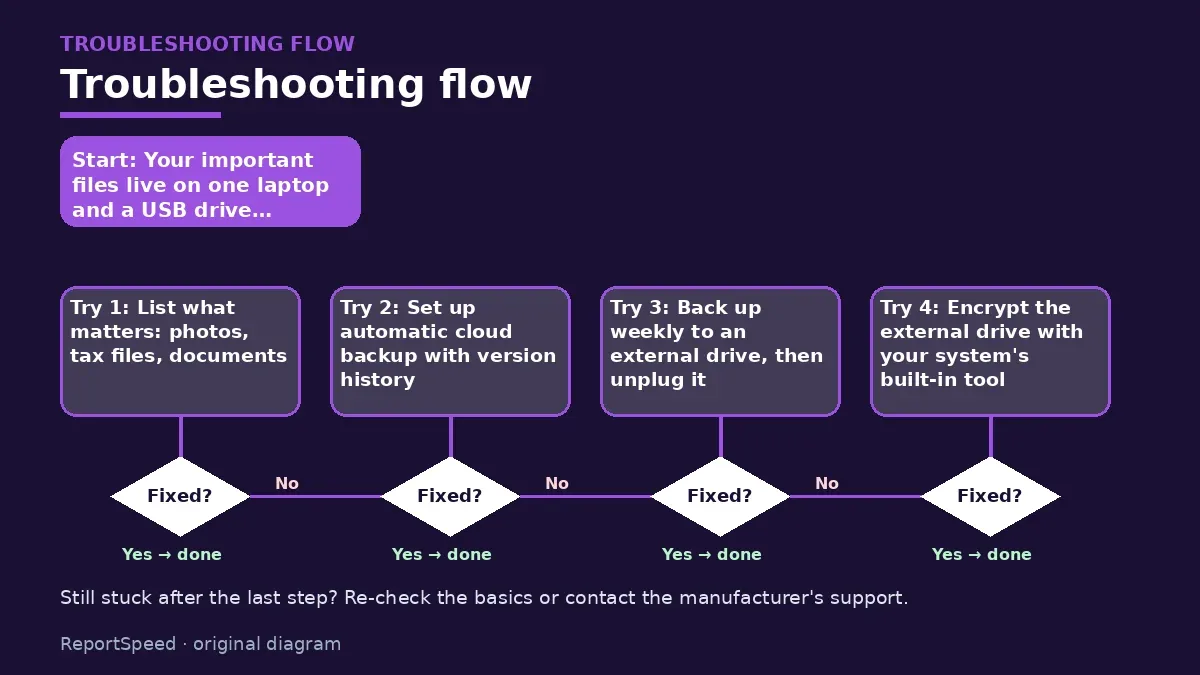
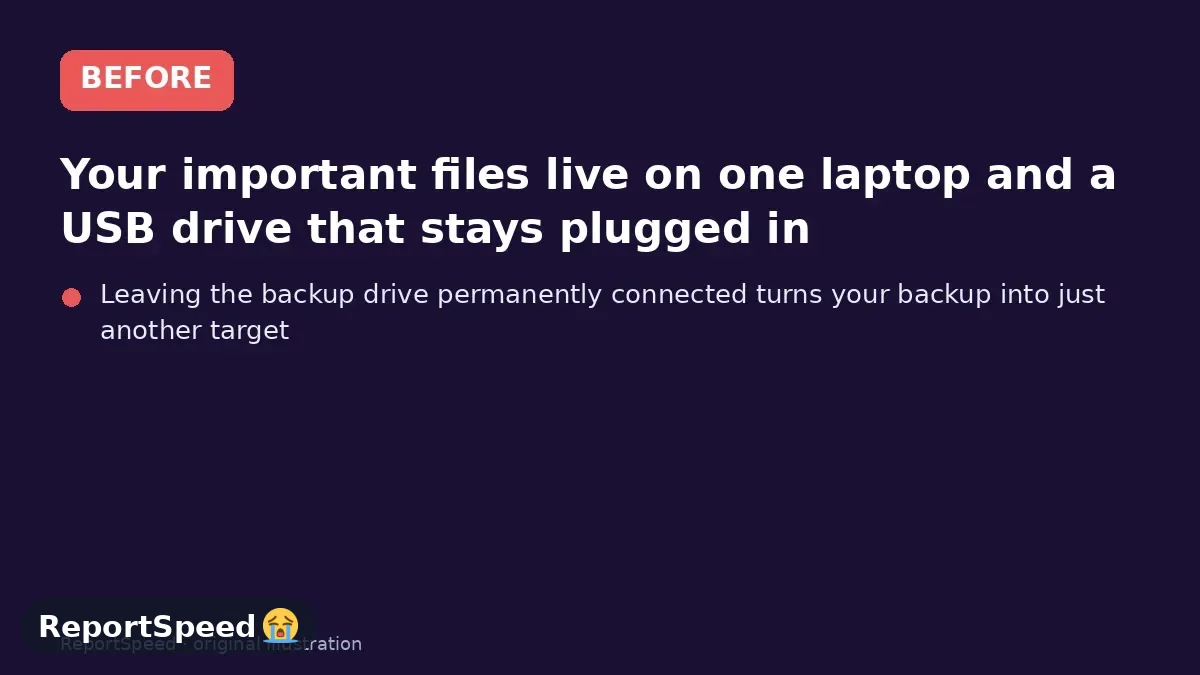
Your important files live on one laptop and a USB drive that stays plugged in.
| Copy | Where |
|---|---|
| Original | Laptop |
| Copy 1 | Cloud backup with versions |
| Copy 2 | External drive, unplugged |
| Drive encryption | Built-in OS tool |
| Restore test | Every few months |
| Backup reminder | Monthly calendar event |

Causes & evidence
CISA's StopRansomware guidance says to maintain offline, encrypted backups of critical data and to regularly test them, because ransomware often tries to find and encrypt or delete reachable backups. A drive that stays plugged in can be encrypted along with your laptop. CISA also recommends keeping software and operating systems updated, using strong passwords and multifactor authentication, and being cautious with email links and attachments, since phishing is a common way ransomware gets in. A common approach is keeping multiple copies in different places, such as an external drive you disconnect after each backup plus a reputable cloud backup with version history, so you can restore files from before an infection. CISA advises not paying ransoms, since it doesn't guarantee recovery, and reporting incidents.
Who this applies to: anyone with important files. Small businesses should follow CISA's fuller guidance. Cloud sync alone may copy encrypted files; version history is what lets you recover.
Leaving the backup drive permanently connected turns your backup into just another target.
What to do
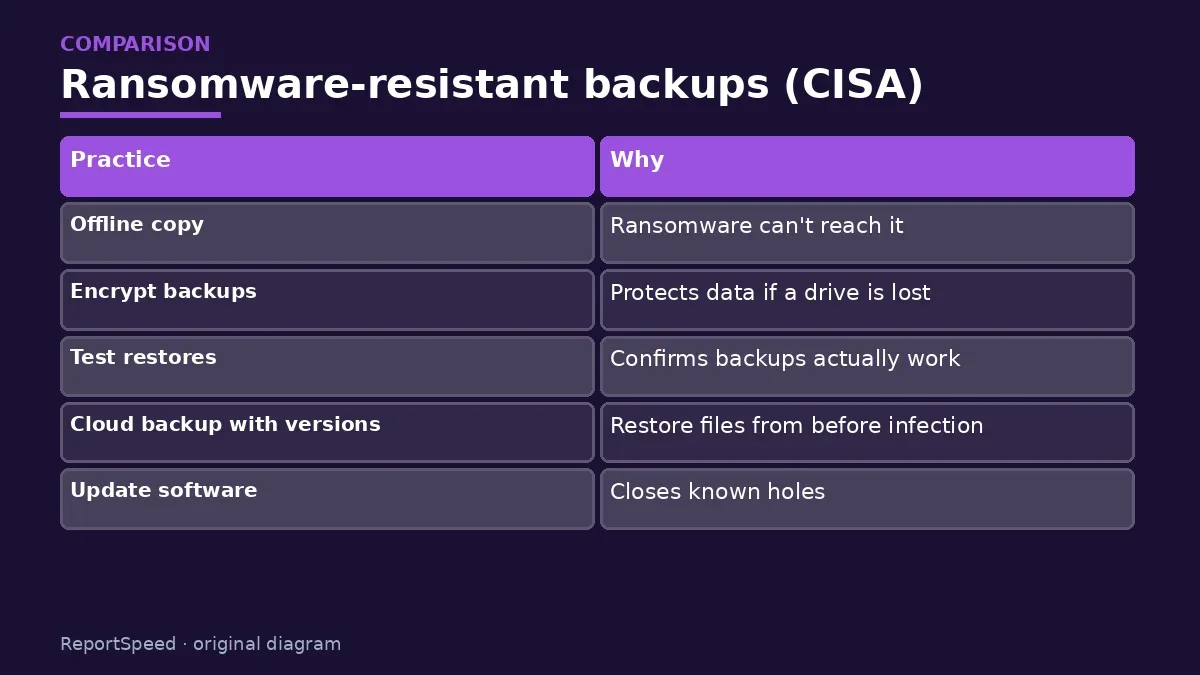
| Practice | Why |
|---|---|
| Offline copy | Ransomware can't reach it |
| Encrypt backups | Protects data if a drive is lost |
| Test restores | Confirms backups actually work |
| Cloud backup with versions | Restore files from before infection |
| Update software | Closes known holes |
| MFA on accounts | Blocks stolen-password logins |
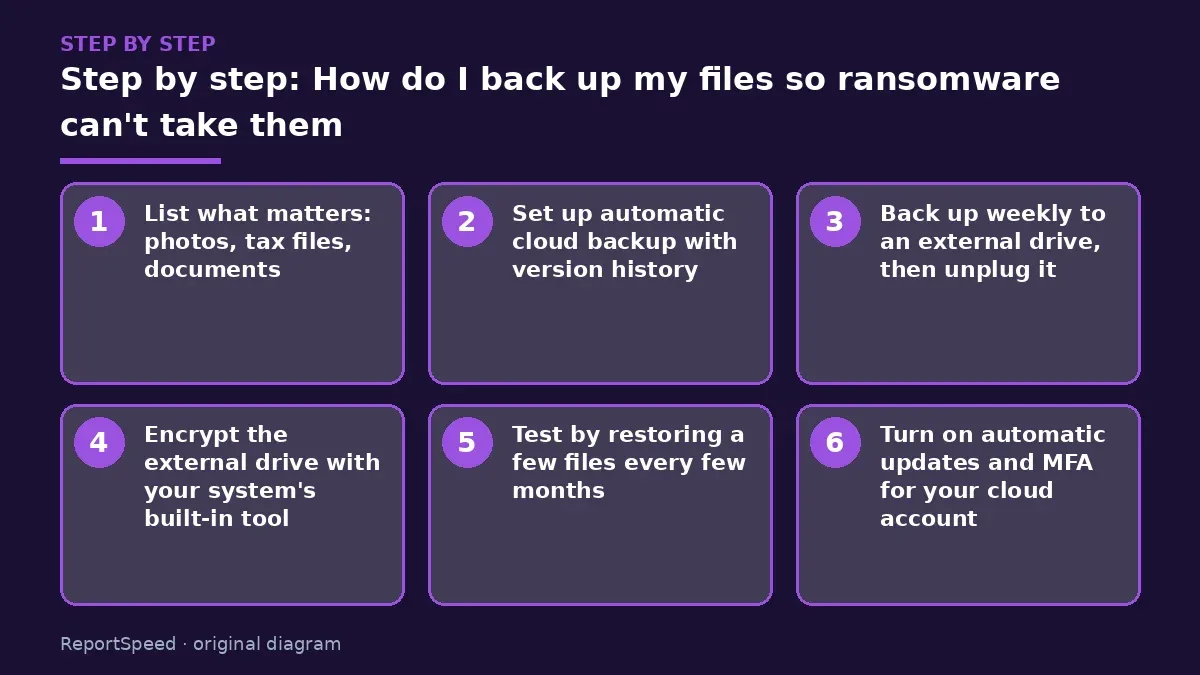
- List what matters: photos, tax files, documents.
- Set up automatic cloud backup with version history.
- Back up weekly to an external drive, then unplug it.
- Encrypt the external drive with your system's built-in tool.
- Test by restoring a few files every few months.
- Turn on automatic updates and MFA for your cloud account.
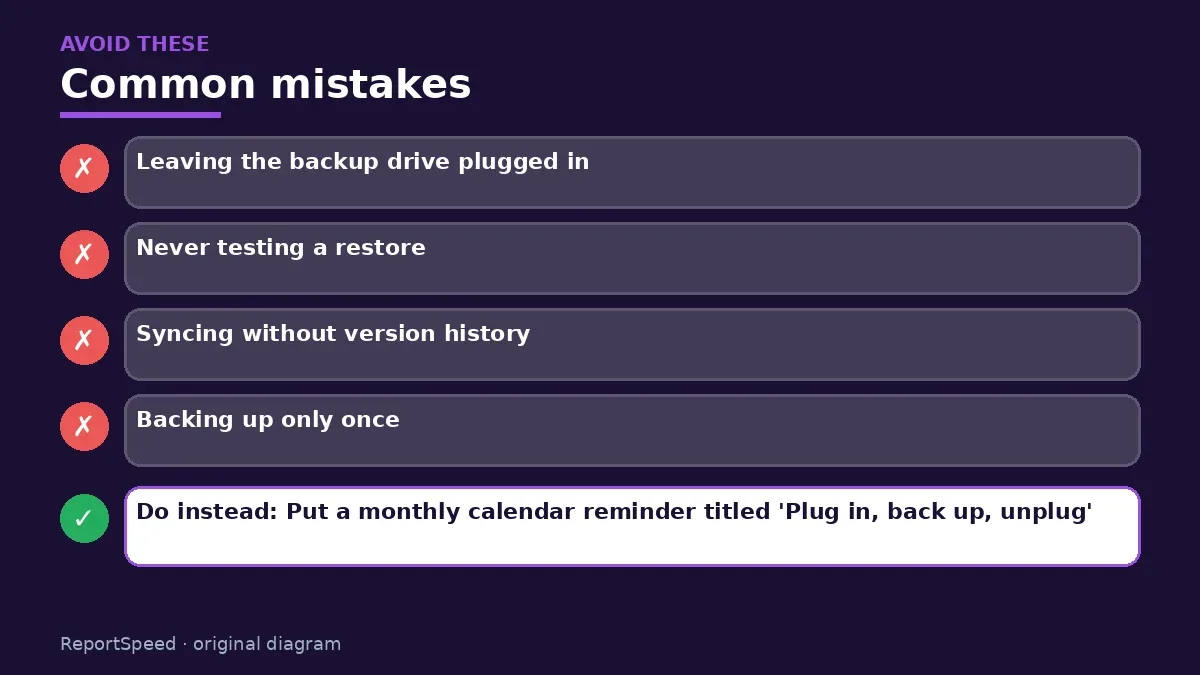
Common mistakes:
- Leaving the backup drive plugged in
- Never testing a restore
- Syncing without version history
- Backing up only once
ReportSpeedMan tip: Put a monthly calendar reminder titled 'Plug in, back up, unplug'. Habits beat good intentions.
What I would actually do
I'd set up a cloud backup with versions, back up weekly to an external drive I unplug, and test restoring a photo folder.
The trade-off people miss: an always-connected drive is convenient but vulnerable; the extra step of unplugging is what makes it a real backup.
How to know it worked
You've restored a test file from an unplugged backup.
Quick FAQ
Is cloud sync a backup?
Only with version history.
How often to back up?
Weekly or more for active files.
Should I pay a ransom?
CISA advises against it.
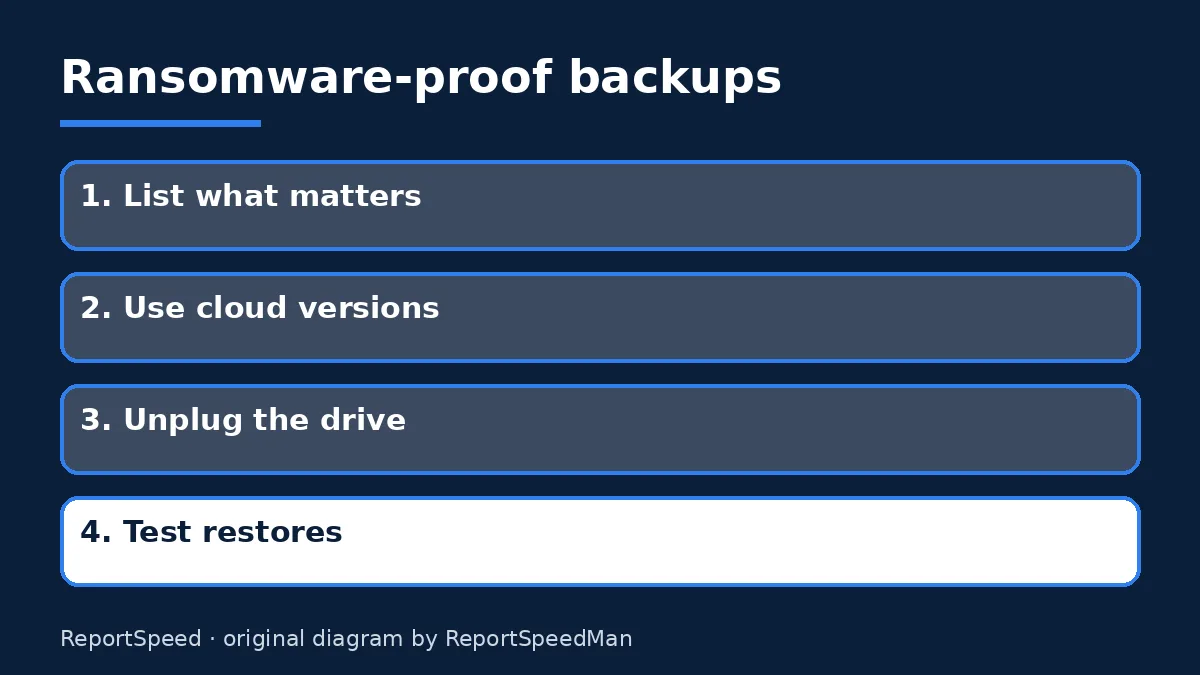
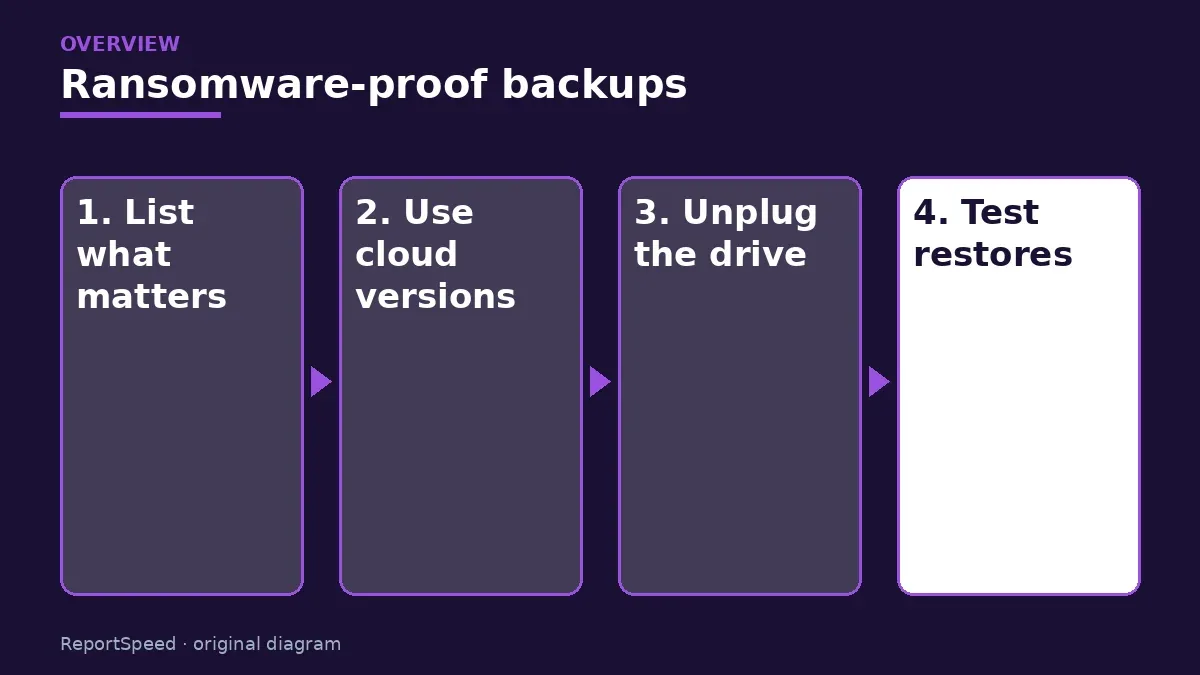
Wrap-up: Keep an offline copy, use cloud backup with versions, encrypt and test restores, and keep systems updated.
Wiki: Phishing and Identity Theft Recovery Steps.
How do I back up my files so ransomware can't take them: official pages behind this answer
Step-by-step photos
1. Before The problem 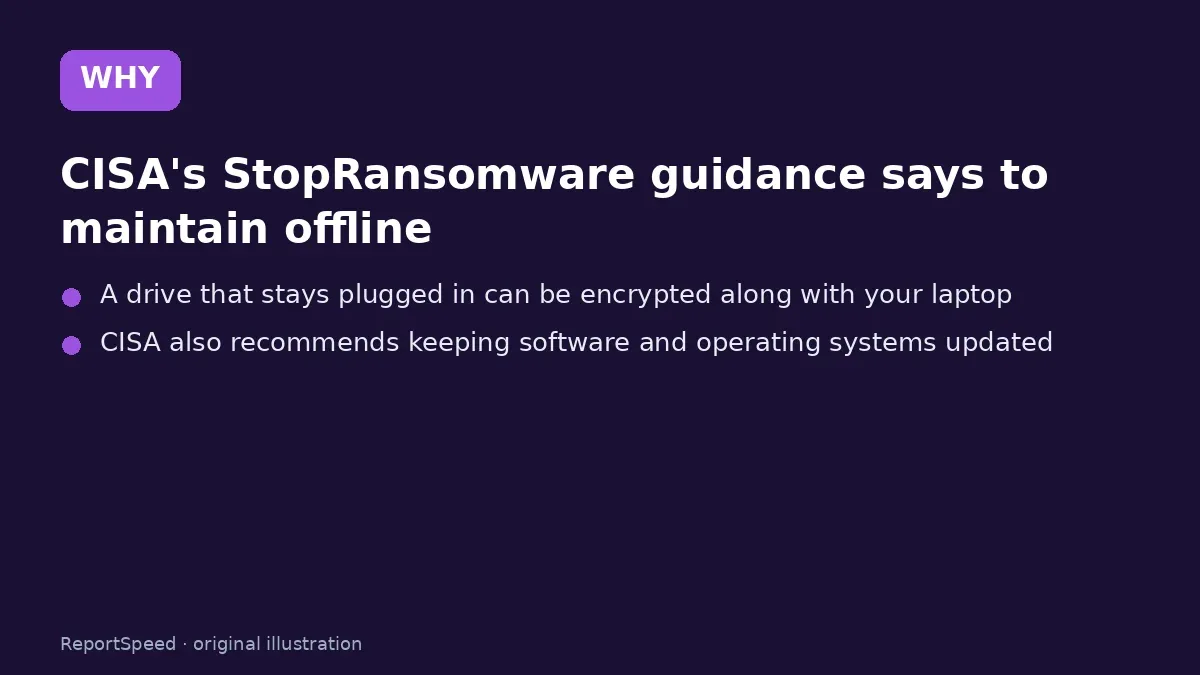
2. Why it happens The cause 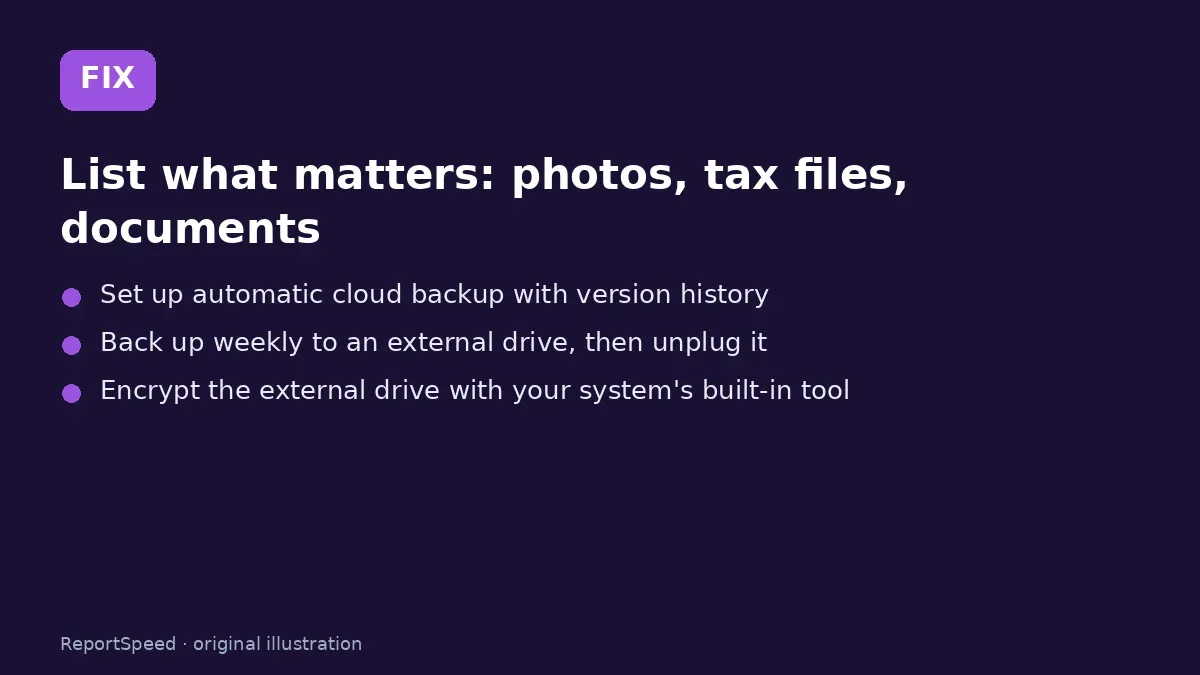
3. The fix The fix 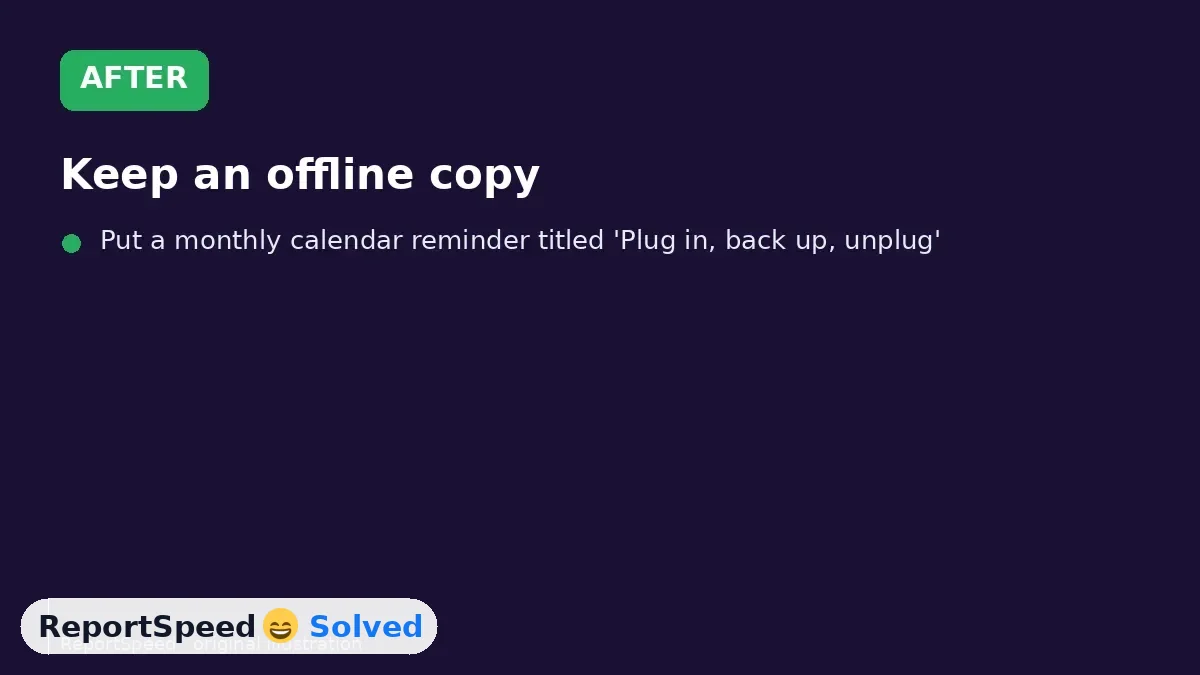
4. After The result
⚡ Speed Summary
- Keep an offline copy, use cloud backup with versions, encrypt and test restores, and keep systems updated.
- Put a monthly calendar reminder titled 'Plug in, back up, unplug'. Habits beat good intentions.
- Leaving the backup drive permanently connected turns your backup into just another target.

Was this answer helpful?
Tap a star to rate this answer.
Related questions
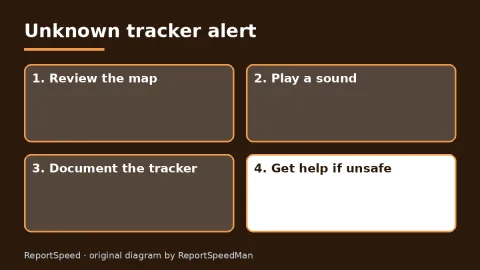
Got an 'AirTag found moving with you' alert? What to do next
Find the tracker, document it, identify the owner, and disable it.
Rate itSolved
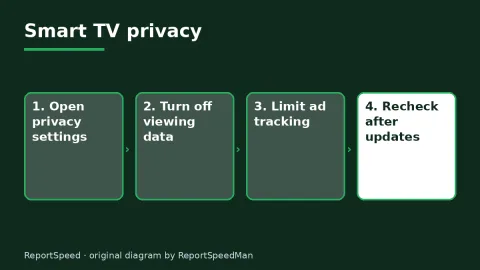
Is my smart TV tracking what I watch? How to turn off ACR
Smart TVs may use ACR to track viewing.
Rate itSolved
Caller ID spoofing: why scammers show a local number and how to protect yourself
Caller ID can be faked, and spoofing to defraud is illegal.
Rate itSolved
How do I stop spam emails without making it worse?
Mark spam, block repeat senders, unsubscribe only from known companies, and report phishing.
Rate itSolved
Real experiences
No experiences yet. Be the first to share.