


I'm shopping for a new gaming monitor and every listing says FreeSync, G-Sync Compatible, or G-Sync. I have no idea if I need it or which one works with my graphics card. I hate screen tearing but I also don't want input lag. Do I need adaptive sync, and does G-Sync vs FreeSync matter for my card?
G-Sync vs FreeSync: do I need adaptive sync on my monitor?
Concerns & risks
You're comparing monitors, you see different sync labels on every box, and you want to know if they matter and whether they'll work with your NVIDIA or AMD card.
| Step | Where |
|---|---|
| Adaptive sync on | Monitor on-screen menu |
| VRR enabled | NVIDIA Control Panel or AMD Adrenalin |
| Frame cap a little under max | Driver or game setting |
| Correct cable and port | DisplayPort or HDMI 2.1 |
Causes & evidence
Adaptive sync lets the monitor change its refresh rate to match the frames your GPU delivers, so you avoid tearing without the input lag of classic V-Sync. AMD FreeSync and NVIDIA G-Sync are each company's version, built on variable refresh support. Many FreeSync monitors also work with NVIDIA cards through G-Sync Compatible mode, and NVIDIA publishes a list of validated displays. The feature matters most when your frame rate moves around below the monitor's maximum refresh.
Variable refresh works only inside a range defined by the monitor. Low framerate compensation helps when FPS drops below that range. Capping just under the maximum keeps you from bouncing out of the top of the range.
If your FPS swings around and you don't use adaptive sync, you're paying for a high-refresh monitor and only getting half the smoothness.
What to do
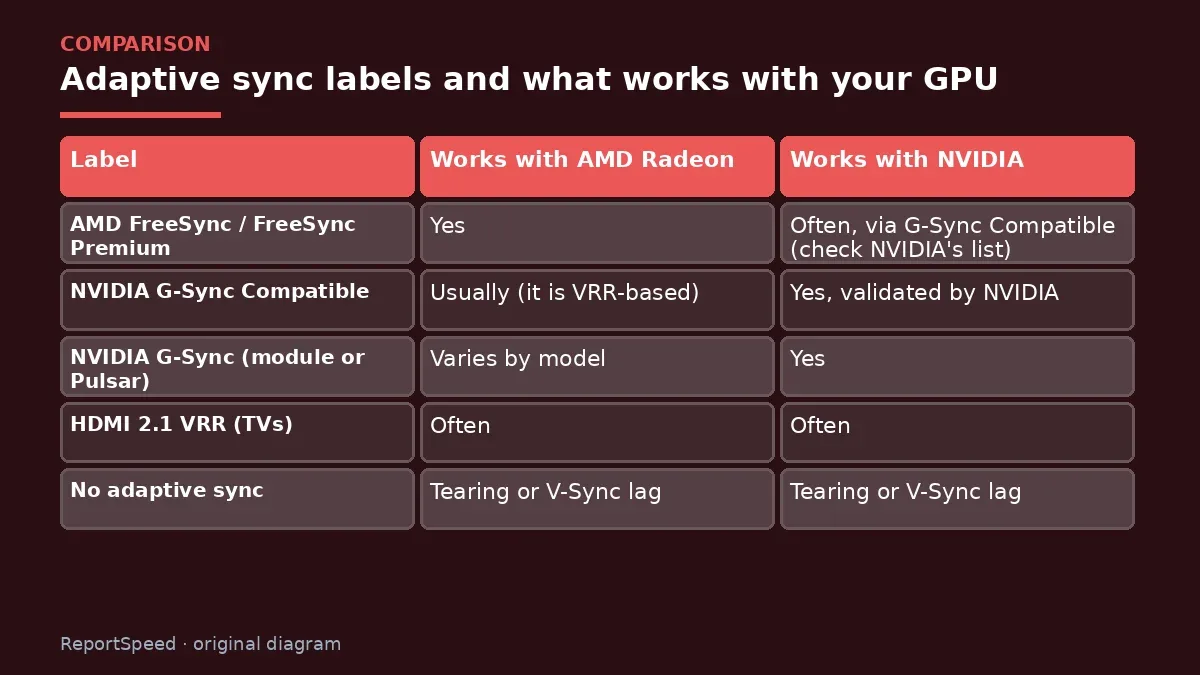
| Label | Works with AMD Radeon | Works with NVIDIA GeForce |
|---|---|---|
| AMD FreeSync / FreeSync Premium | Yes | Often, via G-Sync Compatible (check NVIDIA's list) |
| NVIDIA G-Sync Compatible | Usually (it is VRR-based) | Yes, validated by NVIDIA |
| NVIDIA G-Sync (module or Pulsar) | Varies by model | Yes |
| HDMI 2.1 VRR (TVs) | Often | Often |
| No adaptive sync | Tearing or V-Sync lag | Tearing or V-Sync lag |
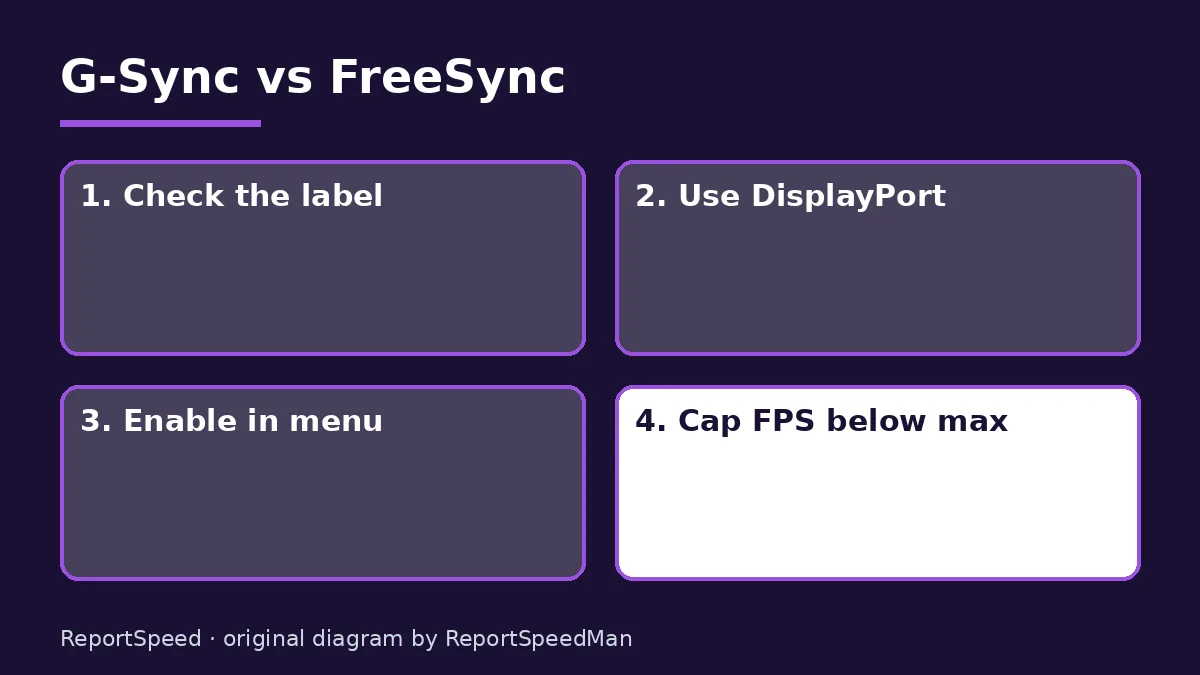
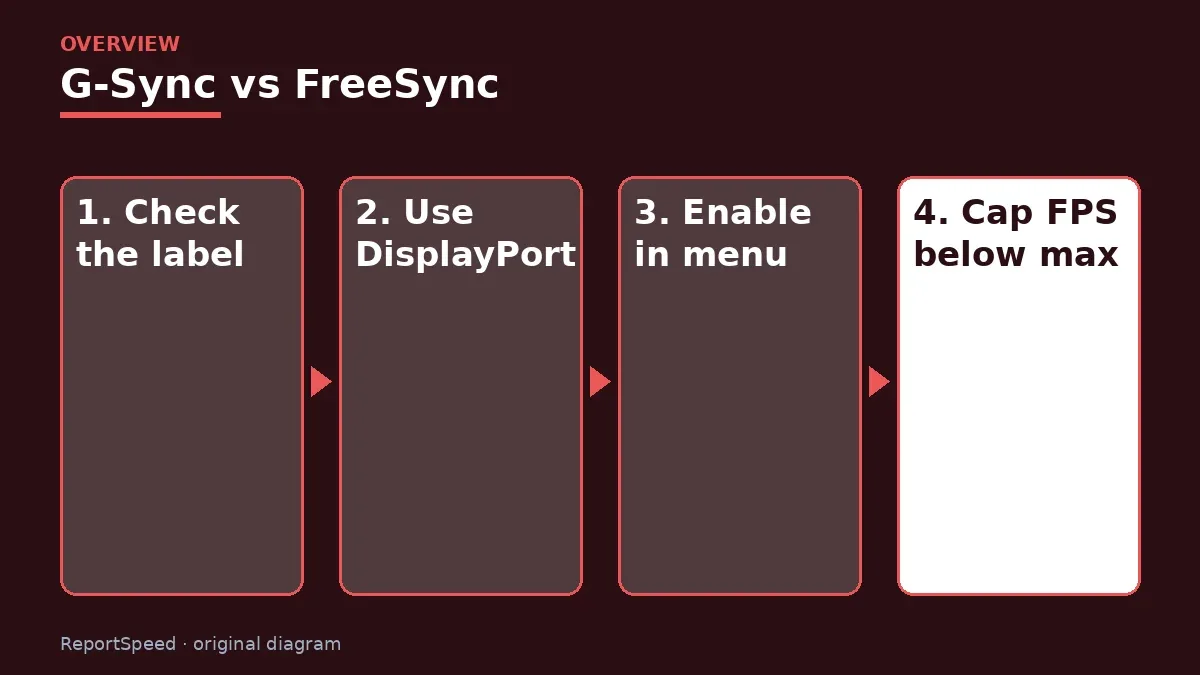
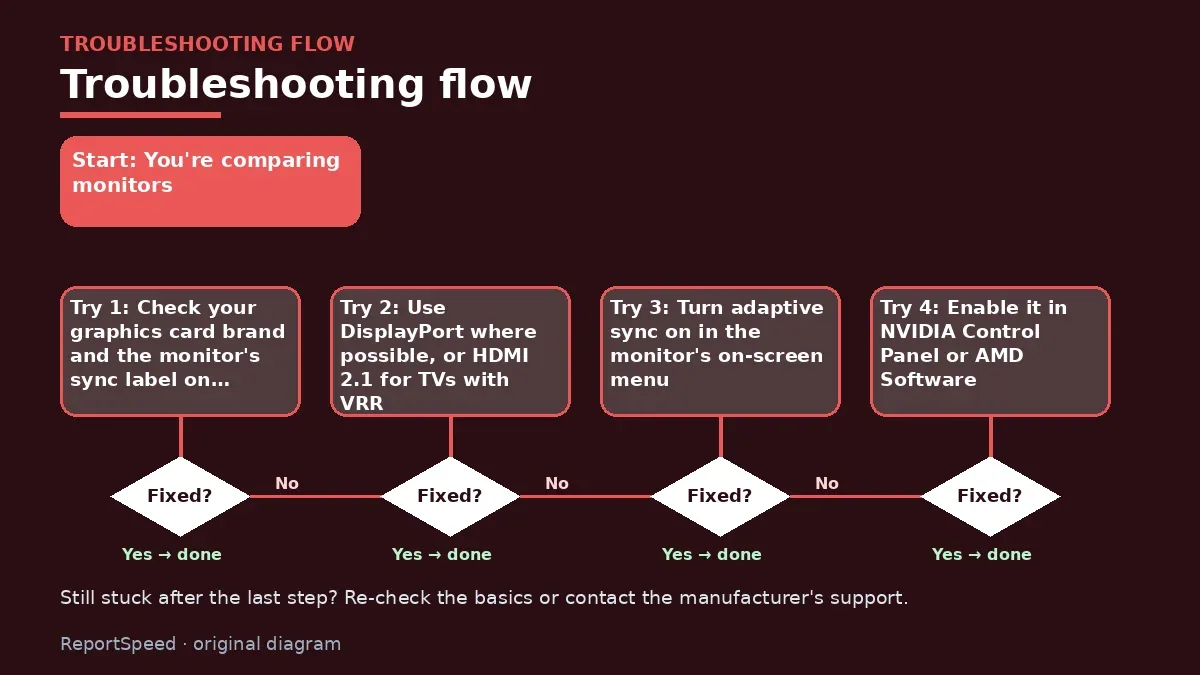
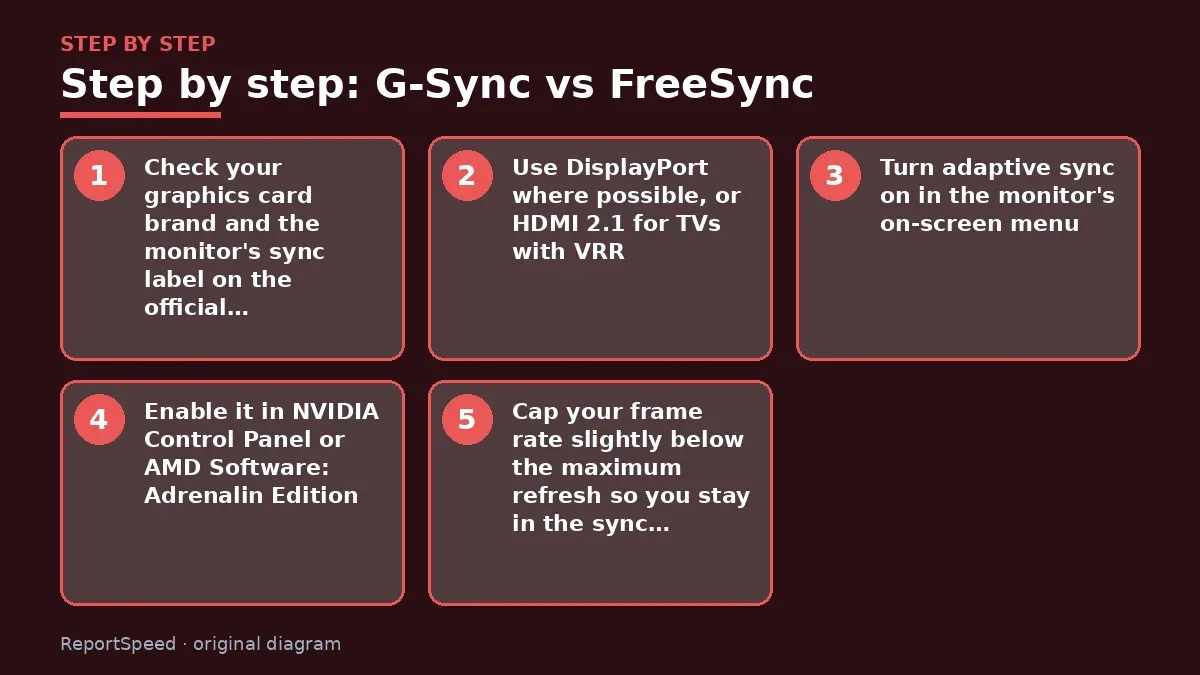
- Check your graphics card brand and the monitor's sync label on the official spec page.
- Use DisplayPort where possible, or HDMI 2.1 for TVs with VRR.
- Turn adaptive sync on in the monitor's on-screen menu.
- Enable it in NVIDIA Control Panel or AMD Software: Adrenalin Edition.
- Cap your frame rate slightly below the maximum refresh so you stay in the sync range.
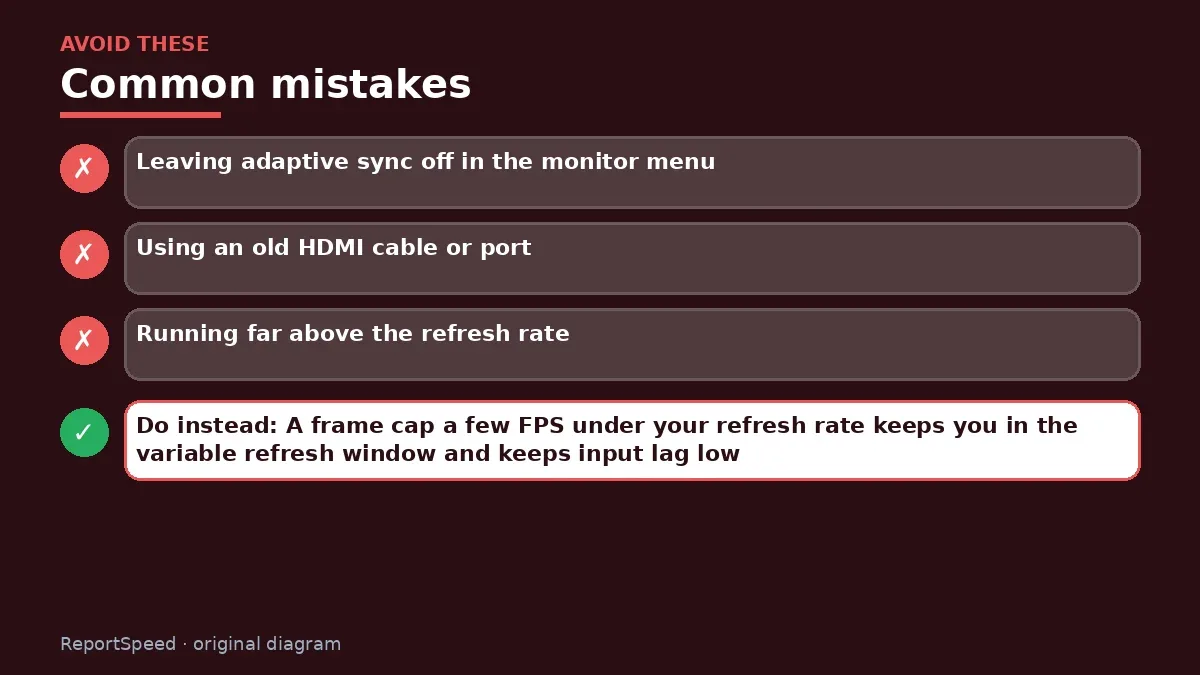
Common mistakes:
- Leaving adaptive sync off in the monitor menu
- Using an old HDMI cable or port
- Running far above the refresh rate
ReportSpeedMan tip: A frame cap a few FPS under your refresh rate keeps you in the variable refresh window and keeps input lag low.
What I would actually do

I'd buy a monitor with FreeSync Premium or G-Sync Compatible support that's on NVIDIA's validated list if I used a GeForce card, switch it on in both the monitor and driver, and cap FPS a few frames under max refresh.
The trade-off people miss: adaptive sync can't fix big stutters from shader compilation or a CPU limit. It smooths small dips, not hard hitches.
How to tell it worked
Tearing lines disappear and small FPS drops no longer feel like stutters.
Quick FAQ
Should V-Sync be on too?
Many players pair VRR with a frame cap; follow your GPU maker's guidance.
Does HDMI work?
HDMI 2.1 VRR works on many TVs and monitors; older HDMI may not.
Does it add input lag?
Adaptive sync has much less lag than classic V-Sync.
Wrap-up: Adaptive sync is worth having on any gaming monitor. Check the label against your GPU, then switch it on in both the monitor and driver.
Wiki: Refresh Rate and Response Time.
G-Sync vs FreeSync: official sources I checked
Step-by-step photos
1. Before The problem 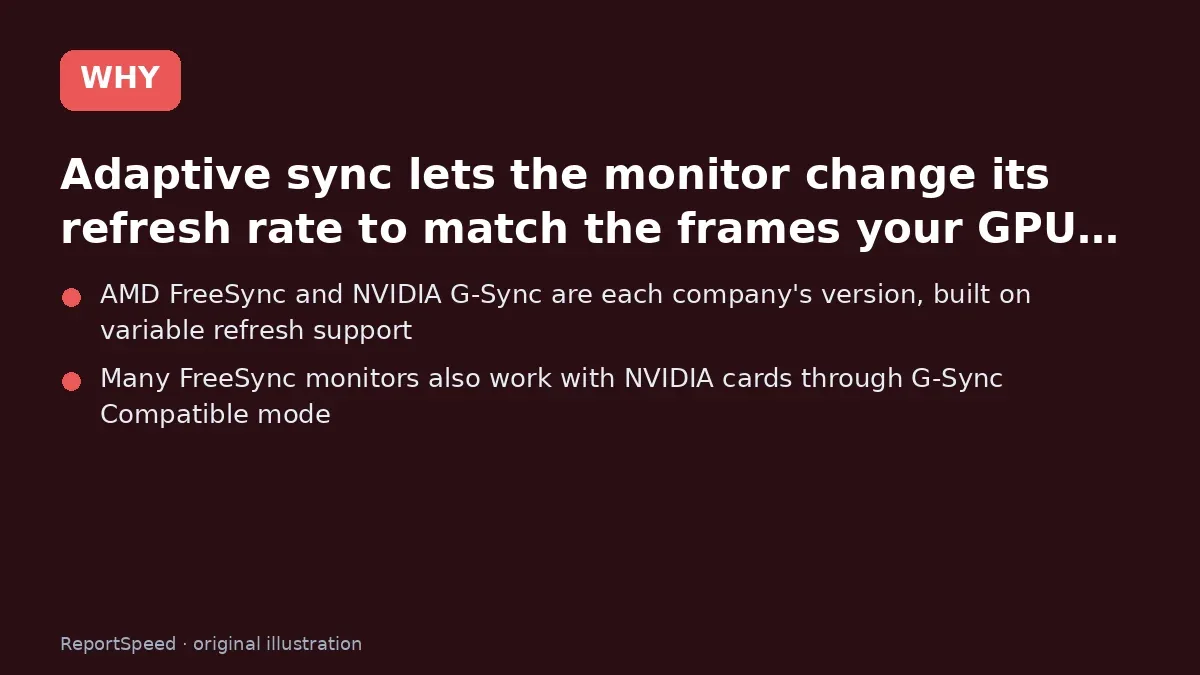
2. Why it happens The cause 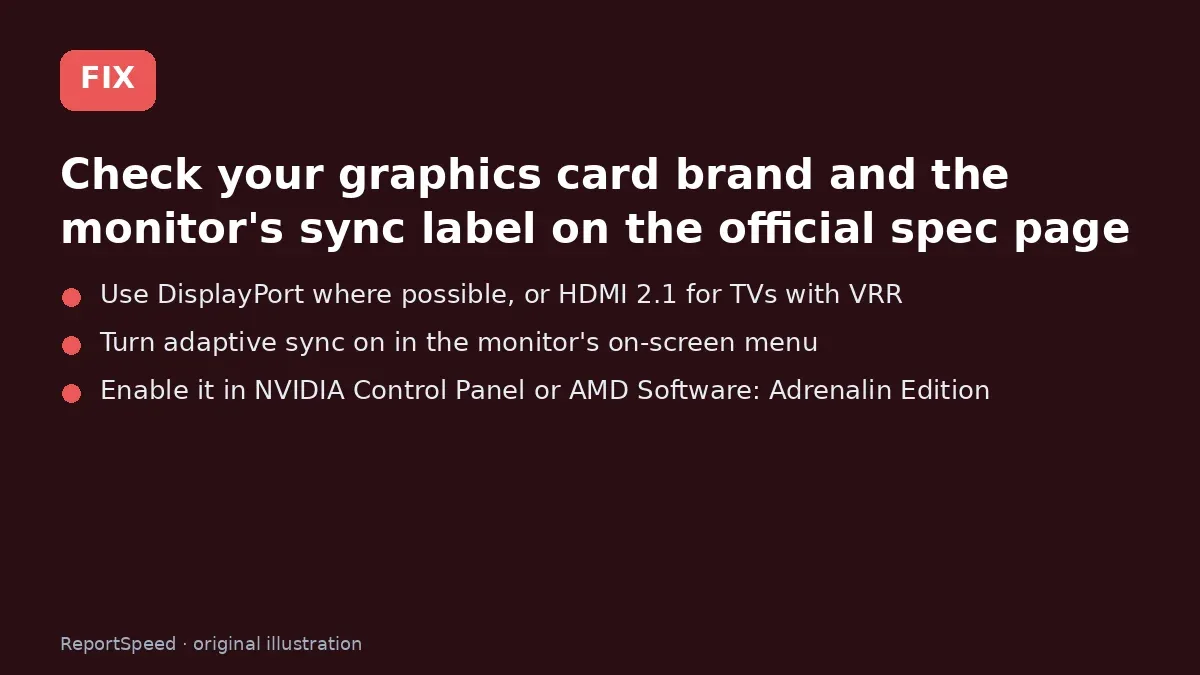
3. The fix The fix 
4. After The result
⚡ Speed Summary
- Adaptive sync is worth having on any gaming monitor.
- A frame cap a few FPS under your refresh rate keeps you in the variable refresh window and keeps input lag low.
- If your FPS swings around and you don't use adaptive sync, you're paying for a high-refresh monitor and only getting half the smoothness.

Was this answer helpful?
Tap a star to rate this answer.
Related questions
Got an 'AirTag found moving with you' alert? What to do next
Find the tracker, document it, identify the owner, and disable it.
Rate itSolved
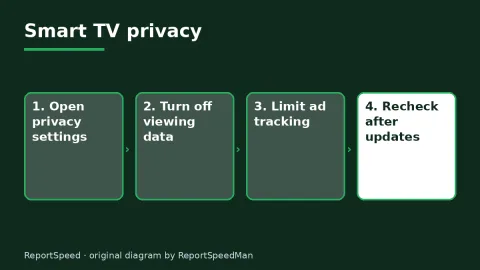
Is my smart TV tracking what I watch? How to turn off ACR
Smart TVs may use ACR to track viewing.
Rate itSolved
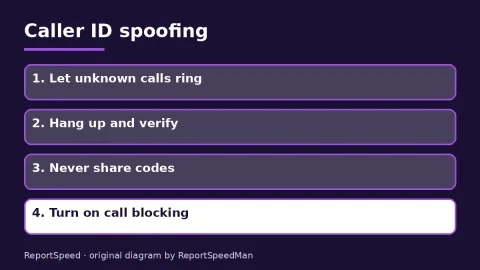
Caller ID spoofing: why scammers show a local number and how to protect yourself
Caller ID can be faked, and spoofing to defraud is illegal.
Rate itSolved
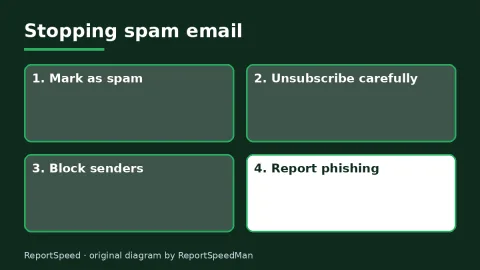
How do I stop spam emails without making it worse?
Mark spam, block repeat senders, unsubscribe only from known companies, and report phishing.
Rate itSolved
Real experiences
No experiences yet. Be the first to share.