


How do I check my CPU and GPU temperatures in Windows without installing a pile of junk software? I want to know if my PC is running hot, but every search leads to sketchy download sites. Is there a built-in way or a clean approach that actually works?
How to check CPU and GPU temperatures in Windows without extra bloat

Concerns & risks
Your fans are loud, a game crashed, or you just want peace of mind that your parts aren't cooking.
| Need | Built-in option | Note |
|---|---|---|
| GPU temperature | Task Manager > Performance > GPU | Shows on supported drivers |
| Driver overlay | NVIDIA or AMD software | Shows in game |
| CPU temperature | Vendor or board utility | Windows has no built-in CPU temp view |
| Logging over time | Lightweight monitoring tool | Install only one |
Causes & evidence
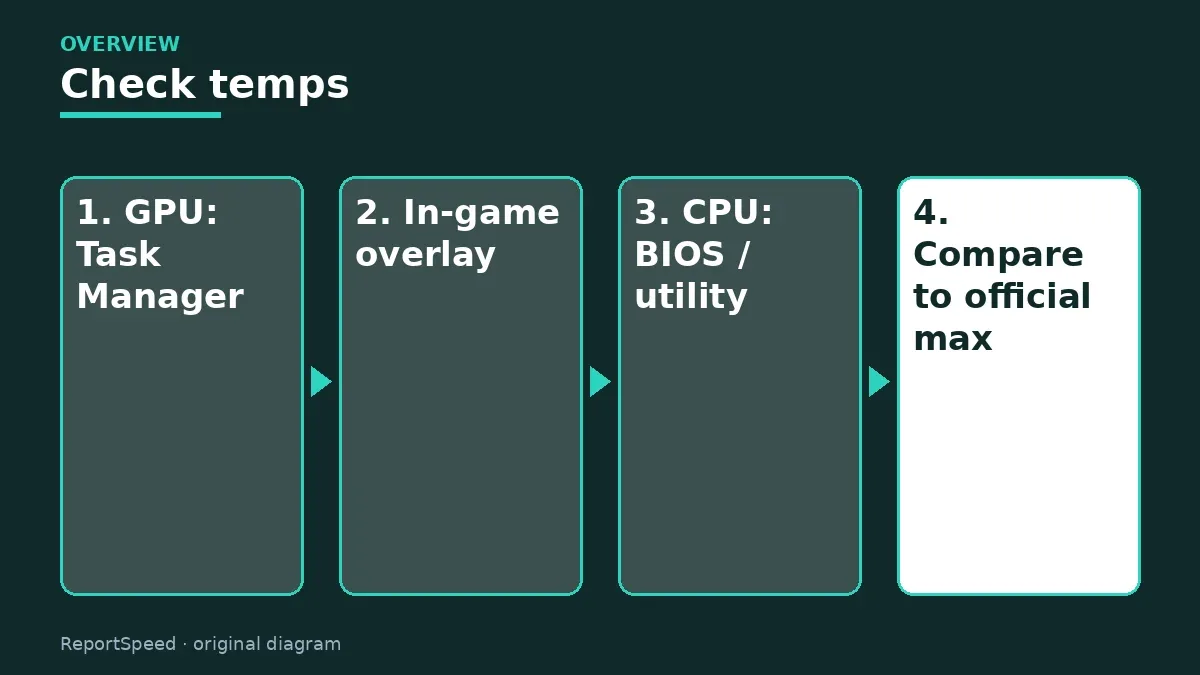
Windows Task Manager shows GPU temperature on supported systems, but CPU temperatures need the BIOS, the motherboard maker's utility, or a reputable monitoring app. Each CPU and GPU has a maximum safe operating temperature listed by its maker, and parts protect themselves with thermal throttling when they get too hot.
Windows Task Manager shows GPU temperature on many systems, and manufacturer utilities can show CPU temperatures. Lightweight tools exist too. Watch temperatures under a real game, not only idle, and compare to the official specifications for your parts.
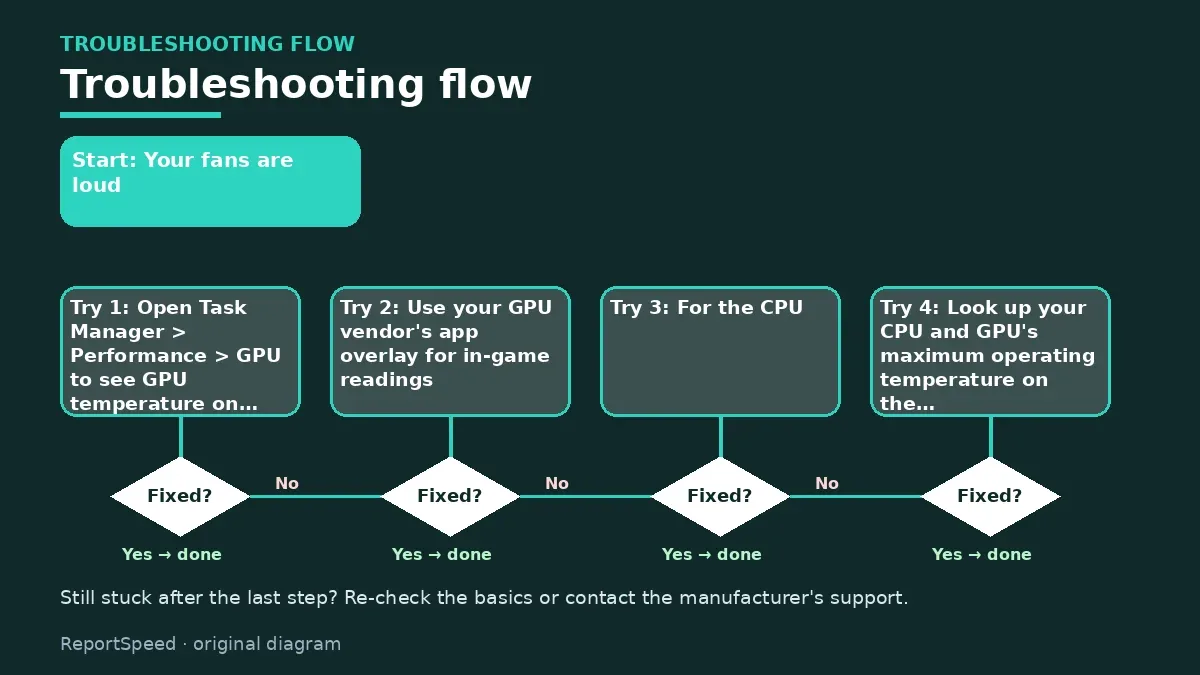
The number on its own means nothing without this comparison.
What to do
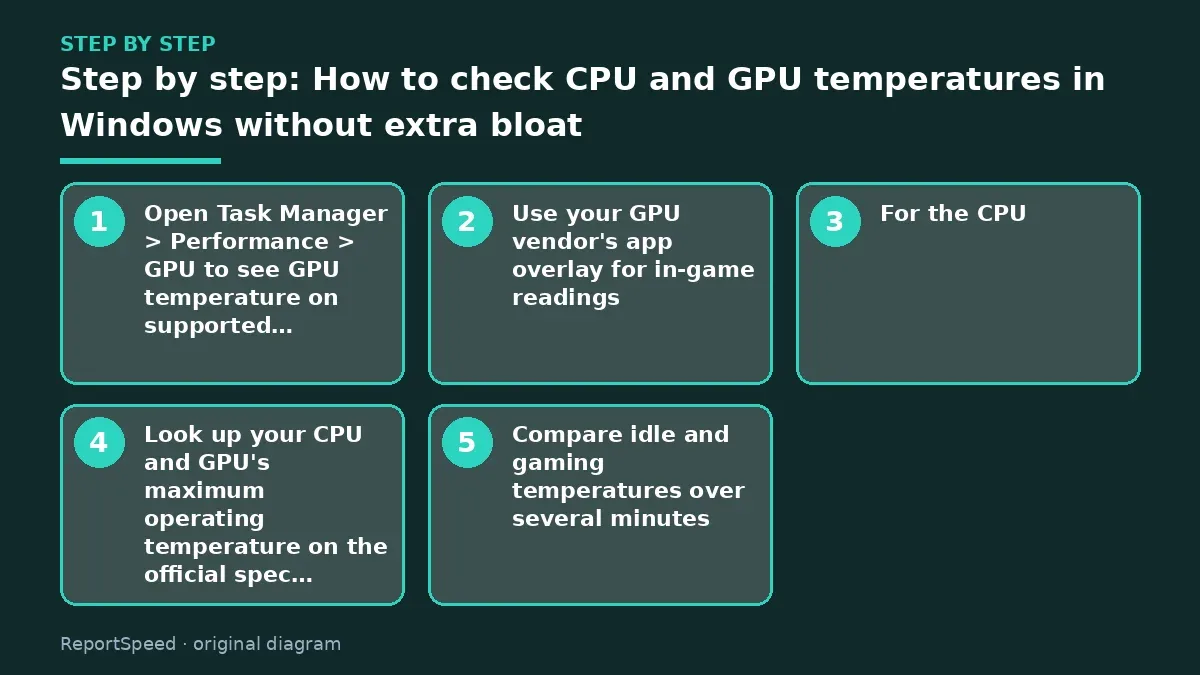
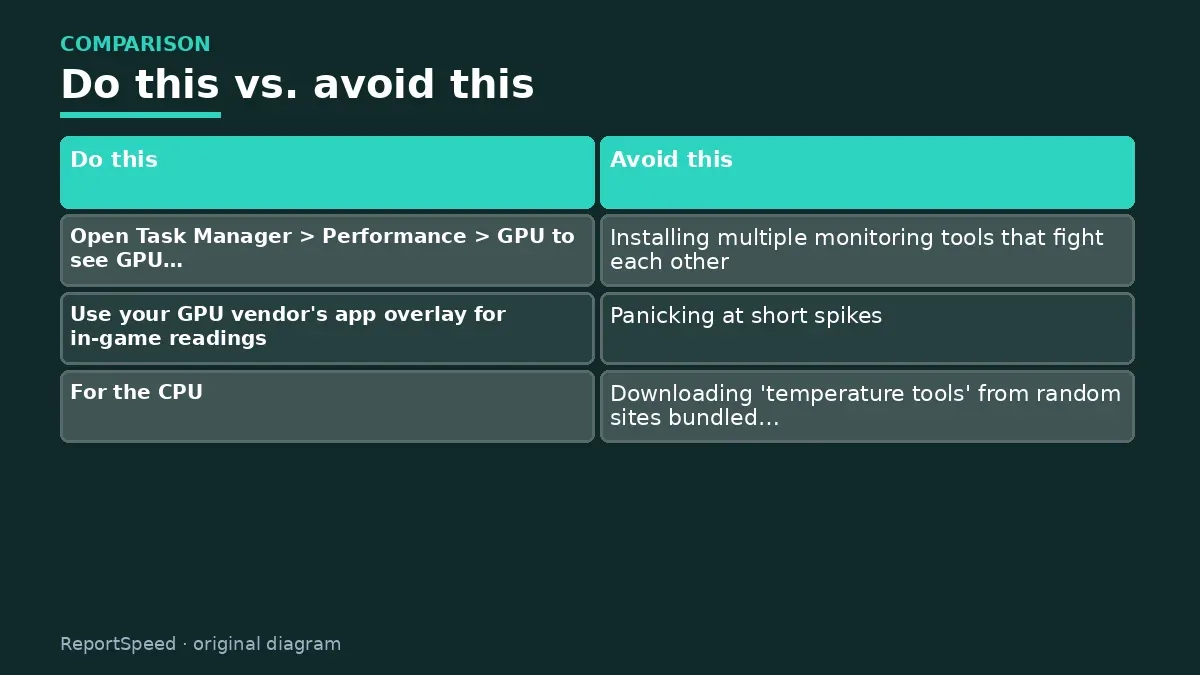
- Open Task Manager > Performance > GPU to see GPU temperature on supported systems.
- Use your GPU vendor's app overlay for in-game readings.
- For the CPU, check the BIOS hardware monitor, or install your motherboard maker's official utility.
- Look up your CPU and GPU's maximum operating temperature on the official spec page.
- Compare idle and gaming temperatures over several minutes.
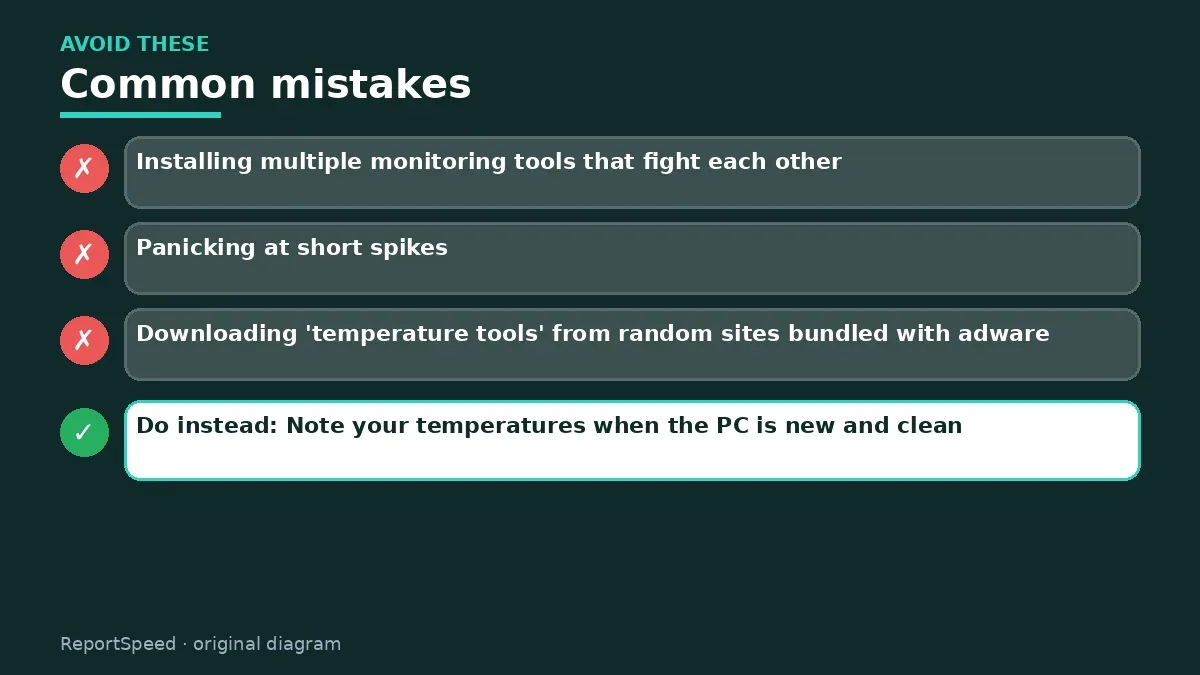
Common mistakes:
- Installing multiple monitoring tools that fight each other
- Panicking at short spikes
- Downloading 'temperature tools' from random sites bundled with adware
ReportSpeedMan tip: Note your temperatures when the PC is new and clean. That baseline makes it obvious when dust or old paste starts creeping in.
What I would actually do

use Task Manager for GPU temps and one trusted monitoring app for the CPU. One tool, not five.
The trade-off people miss: monitoring apps can conflict with each other and with RGB software. Fewer tools gives cleaner readings.
Builder's note: If temperatures look fine but you still get crashes, that's a clue too: it points toward drivers, unstable memory profiles or power delivery rather than heat. Monitoring isn't just about spotting danger, it's about ruling things out so you can focus troubleshooting where it matters.
Proof that it worked
Once you know your normal numbers at idle and in a long gaming session, you have a baseline. That's the real value: when something changes later, like after a driver update or as dust builds up, you'll spot it immediately instead of guessing. Recheck every few months, and after any hardware change.
Quick FAQ
What temperature is too hot?
Each manufacturer publishes limits; staying well below them is the goal.
Do I need monitoring software running always?
No, check during testing or when issues appear.
Are idle temps important?
Less than load behavior, but sustained high idle can signal background load.
Wrap-up: Task Manager for the GPU, BIOS or official utility for the CPU, compare with official limits, track over time. Knowledge beats worry.
Wiki: Thermal Throttling.
How to check CPU and GPU temperatures in Windows without extra bloat: official sources I checked
Step-by-step photos
1. Before The problem 
2. Why it happens The cause 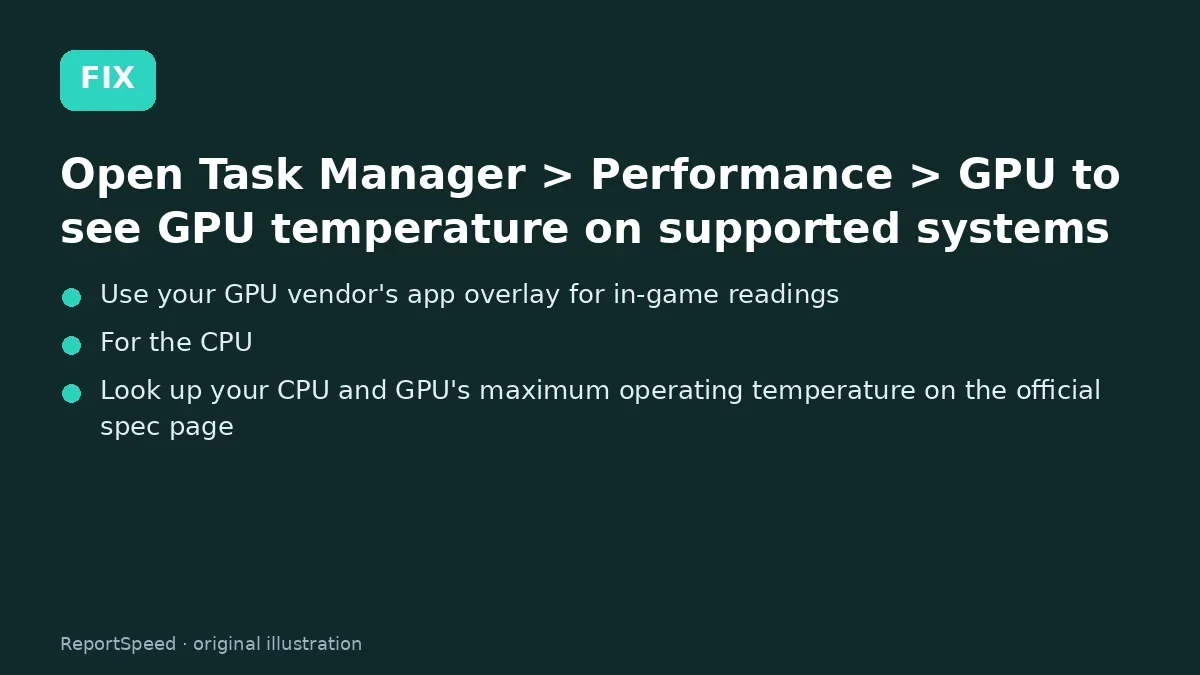
3. The fix The fix 
4. After The result
⚡ Speed Summary
- Task Manager for the GPU, BIOS or official utility for the CPU, compare with official limits, track over time.
- Note your temperatures when the PC is new and clean. That baseline makes it obvious when dust or old paste starts creeping in.
- The number on its own means nothing without this comparison.

Was this answer helpful?
Tap a star to rate this answer.
Related questions
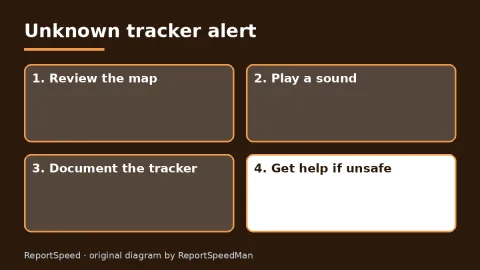
Got an 'AirTag found moving with you' alert? What to do next
Find the tracker, document it, identify the owner, and disable it.
Rate itSolved
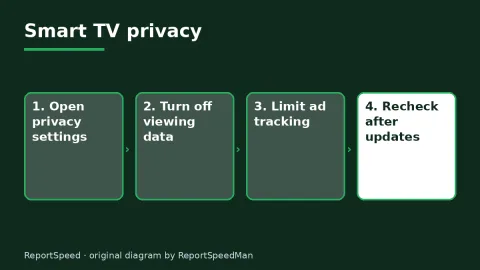
Is my smart TV tracking what I watch? How to turn off ACR
Smart TVs may use ACR to track viewing.
Rate itSolved
Caller ID spoofing: why scammers show a local number and how to protect yourself
Caller ID can be faked, and spoofing to defraud is illegal.
Rate itSolved

How do I stop spam emails without making it worse?
Mark spam, block repeat senders, unsubscribe only from known companies, and report phishing.
Rate itSolved
Real experiences
No experiences yet. Be the first to share.