


My video calls look and sound terrible. Coworkers say my mic picks up my keyboard and the fan, and my face is a dark blob against the window. I don't want to spend a fortune on a streaming setup. What are the cheapest ways to improve my webcam and mic quality for video calls?
How to improve webcam and mic quality for video calls
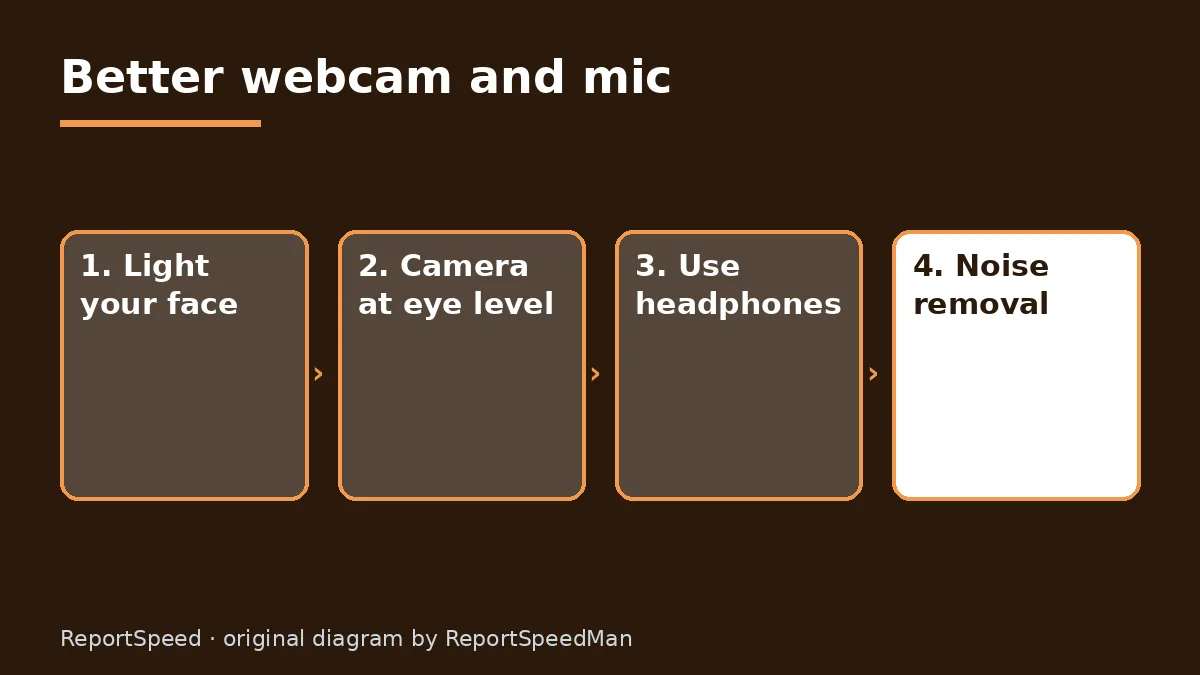
Concerns & risks
Your calls look grainy or dark, your voice sounds distant or noisy, and you're not sure whether the fix is new gear, better settings or just moving your desk.
| Fix | Cost |
|---|---|
| Light in front of you | Free |
| Camera at eye level | Free (books work) |
| Headphones to stop echo | Usually already owned |
| Software noise removal | Free on many setups |
| USB mic or headset | Paid, if still needed |

Causes & evidence
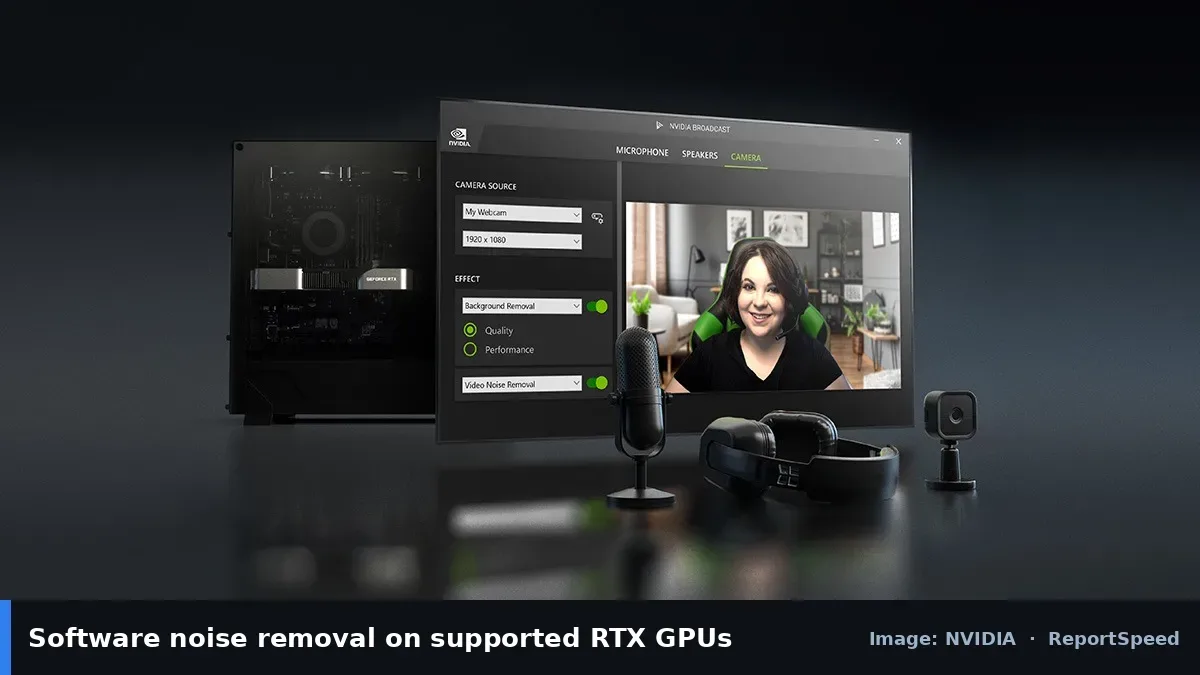
Webcams struggle in low or backlit light, so the camera raises gain and you get noise and a silhouette. Built-in laptop mics sit near fans and keyboards and pick up the whole room. Software noise removal helps a lot: Windows offers voice clarity and camera effects on supported PCs, and NVIDIA Broadcast offers AI noise removal and virtual background on supported RTX GPUs. Position and light still matter most.
Cameras rely on light; with more of it, they lower gain and the picture gets cleaner. Microphones hear everything nearby, so moving the mic closer to your mouth raises your voice above the noise.
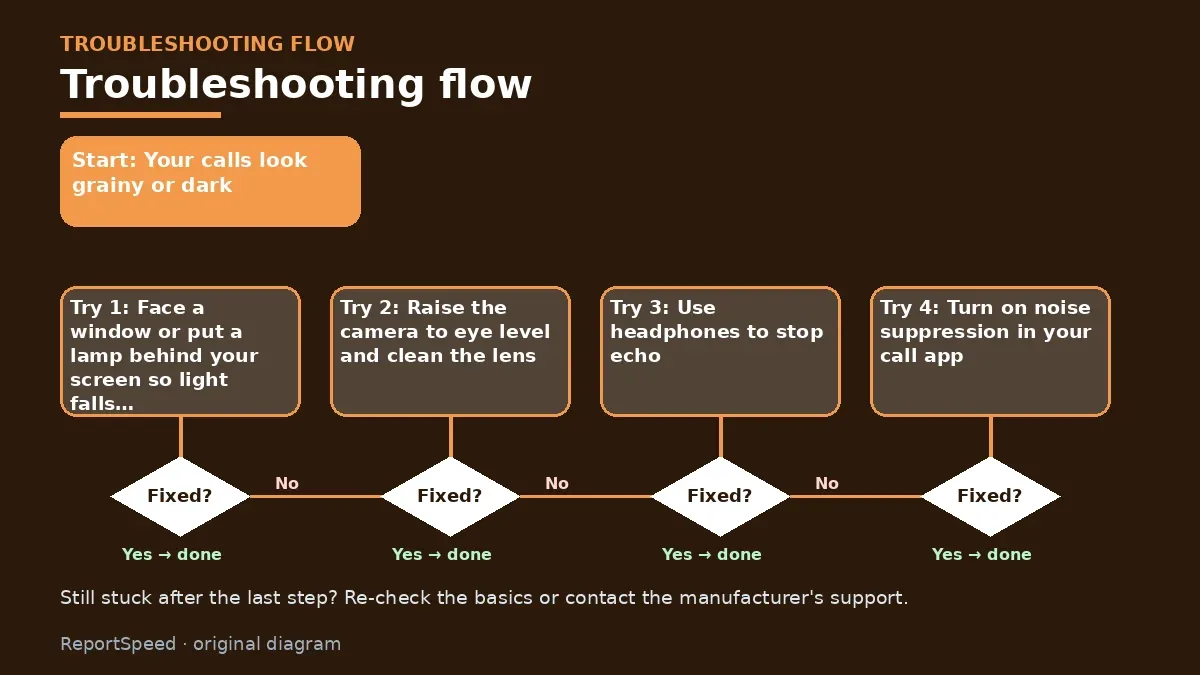
A better camera pointed at a bright window will still give you a beautiful silhouette.
What to do
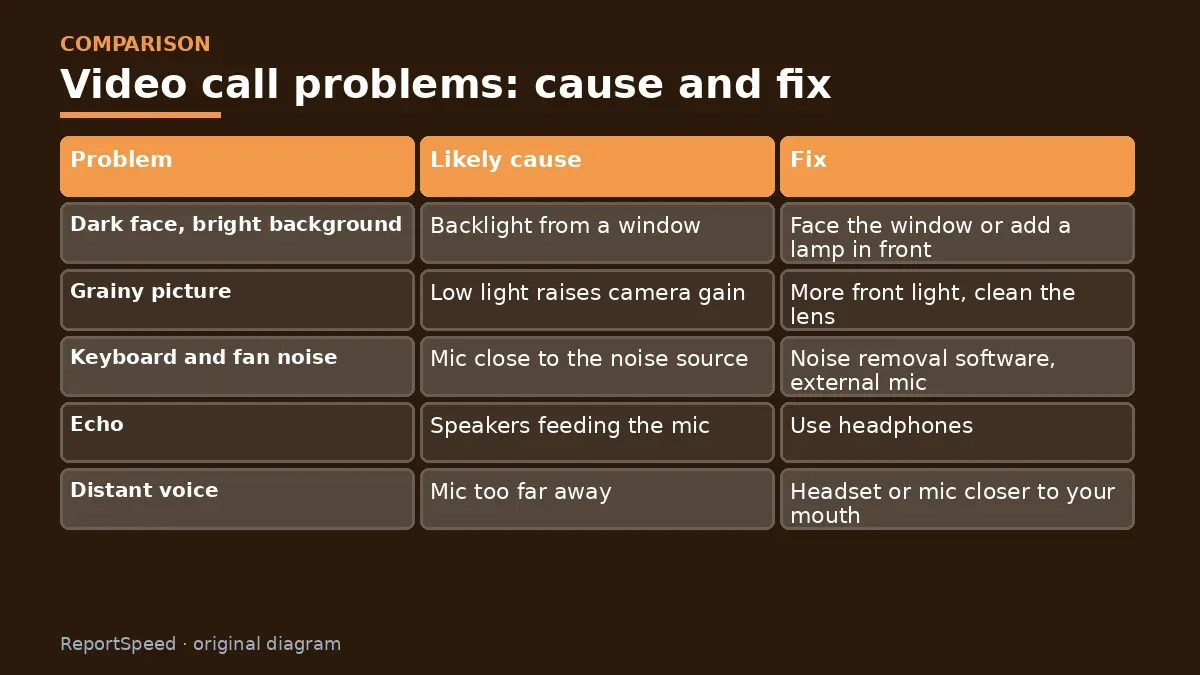
| Problem | Likely cause | Fix |
|---|---|---|
| Dark face, bright background | Backlight from a window | Face the window or add a lamp in front |
| Grainy picture | Low light raises camera gain | More front light, clean the lens |
| Keyboard and fan noise | Mic close to the noise source | Noise removal software, external mic |
| Echo | Speakers feeding the mic | Use headphones |
| Distant voice | Mic too far away | Headset or mic closer to your mouth |
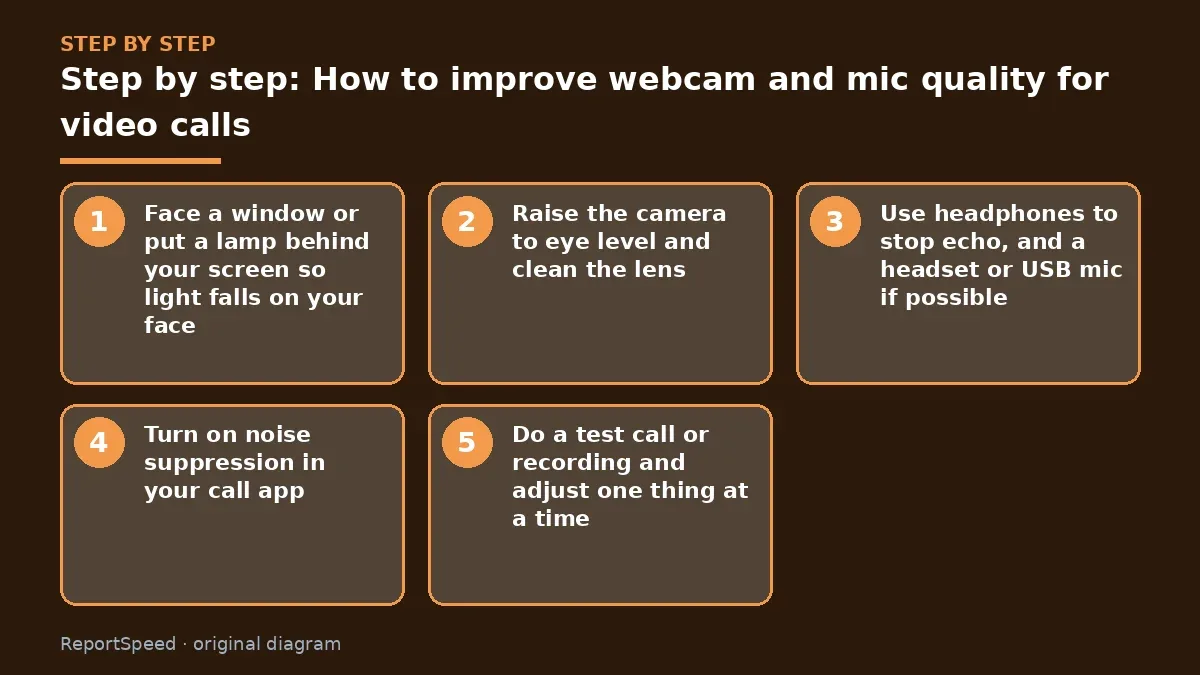
- Face a window or put a lamp behind your screen so light falls on your face.
- Raise the camera to eye level and clean the lens.
- Use headphones to stop echo, and a headset or USB mic if possible.
- Turn on noise suppression in your call app, Windows settings, or NVIDIA Broadcast on a supported RTX GPU.
- Do a test call or recording and adjust one thing at a time.
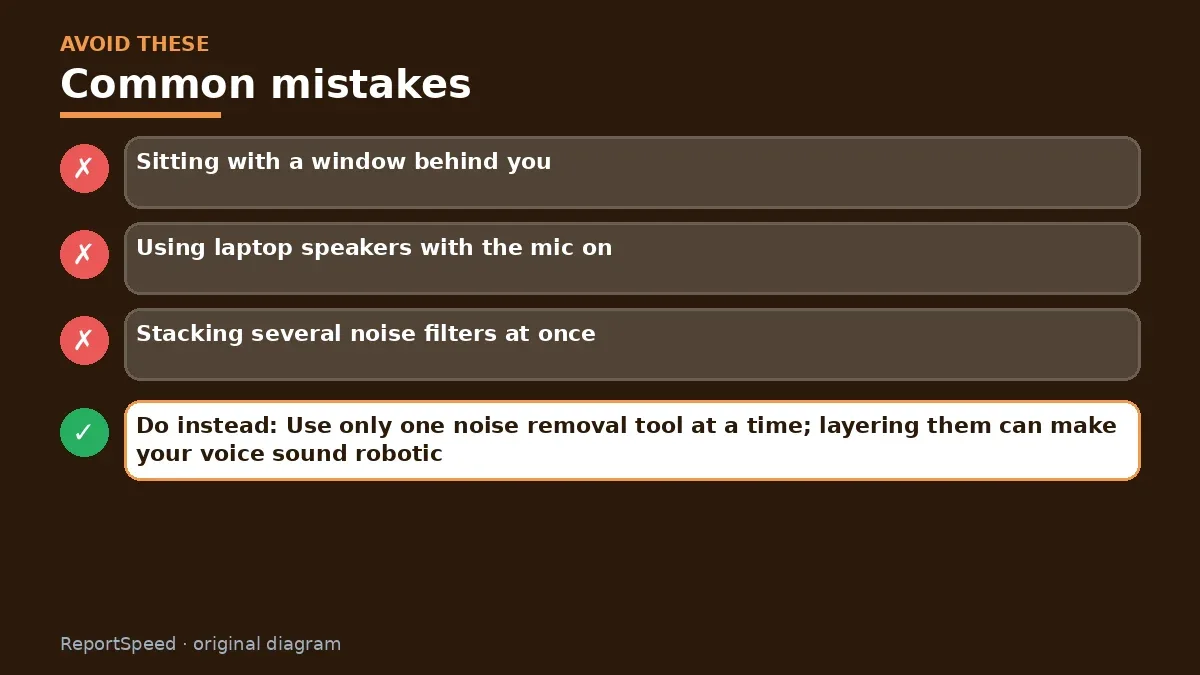
Common mistakes:
- Sitting with a window behind you
- Using laptop speakers with the mic on
- Stacking several noise filters at once
ReportSpeedMan tip: Use only one noise removal tool at a time; layering them can make your voice sound robotic.
What I would actually do
move the desk so the window lights my face, put on wired headphones, and enable one noise removal tool. Only then would I spend money, starting with a decent USB mic or headset before a new webcam.
The trade-off people miss: audio matters more than video. People forgive a soft picture far more easily than a voice drowned by keyboard clicks.
Did it work? How to check
Coworkers stop commenting on your audio and your face looks clearly lit on screen.
Quick FAQ
Do I need a new webcam?
Try light and position first; many built-in cameras improve a lot.
Does NVIDIA Broadcast need an RTX GPU?
Yes, NVIDIA lists supported RTX GPUs on its page.
Wired or Bluetooth headset?
Wired or USB avoids some Bluetooth mic quality drops.
Wrap-up: Fix light and mic distance first, then add software noise removal. Buy gear only after free fixes stop helping.
Wiki: Software Updates.
How to improve webcam and mic quality for video calls: primary sources
Step-by-step photos
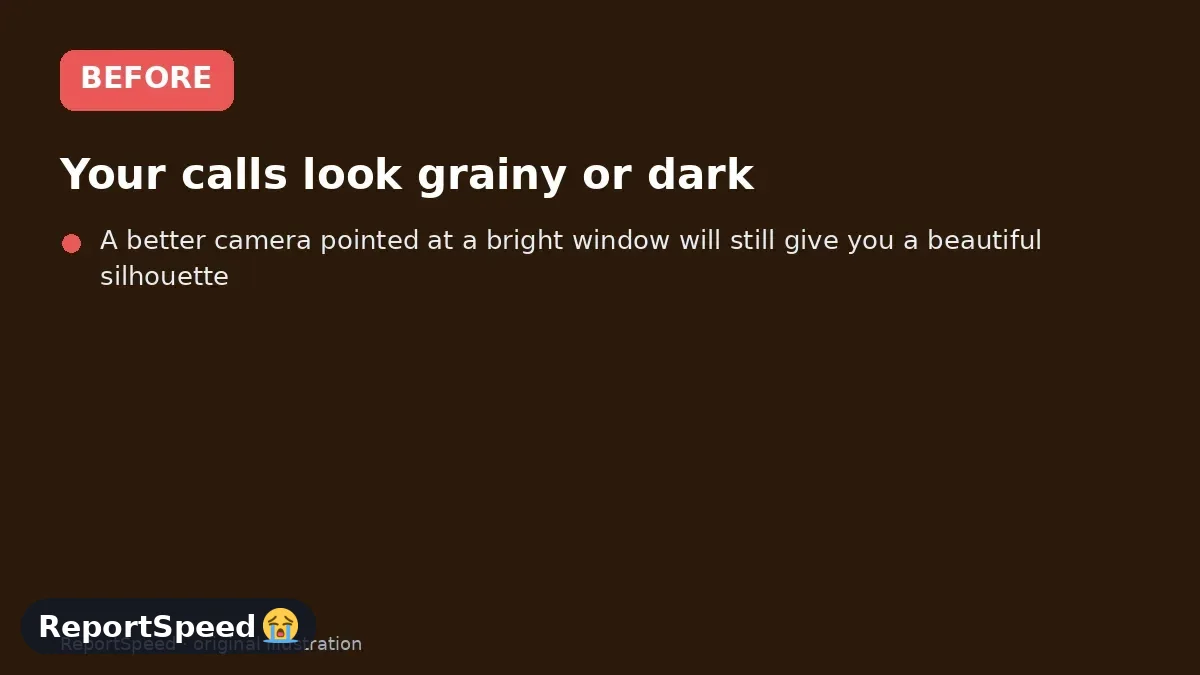
1. Before The problem 
2. Why it happens The cause 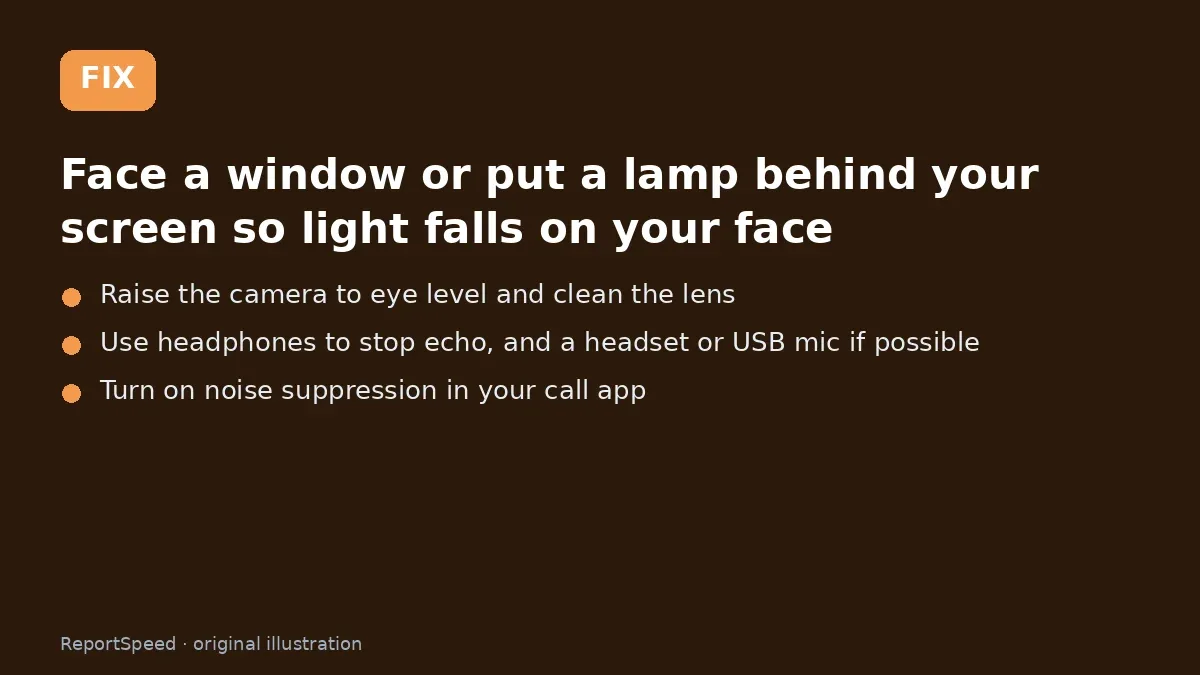
3. The fix The fix 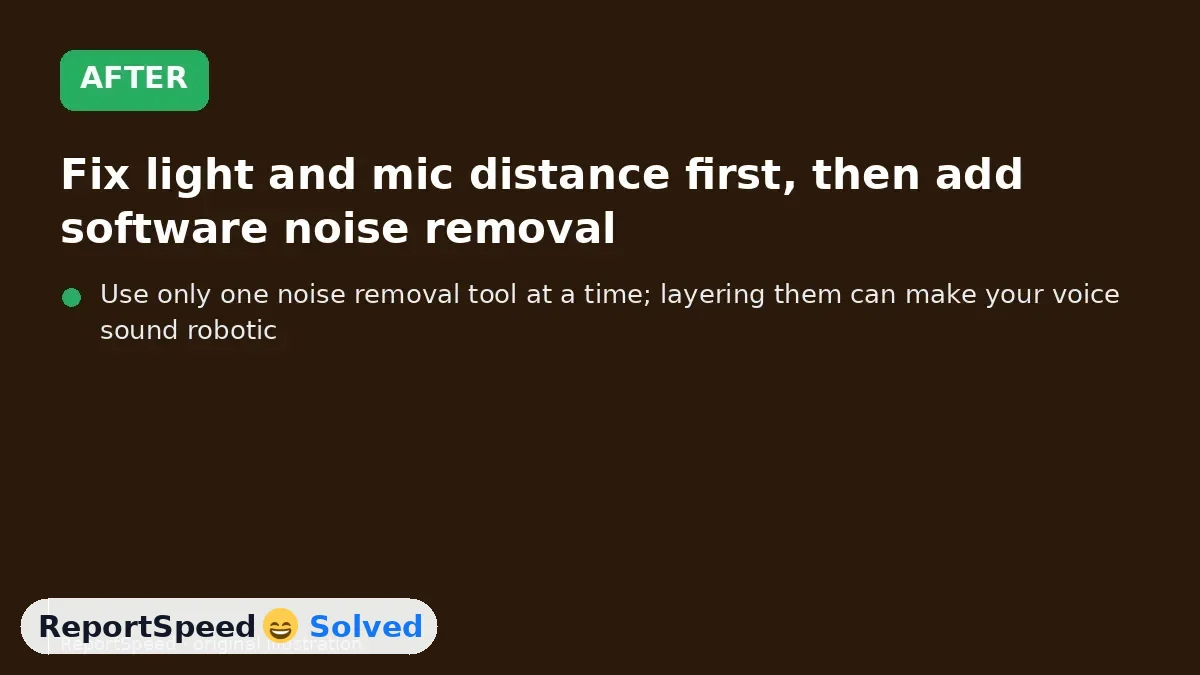
4. After The result
⚡ Speed Summary
- Fix light and mic distance first, then add software noise removal.
- Use only one noise removal tool at a time; layering them can make your voice sound robotic.
- A better camera pointed at a bright window will still give you a beautiful silhouette.

Was this answer helpful?
Tap a star to rate this answer.
Related questions
Got an 'AirTag found moving with you' alert? What to do next
Find the tracker, document it, identify the owner, and disable it.
Rate itSolved
Is my smart TV tracking what I watch? How to turn off ACR
Smart TVs may use ACR to track viewing.
Rate itSolved
Caller ID spoofing: why scammers show a local number and how to protect yourself
Caller ID can be faked, and spoofing to defraud is illegal.
Rate itSolved
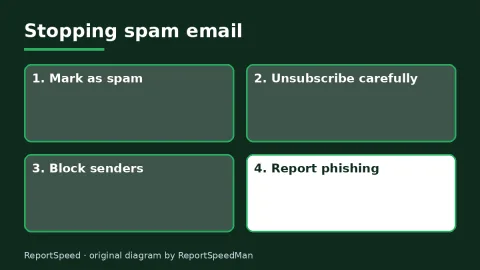
How do I stop spam emails without making it worse?
Mark spam, block repeat senders, unsubscribe only from known companies, and report phishing.
Rate itSolved
Real experiences
No experiences yet. Be the first to share.