


How often should I reapply thermal paste on my CPU, and how much do I use? My desktop is a few years old and temps have slowly crept up. I'm thinking of repasting, but the internet can't agree on pea vs line vs spread, and I'm scared of using too much or too little. Is it even worth doing?
How to reapply thermal paste on a CPU: when to do it and how much to use
Concerns & risks
Temperatures have crept up over time, the fans are louder, and cleaning dust didn't fully fix it.
| Sign | Repaste? | Note |
|---|---|---|
| Temps rose over years with same load | Likely helps | Clean dust first |
| New build running hot | Check mount pressure first | Repaste only after mount check |
| Removed the cooler for any reason | Yes | Old paste breaks the seal |
| Normal temps | No | Do not fix what works |
Causes & evidence
Thermal paste fills microscopic gaps between the CPU's heat spreader and the cooler. Over time it can dry or pump out, and a cooler that was bumped or unevenly tightened leaves gaps. That raises temperatures and can lead to thermal throttling.
Thermal paste fills tiny gaps between the CPU's heat spreader and the cooler base. Too little leaves air gaps, while too much is messy but usually less harmful. Clean both surfaces with isopropyl alcohol and a lint-free cloth, apply a modest amount, and mount the cooler evenly in a cross pattern.
The amount everyone obsesses over matters less than one thing people constantly skip.
What to do
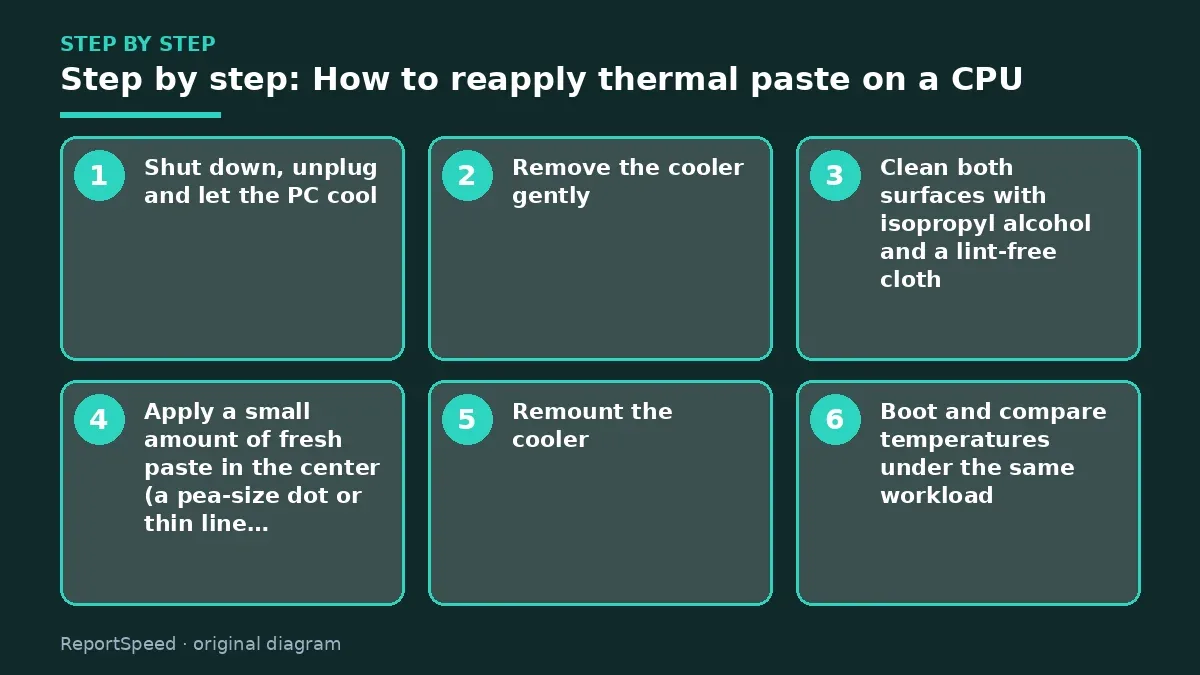
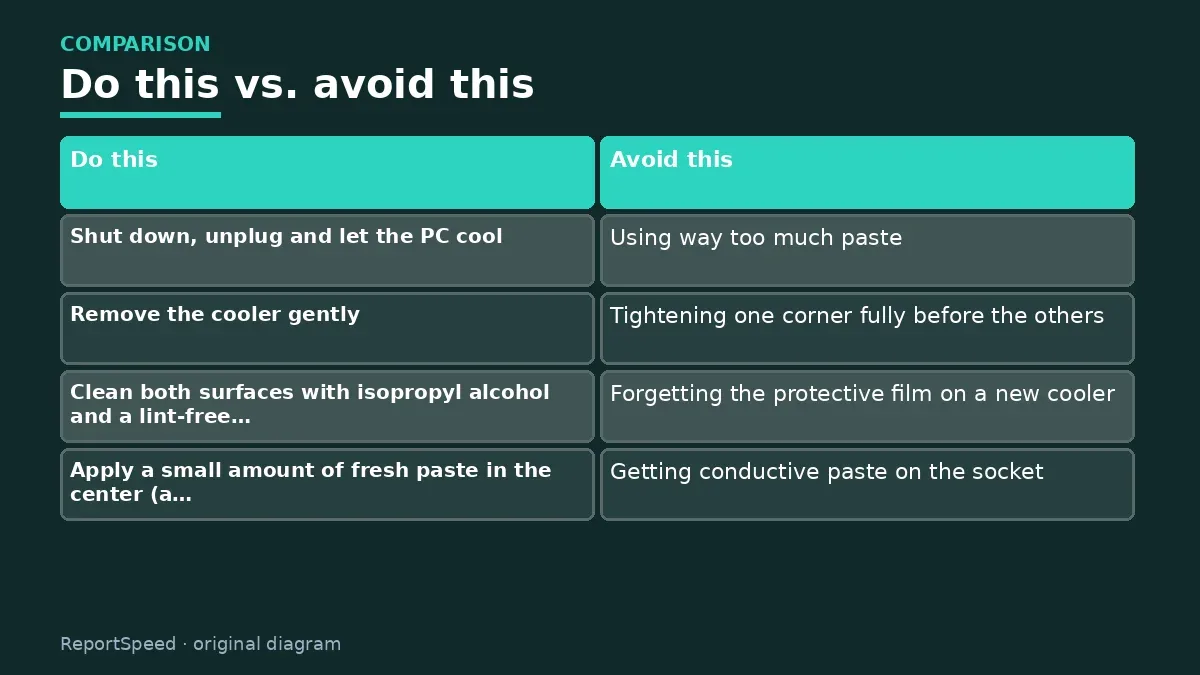
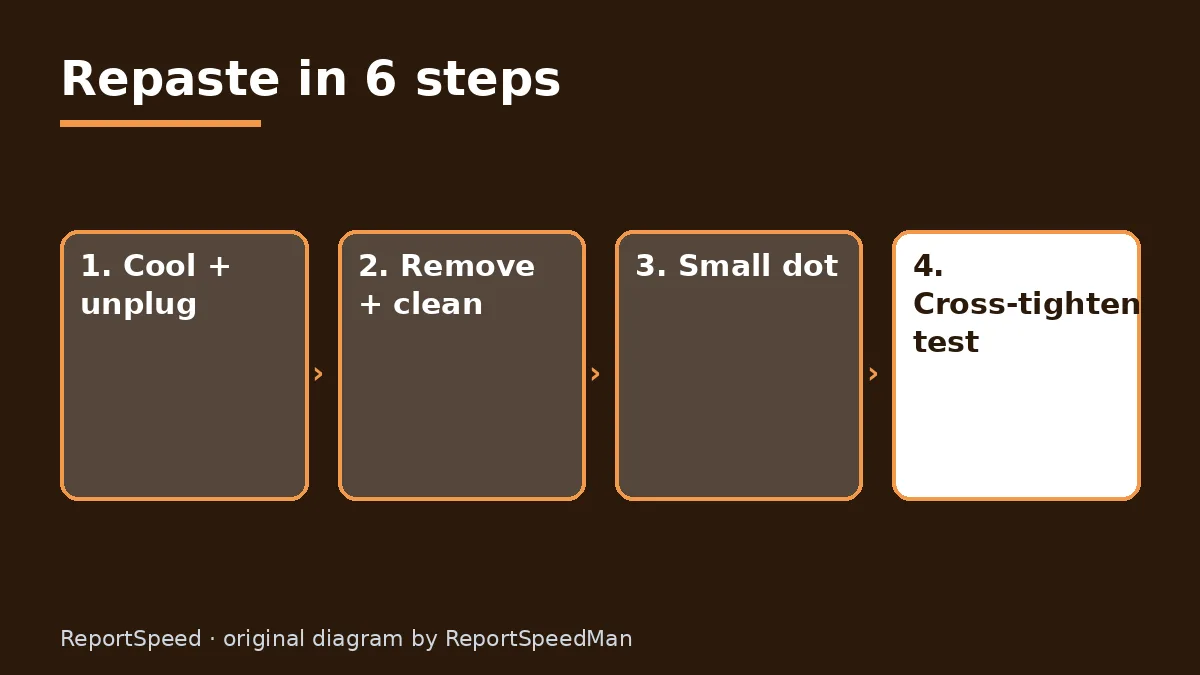
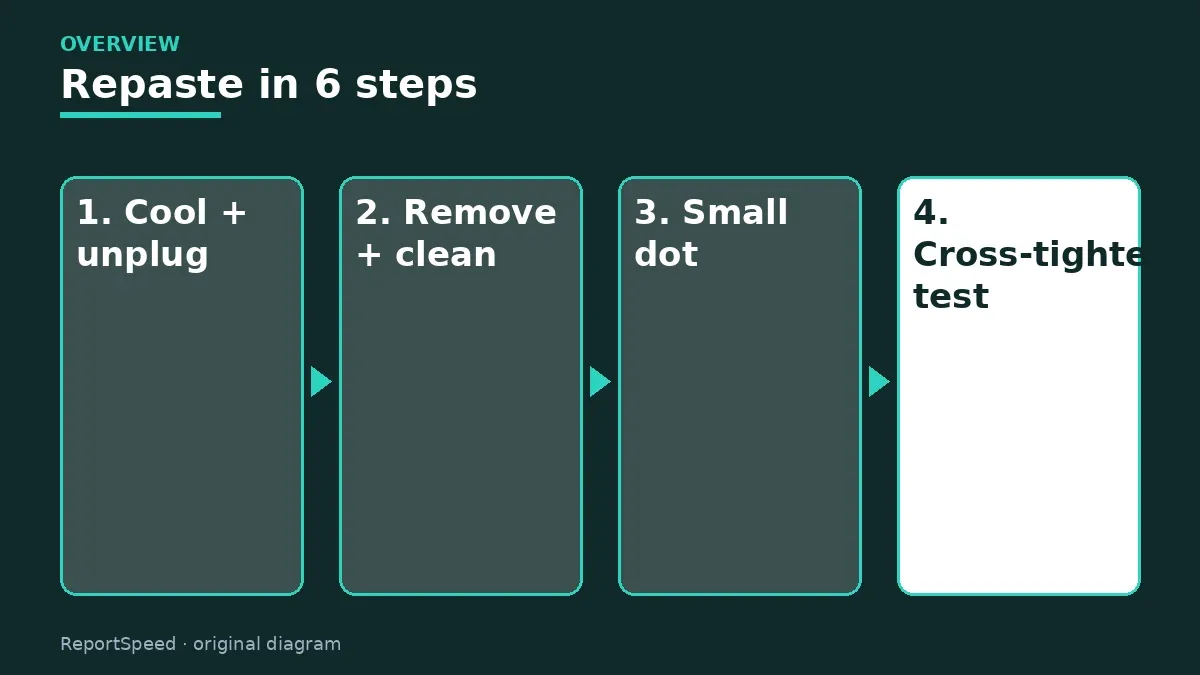
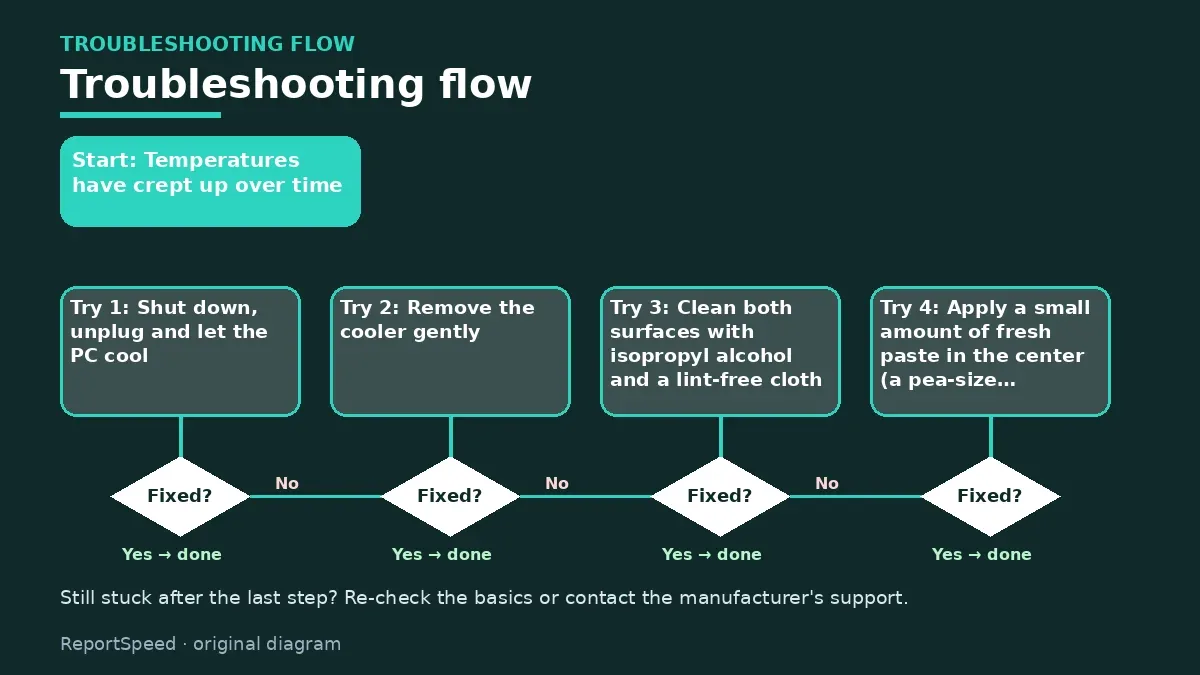
- Shut down, unplug and let the PC cool.
- Remove the cooler gently; twist slightly to break the paste's grip rather than yanking.
- Clean both surfaces with isopropyl alcohol and a lint-free cloth.
- Apply a small amount of fresh paste in the center (a pea-size dot or thin line works for most desktop CPUs).
- Remount the cooler, tightening screws a little at a time in a cross pattern for even pressure.
- Boot and compare temperatures under the same workload.
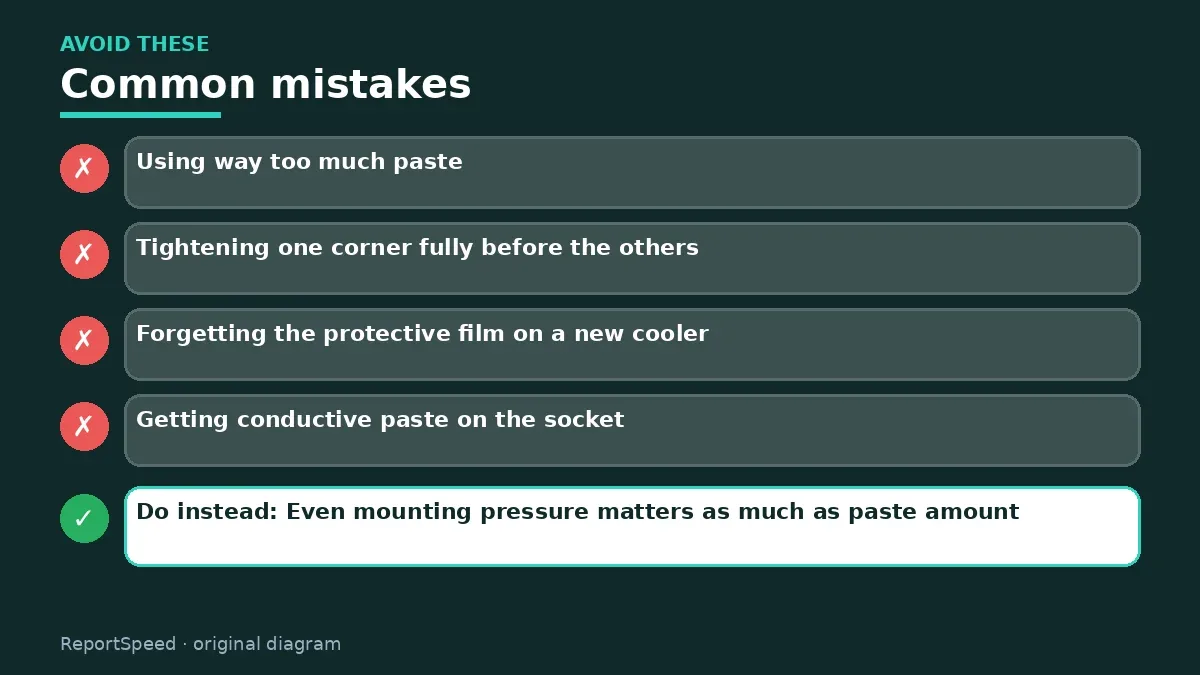
Common mistakes:
- Using way too much paste
- Tightening one corner fully before the others
- Forgetting the protective film on a new cooler
- Getting conductive paste on the socket
ReportSpeedMan tip: Even mounting pressure matters as much as paste amount. Cross-pattern tightening is the habit worth building.
What I would actually do
clean dust and check the fan curve first. Repaste only if temps stay high after that.
The trade-off people miss: too much paste is rarely the disaster people fear, but a bad mount is. Even pressure matters more than the paste brand.
Builder's note: If temperatures don't improve after a repaste, the paste probably wasn't the problem. Look next at case airflow: front intake fans blocked by a glass panel, a radiator pulling in hot GPU exhaust, or cable bundles in front of the fans. Heat has to leave the case, not just the chip, so think about the whole path the air takes.
Proof that it worked
Afterwards, compare temperatures under the same load you tested before. A good repaste usually shows more even temperatures and less fan ramping. If temperatures got worse, the mount may be uneven or the paste coverage poor, so remove the cooler, look at the spread pattern, clean and try again. It's tedious, but every builder has done it twice at least once.
Quick FAQ
How often should I repaste?
There's no fixed schedule. Do it when you remove the cooler or temperatures rise without another cause.
Pea or spread?
Both work when mounting pressure is even. Follow your cooler maker's guidance.
Does conductive paste matter?
Electrically conductive compounds need extra care. Many common pastes are non-conductive.
Wrap-up: Clean, small dot, even pressure, re-test. It's a twenty-minute job that can make an aging PC feel calm again.
Wiki: Thermal Throttling.
How to reapply thermal paste on a CPU: official pages behind this answer
Step-by-step photos

1. Before The problem 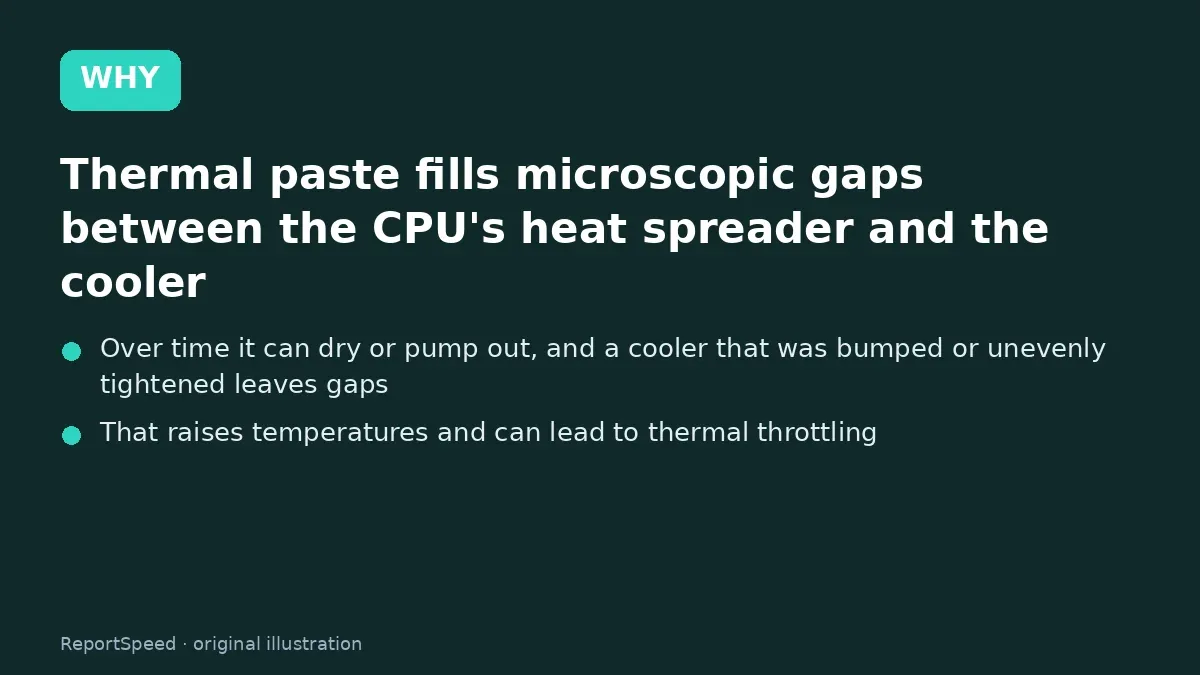
2. Why it happens The cause 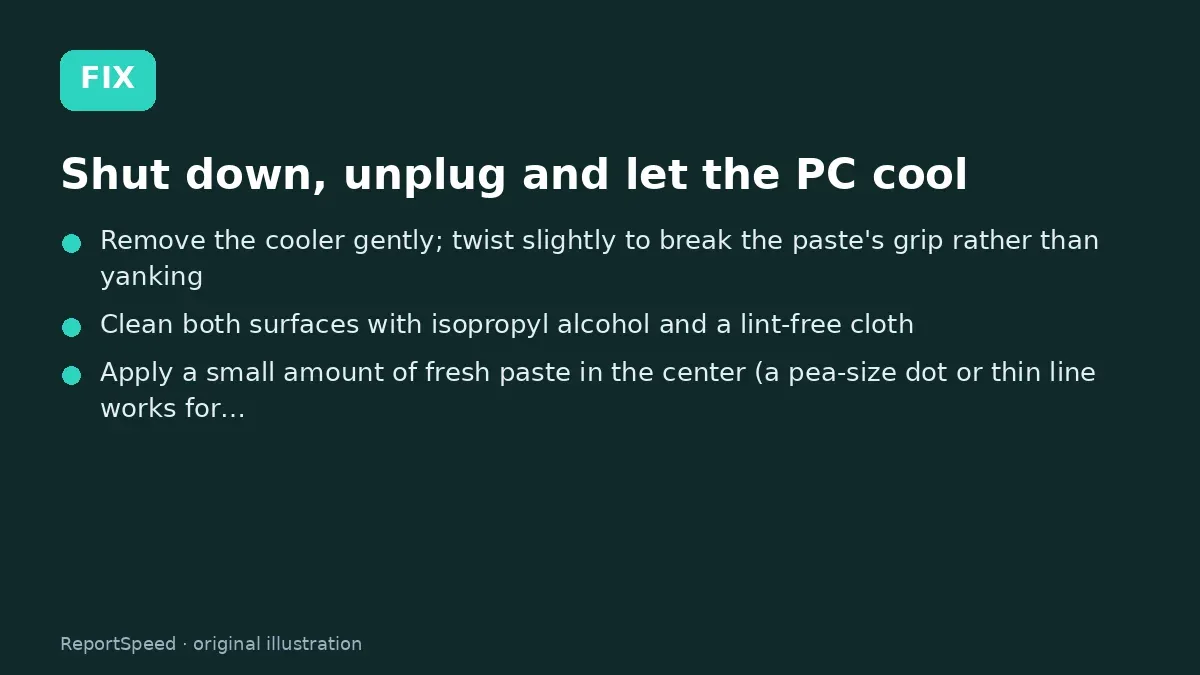
3. The fix The fix 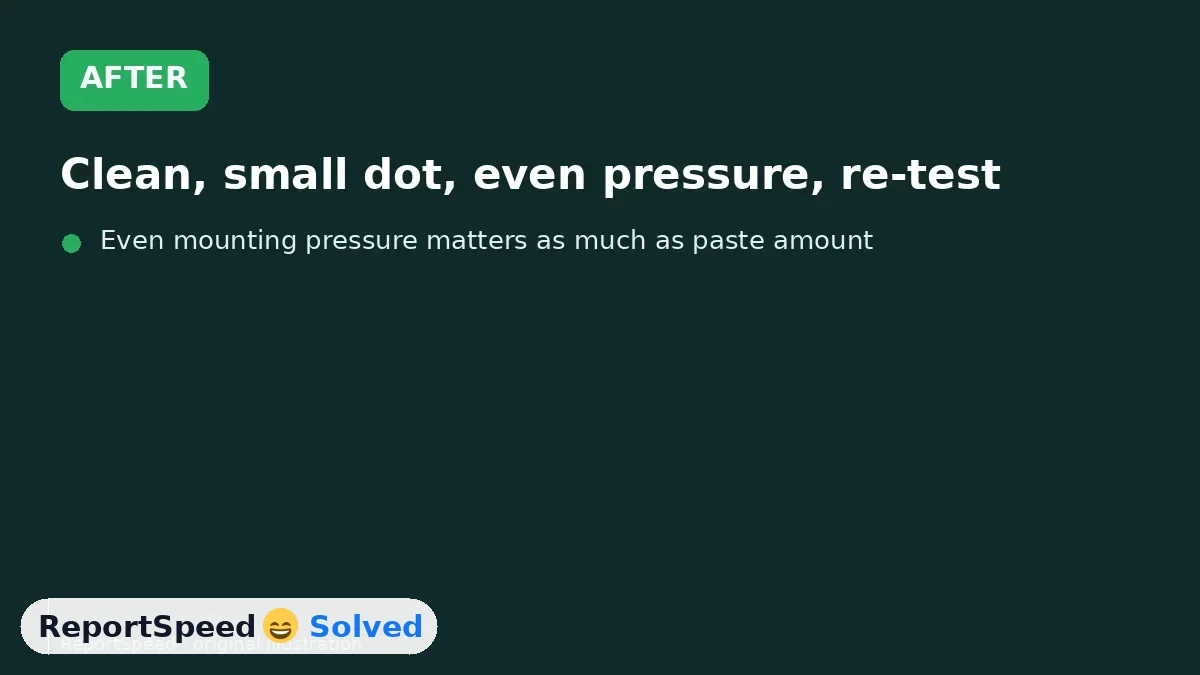
4. After The result
⚡ Speed Summary
- Clean, small dot, even pressure, re-test.
- Even mounting pressure matters as much as paste amount. Cross-pattern tightening is the habit worth building.
- The amount everyone obsesses over matters less than one thing people constantly skip.

Was this answer helpful?
Tap a star to rate this answer.
Related questions

Got an 'AirTag found moving with you' alert? What to do next
Find the tracker, document it, identify the owner, and disable it.
Rate itSolved

Is my smart TV tracking what I watch? How to turn off ACR
Smart TVs may use ACR to track viewing.
Rate itSolved
Caller ID spoofing: why scammers show a local number and how to protect yourself
Caller ID can be faked, and spoofing to defraud is illegal.
Rate itSolved

How do I stop spam emails without making it worse?
Mark spam, block repeat senders, unsubscribe only from known companies, and report phishing.
Rate itSolved
Real experiences
No experiences yet. Be the first to share.