


Is my monitor plugged into the motherboard instead of the graphics card? My new build feels weirdly slow in games and someone in a Discord said that's the classic mistake. I honestly don't know which port I used. How do I tell, and what else should I check while I'm back there?
Monitor plugged into the motherboard instead of the graphics card? Here's how to tell
Concerns & risks
Games perform terribly, the GPU barely shows activity, or the screen is black after installing a graphics card.
| Your PC | Plug monitor into | Why |
|---|---|---|
| Desktop with graphics card | Graphics card ports | Otherwise the GPU is idle |
| Desktop without graphics card | Motherboard ports | Uses integrated graphics |
| CPU with no integrated graphics | Graphics card only | Motherboard ports are dead |
| Laptop | Port that supports your needs | Check maker's port guide |
Causes & evidence
The video outputs on the motherboard's rear panel use the processor's integrated graphics, if it has any. Plug your monitor there and games may run on the much weaker integrated GPU, or nothing appears if the CPU has no integrated graphics or the board disables it when a card is installed.
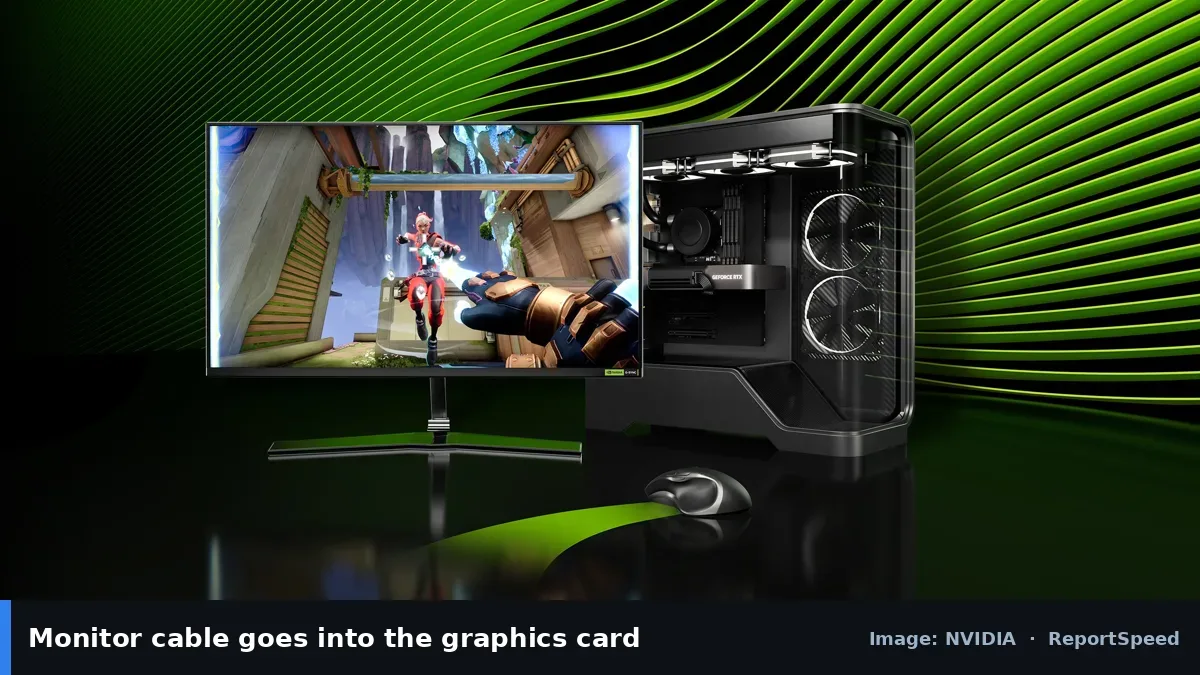
When a desktop has both motherboard video outputs and a graphics card, the monitor needs to plug into the card. Otherwise, you may be using integrated graphics or nothing at all. Check the back of the PC: the card's ports sit lower, in a horizontal slot area.
Look at the back of your PC for five seconds and you'll know.
What to do
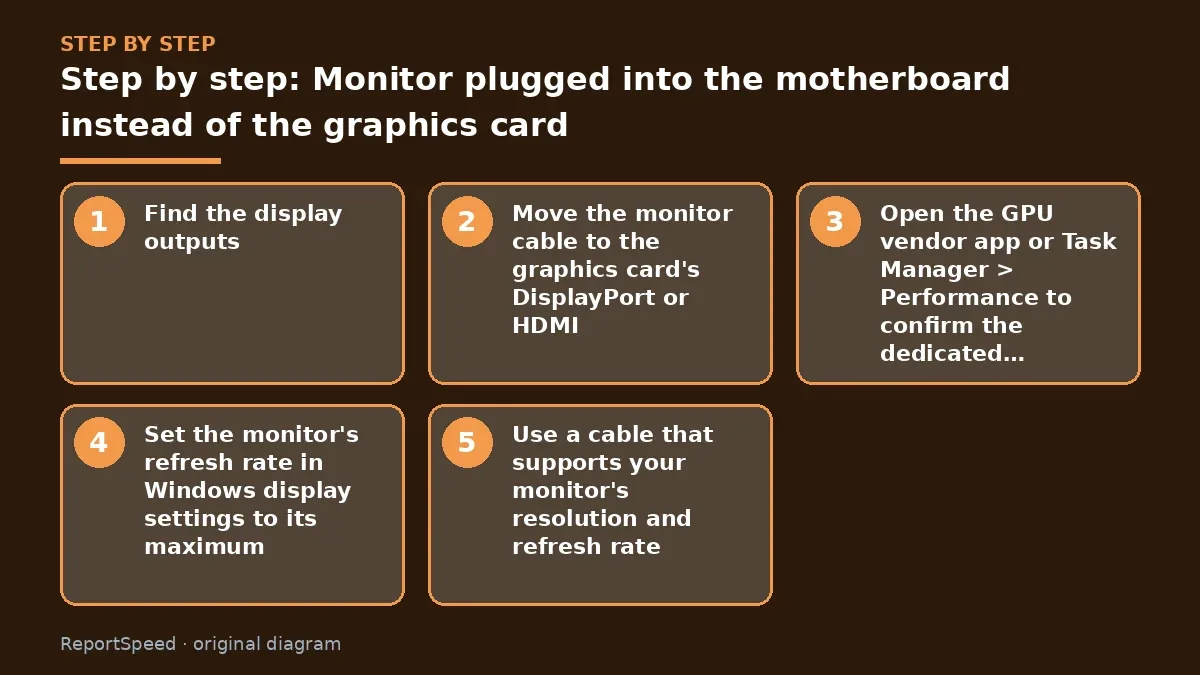

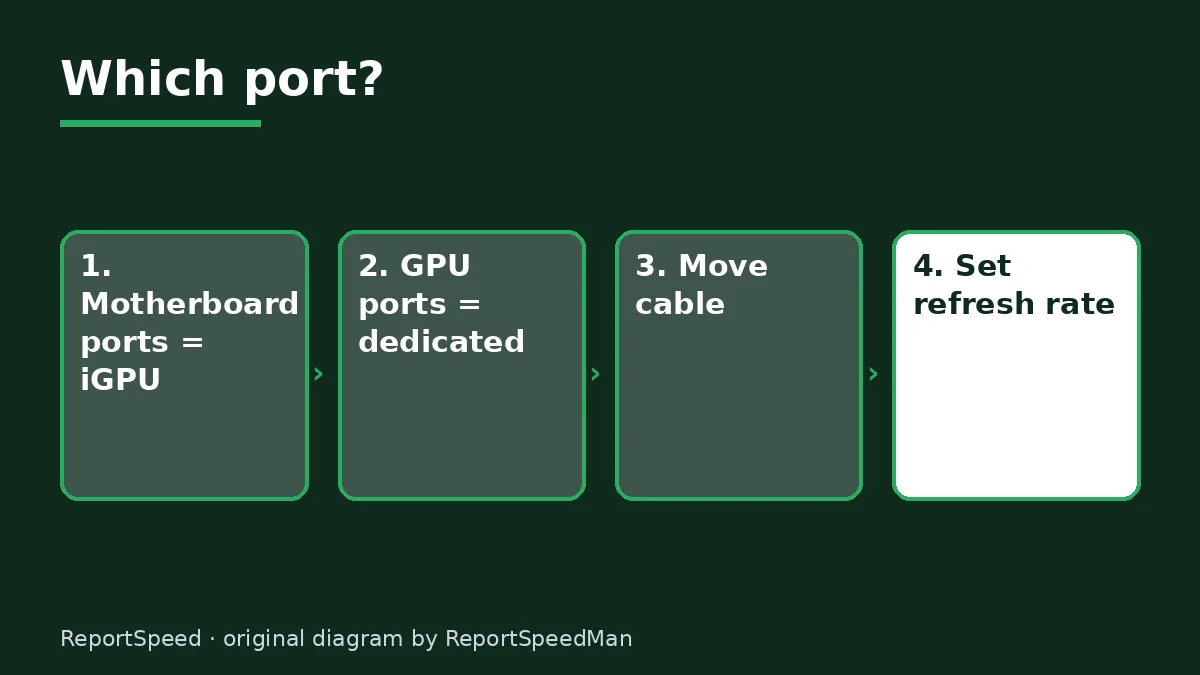
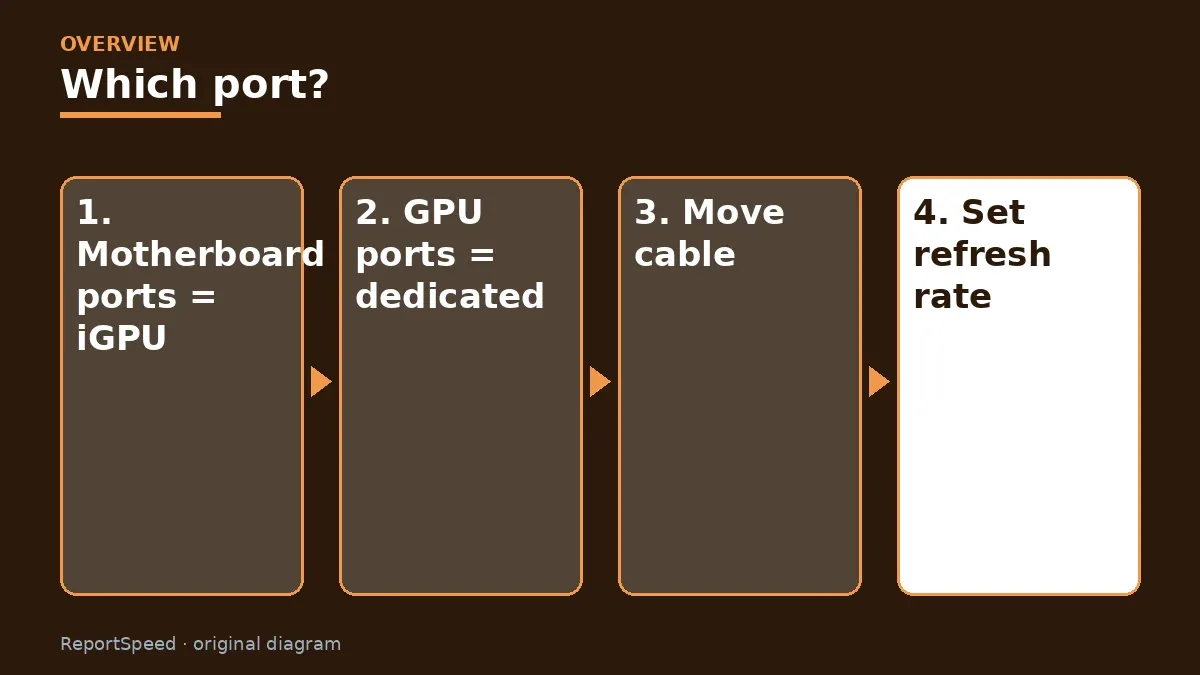
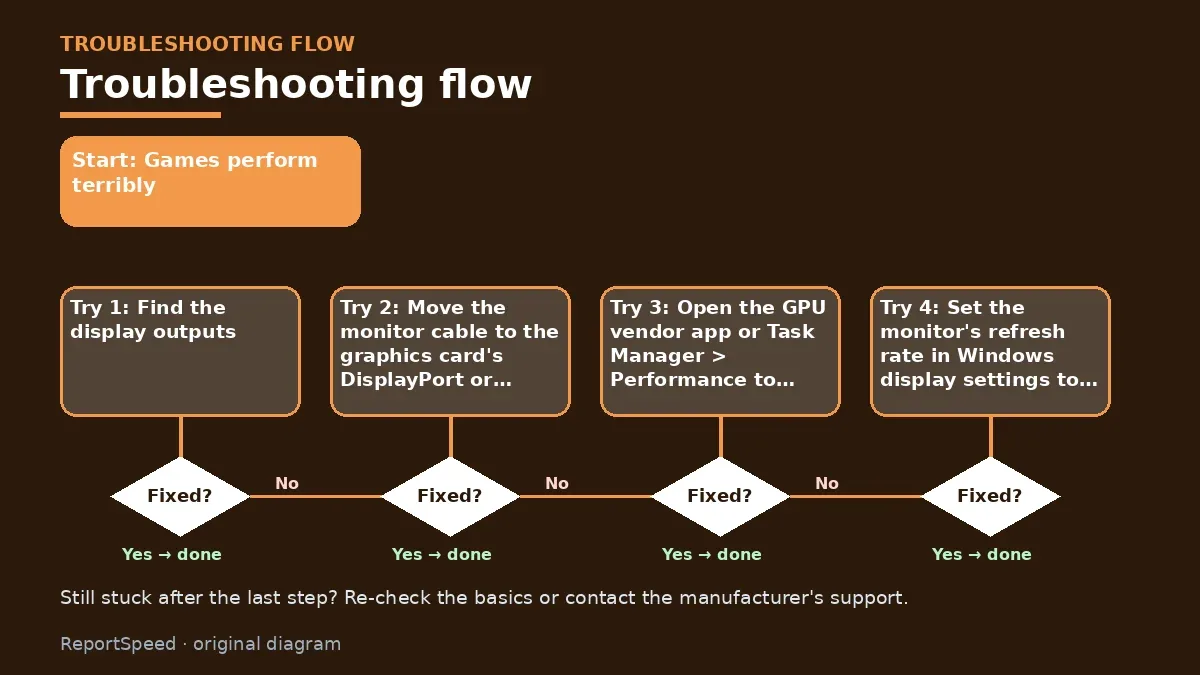
- Find the display outputs: the graphics card's ports are lower down, mounted horizontally on the expansion slot area.
- Move the monitor cable to the graphics card's DisplayPort or HDMI.
- Open the GPU vendor app or Task Manager > Performance to confirm the dedicated GPU is active in games.
- Set the monitor's refresh rate in Windows display settings to its maximum.
- Use a cable that supports your monitor's resolution and refresh rate.
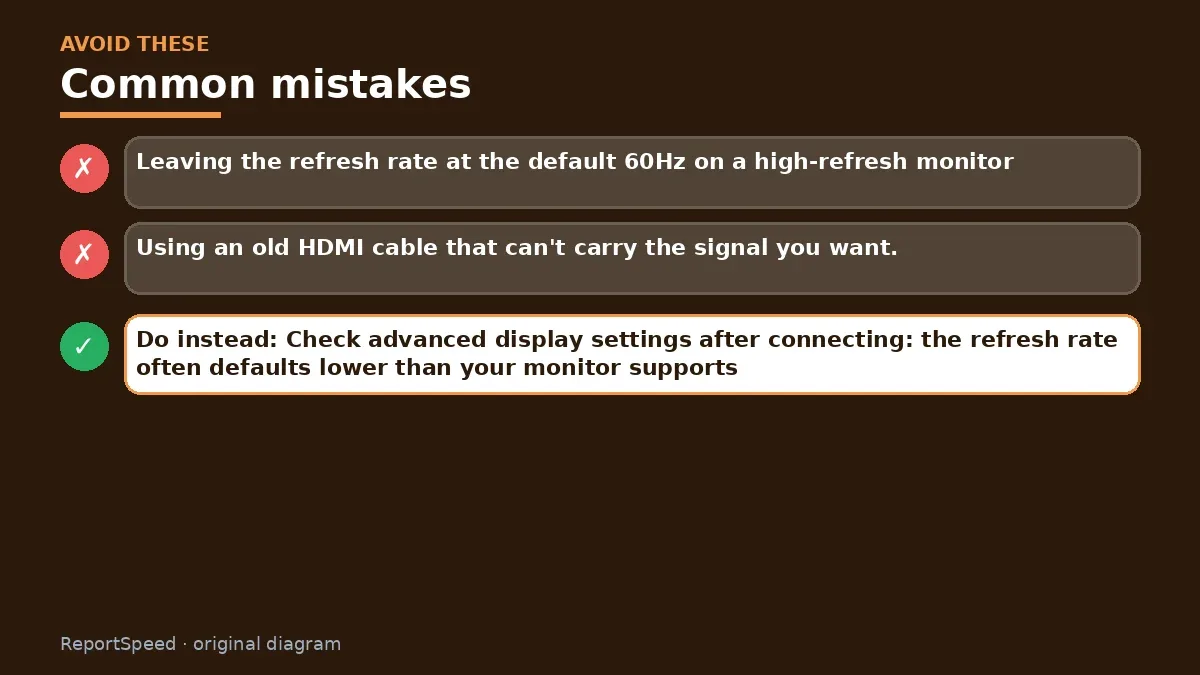
Common mistakes: Leaving the refresh rate at the default 60Hz on a high-refresh monitor, and using an old HDMI cable that can't carry the signal you want.
ReportSpeedMan tip: Check advanced display settings after connecting: the refresh rate often defaults lower than your monitor supports.
What I would actually do
check this first whenever someone says their new GPU is 'slow'. It's the most common five-second fix I know.
The trade-off people miss: some boards can disable integrated graphics automatically, others don't. Plugging into the right port is the reliable fix.
Builder's note: It sounds silly, but the same mix-up happens with speakers and microphones too: audio routed through the monitor's HDMI instead of your headset can make you think something's broken. After moving the cable, peek at Windows sound settings and pick the right output device. Small fixes stack up to a PC that finally feels as fast as it should.
Did it work? How to check
The quick confirmation after moving the cable: Windows Task Manager's Performance tab shows your dedicated GPU working while you play, the GPU control panel opens and lists your monitor, and the refresh rate options include your monitor's full rate. If the display goes black after switching ports, give Windows a moment to redetect it, or reboot once.
Quick FAQ
Can I use both outputs?
Some boards allow it, but for gaming, use the card's ports.
Why did my PC boot with no display?
If the CPU lacks integrated graphics, motherboard ports won't output.
How can I confirm in Windows?
Task Manager's GPU tab shows which GPU drives the display.
Wrap-up: Plug into the graphics card, confirm the GPU is active, set the refresh rate. Two minutes, massive difference.
Wiki: CPU–GPU Bottleneck.
Monitor plugged into the motherboard instead of the graphics card: primary sources
Step-by-step photos
1. Before The problem 
2. Why it happens The cause 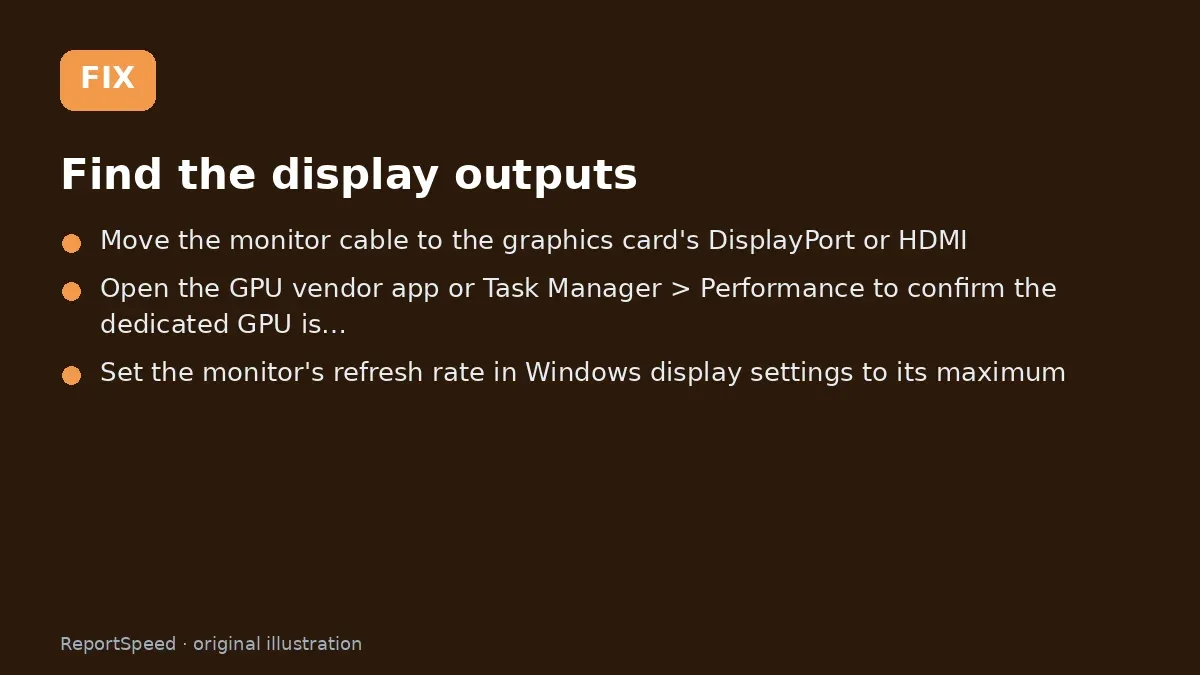
3. The fix The fix 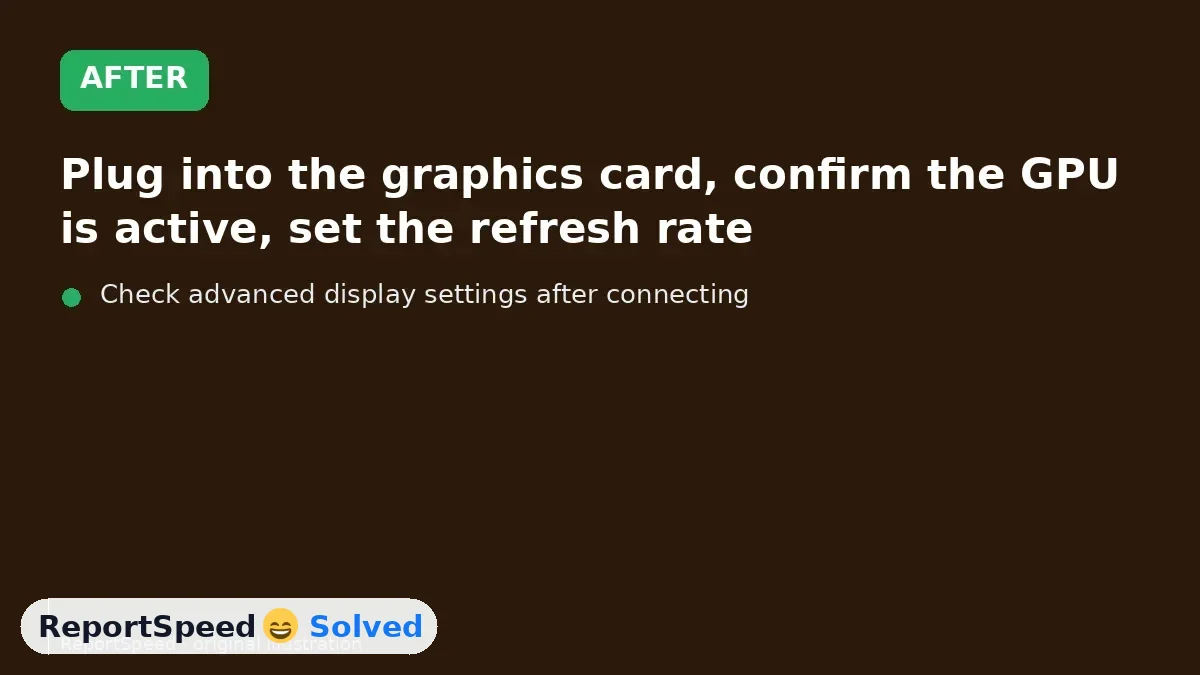
4. After The result
⚡ Speed Summary
- Plug into the graphics card, confirm the GPU is active, set the refresh rate.
- Check advanced display settings after connecting: the refresh rate often defaults lower than your monitor supports.
- Look at the back of your PC for five seconds and you'll know.

Was this answer helpful?
Tap a star to rate this answer.
Related questions
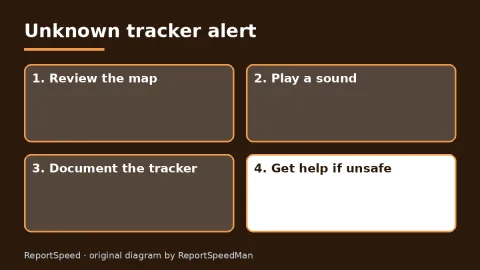
Got an 'AirTag found moving with you' alert? What to do next
Find the tracker, document it, identify the owner, and disable it.
Rate itSolved
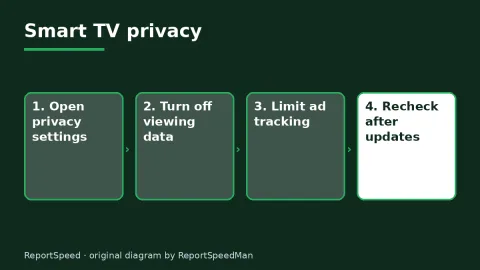
Is my smart TV tracking what I watch? How to turn off ACR
Smart TVs may use ACR to track viewing.
Rate itSolved
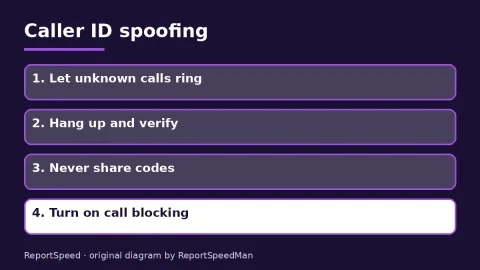
Caller ID spoofing: why scammers show a local number and how to protect yourself
Caller ID can be faked, and spoofing to defraud is illegal.
Rate itSolved
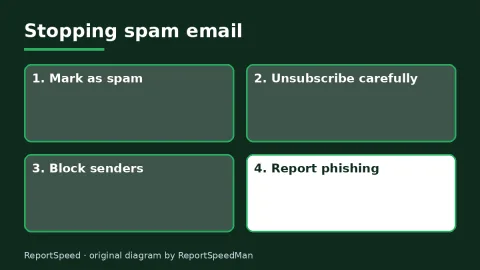
How do I stop spam emails without making it worse?
Mark spam, block repeat senders, unsubscribe only from known companies, and report phishing.
Rate itSolved
Real experiences
No experiences yet. Be the first to share.