


USB4 vs Thunderbolt dock, what's the difference and which do I buy? I want one cable to my laptop for two monitors, Ethernet, and charging. The prices are wild and the specs confuse me. Will a USB4 dock work with my laptop?
USB4 vs Thunderbolt docking station: which should I buy?
Concerns & risks
You want a clean desk setup and are comparing docks labeled USB4, Thunderbolt 4 or Thunderbolt 5, plus cheaper USB-C hubs.
| Need | Choose | Check |
|---|---|---|
| One monitor, a few USB ports | USB-C hub | Display output limits |
| Two or more monitors, one cable | USB4 or Thunderbolt dock | Laptop port support |
| Charging through dock | Dock with enough PD watts | Laptop charger wattage |
| Mac laptop | Check display limits first | Some models cap external screens |

Causes & evidence
USB4, per USB-IF, can support up to 80 Gbps over certified cables in its latest version, and it integrates tunneling for display and PCIe data. Thunderbolt builds on the same foundation with stricter minimum requirements. What your laptop's port supports decides what you get. A dock can't give you dual monitors if your port lacks DisplayPort Alt Mode or the bandwidth, and charging depends on USB PD wattage. Cheaper USB-C hubs often handle only one display or lower refresh rates.
One thing that trips people: the same USB-C shape can hide very different capabilities. A port may support data only, or data plus display, or full USB4 or Thunderbolt. The icon next to the port and the laptop's spec page are the only trustworthy answer. A dock built for Thunderbolt often works on USB4 ports, but feature support varies, so read the dock maker's compatibility notes.
The dock isn't the boss of your desk. Your laptop's port is, and it doesn't care what the box promises.
What to do

| Type | Typical use | Check |
|---|---|---|
| Basic USB-C hub | One monitor, USB, charging | Display output limits |
| USB4 dock | Multi-monitor, fast storage | Laptop USB4 support |
| Thunderbolt dock | Multi-monitor, high bandwidth | Thunderbolt port on laptop |
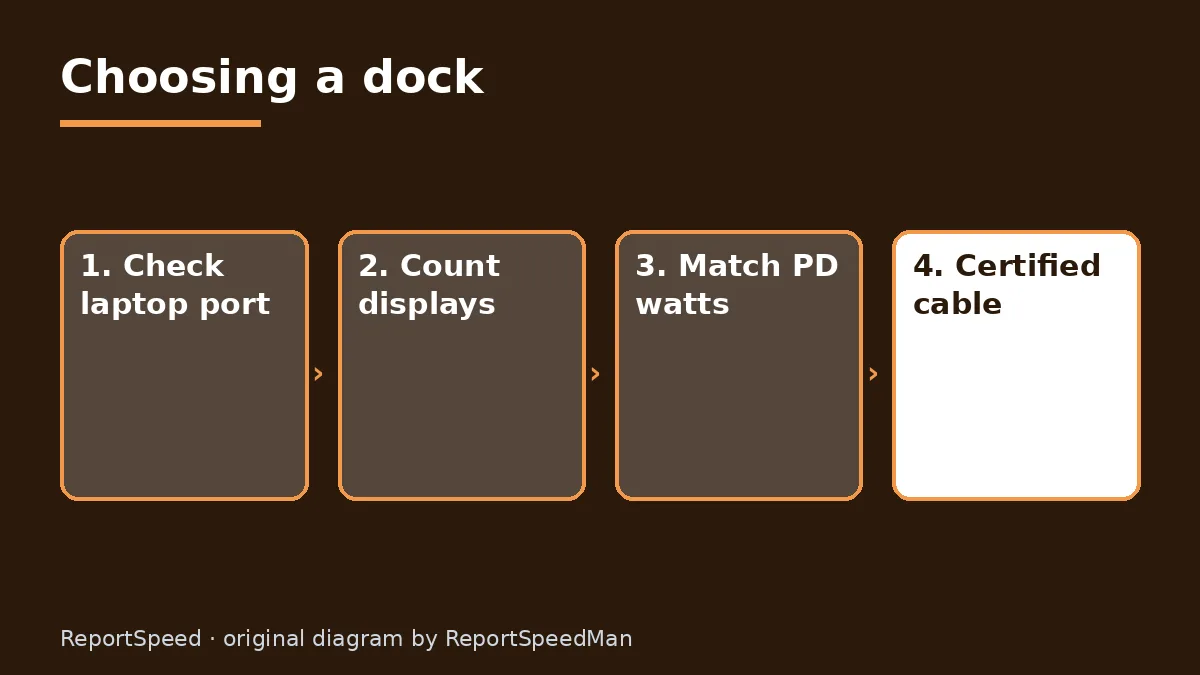
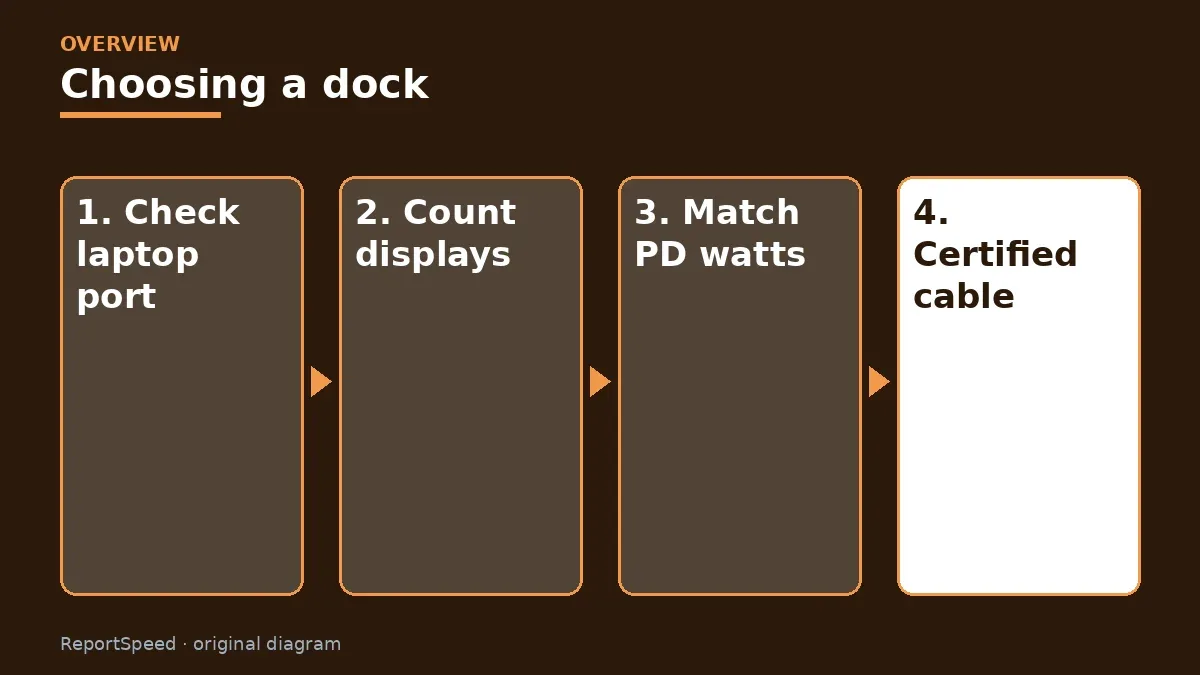
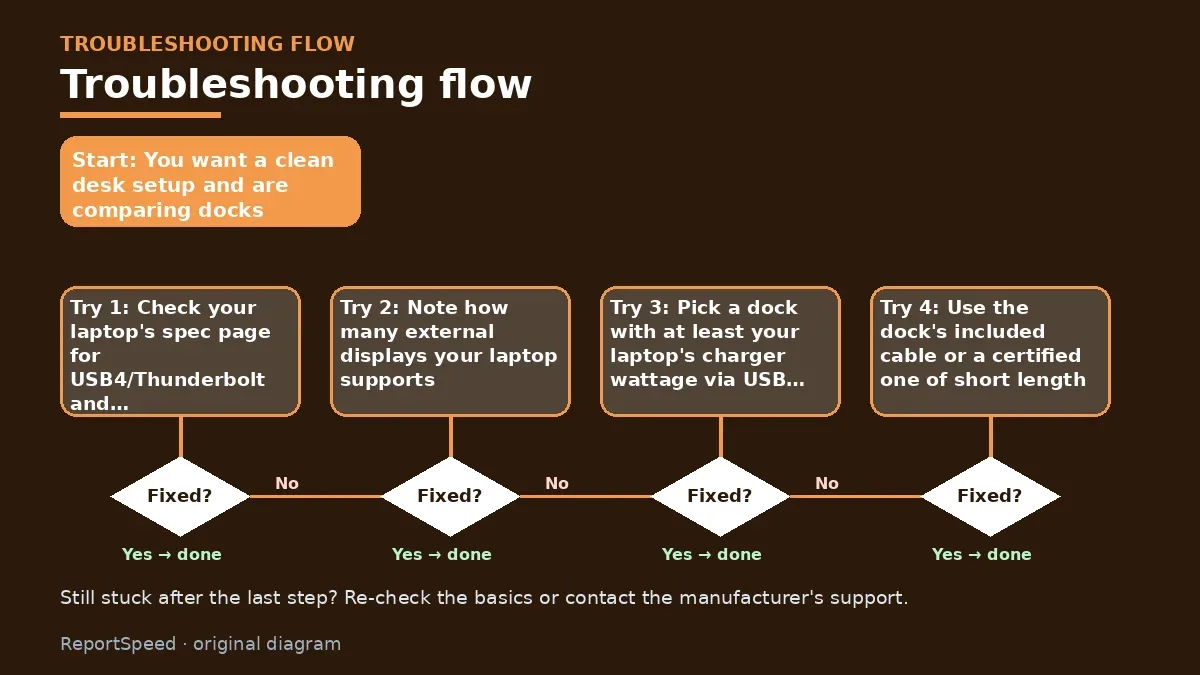
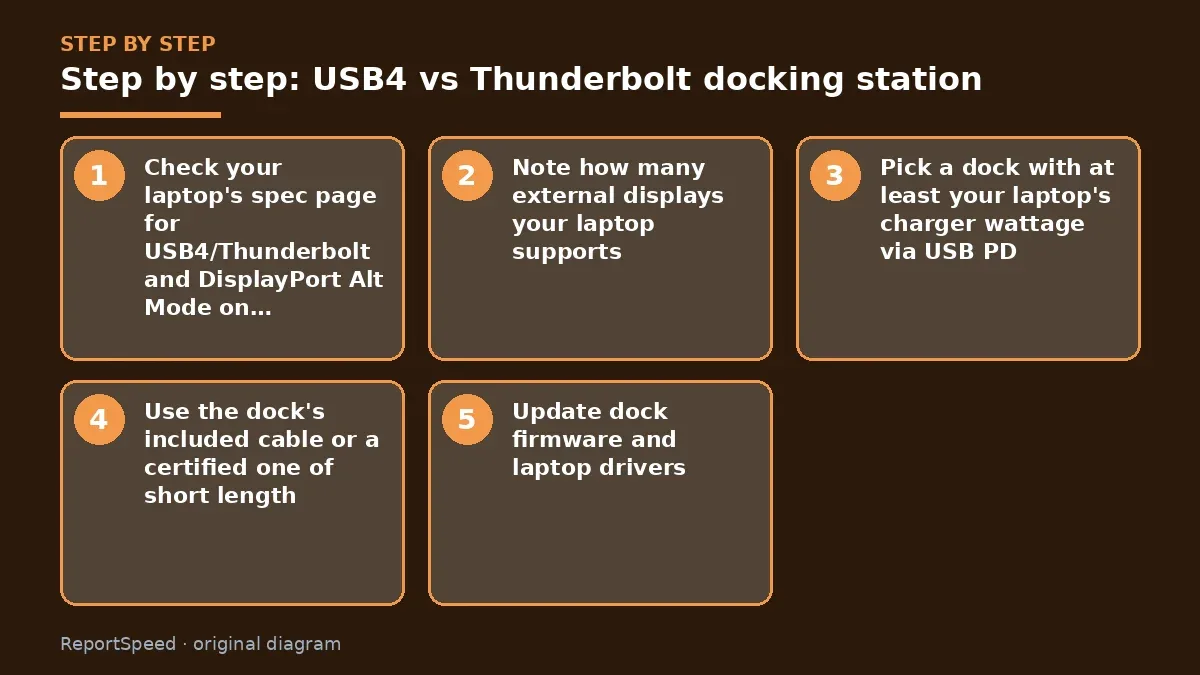
- Check your laptop's spec page for USB4/Thunderbolt and DisplayPort Alt Mode on the port.
- Note how many external displays your laptop supports.
- Pick a dock with at least your laptop's charger wattage via USB PD.
- Use the dock's included cable or a certified one of short length.
- Update dock firmware and laptop drivers.
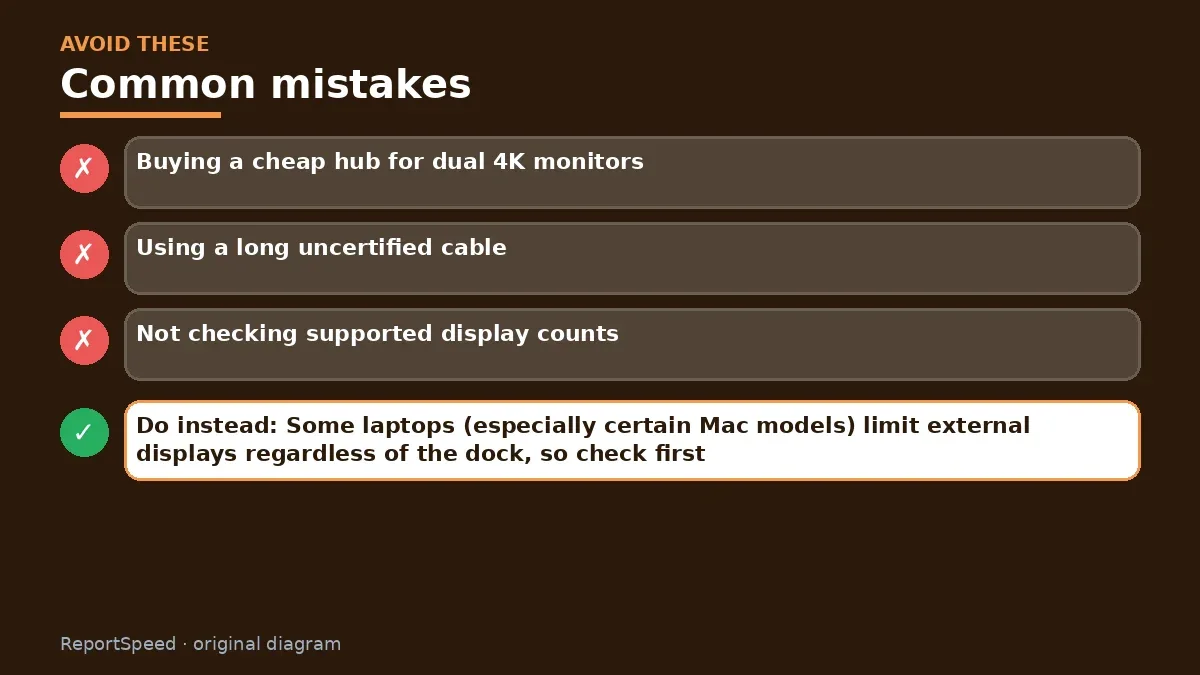
Common mistakes:
- Buying a cheap hub for dual 4K monitors
- Using a long uncertified cable
- Not checking supported display counts
ReportSpeedMan tip: Some laptops (especially certain Mac models) limit external displays regardless of the dock, so check first.
What I would actually do
read the laptop's port specs before looking at a single dock. The port decides everything.
The trade-off people miss: some laptops cap external displays no matter what dock you buy. A pricier dock can't change that.
Did it work? How to check
One cable lights up every monitor at the expected resolution, the laptop charges, and Ethernet connects without dongles.
Quick FAQ
Does a Thunderbolt dock work on USB4?
Often yes, but features can vary. Check the dock maker's compatibility list.
Why does only one monitor work?
Your laptop or hub may support only one external display over that port.
Do I need a special cable?
Use the included or a certified short cable for full speed and charging.
Wrap-up: Let your laptop port's capabilities guide the dock choice, and match display, bandwidth and charging needs.
Wiki: USB-C Power Delivery.
USB4 vs Thunderbolt docking station: official sources I checked
Step-by-step photos

1. Before The problem 
2. Why it happens The cause 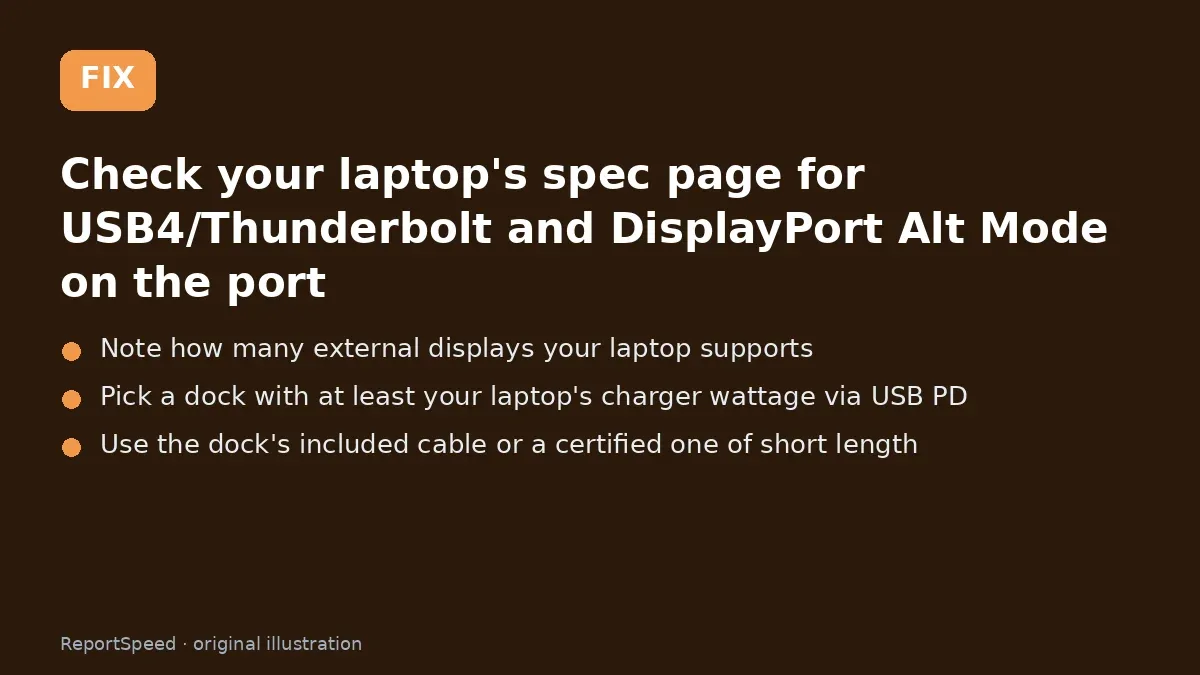
3. The fix The fix 
4. After The result
⚡ Speed Summary
- Let your laptop port's capabilities guide the dock choice, and match display, bandwidth and charging needs.
- Some laptops (especially certain Mac models) limit external displays regardless of the dock, so check first.
- The dock isn't the boss of your desk. Your laptop's port is, and it doesn't care what the box promises.

Was this answer helpful?
Tap a star to rate this answer.
Related questions

Got an 'AirTag found moving with you' alert? What to do next
Find the tracker, document it, identify the owner, and disable it.
Rate itSolved
Is my smart TV tracking what I watch? How to turn off ACR
Smart TVs may use ACR to track viewing.
Rate itSolved
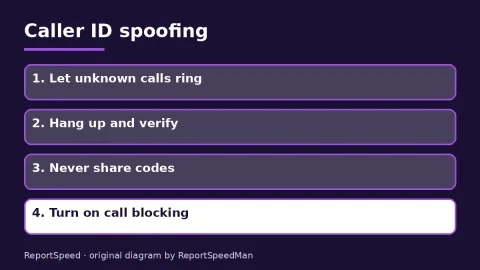
Caller ID spoofing: why scammers show a local number and how to protect yourself
Caller ID can be faked, and spoofing to defraud is illegal.
Rate itSolved

How do I stop spam emails without making it worse?
Mark spam, block repeat senders, unsubscribe only from known companies, and report phishing.
Rate itSolved
Real experiences
No experiences yet. Be the first to share.