


Windows keeps asking me to set up Windows Hello and websites now offer passkeys. I've used passwords forever and I'm not sure if passkeys are actually safer or if I'll get locked out if I lose my phone. Should I stop using passwords and switch to Windows Hello and passkeys?
Windows Hello and passkeys: should I stop using passwords?
Concerns & risks
Your PC and websites keep prompting you to set up Windows Hello and passkeys, and you want to know if it's safer and what happens if you lose a device.
| Account | Action |
|---|---|
| Add a passkey and a backup method first | |
| Microsoft, Apple, Google | Add passkeys, keep recovery codes |
| Banking | Use the bank's strongest option |
| Older sites | Password manager with unique passwords |
Causes & evidence
Windows Hello lets you sign in with your face, fingerprint or a PIN tied to your device. Passkeys replace passwords with a cryptographic key pair stored on your device or password manager; sites never see a reusable secret, which makes them resistant to phishing. Microsoft, Apple and Google support passkeys, and syncing or a backup method helps protect against losing one device.
Passkeys use public-key cryptography: your device keeps the private key, and the site only stores a public key. Phishing sites can't use it because passkeys are tied to the real site.
A password you typed into a fake page is gone forever; a passkey simply won't work on the wrong site.
What to do
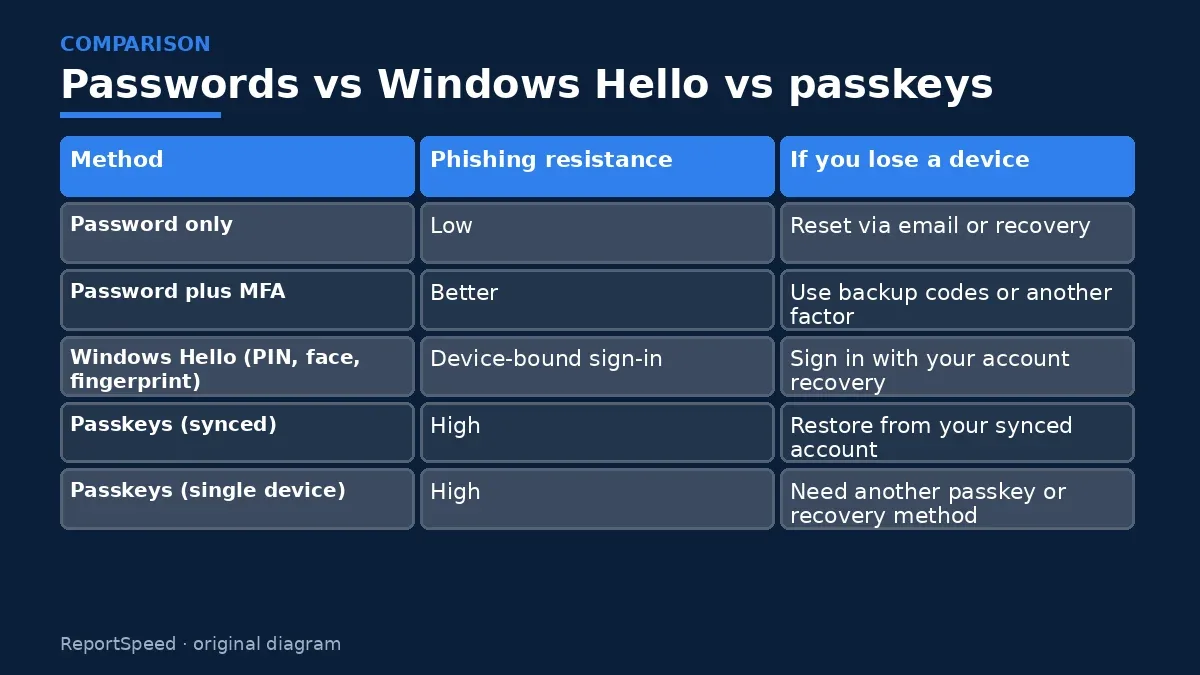
| Method | Phishing resistance | If you lose a device |
|---|---|---|
| Password only | Low | Reset via email or recovery |
| Password plus MFA | Better | Use backup codes or another factor |
| Windows Hello (PIN, face, fingerprint) | Device-bound sign-in | Sign in with your account recovery |
| Passkeys (synced) | High | Restore from your synced account |
| Passkeys (single device) | High | Need another passkey or recovery method |
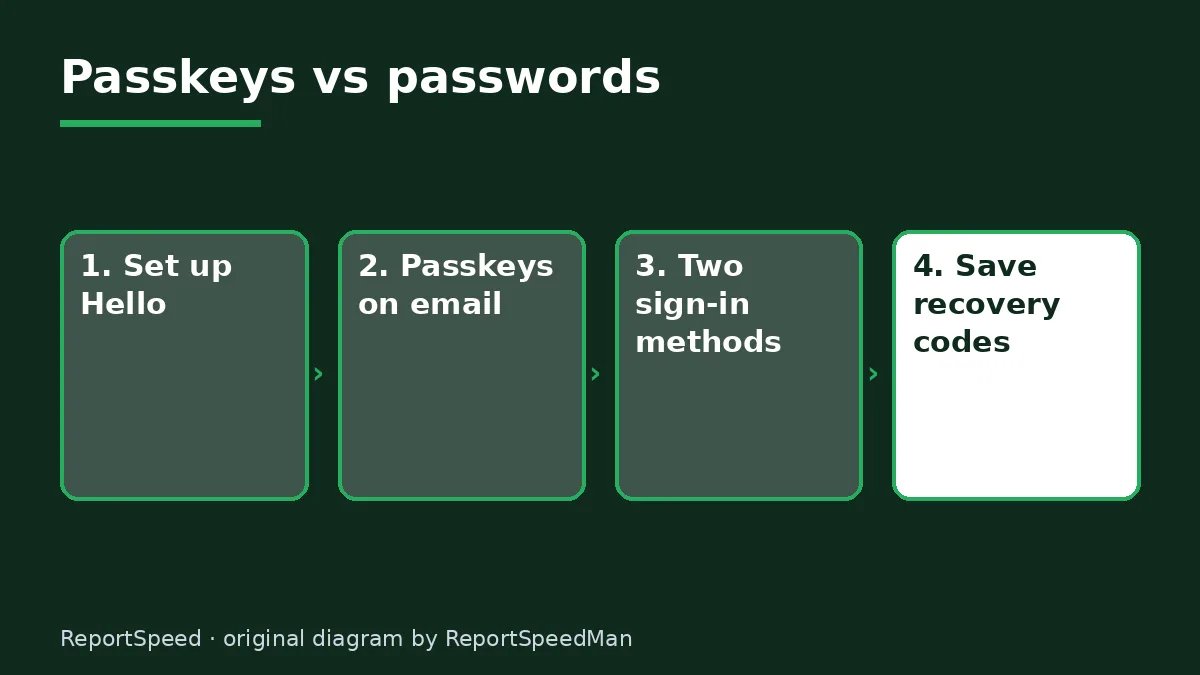
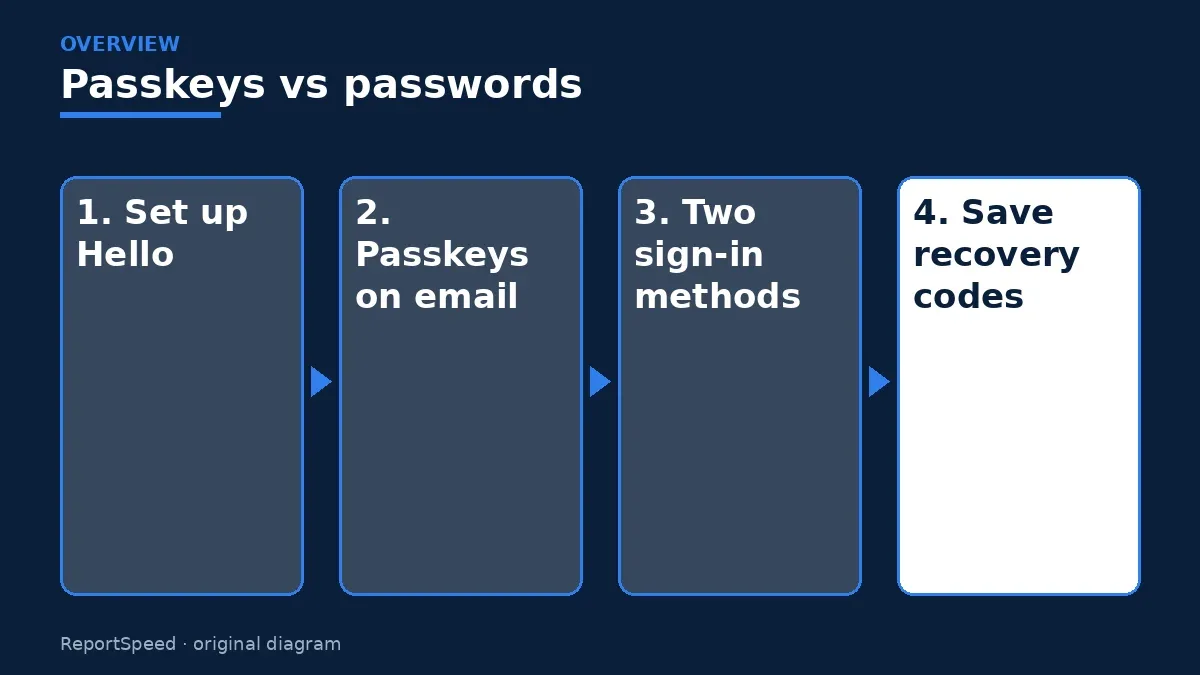
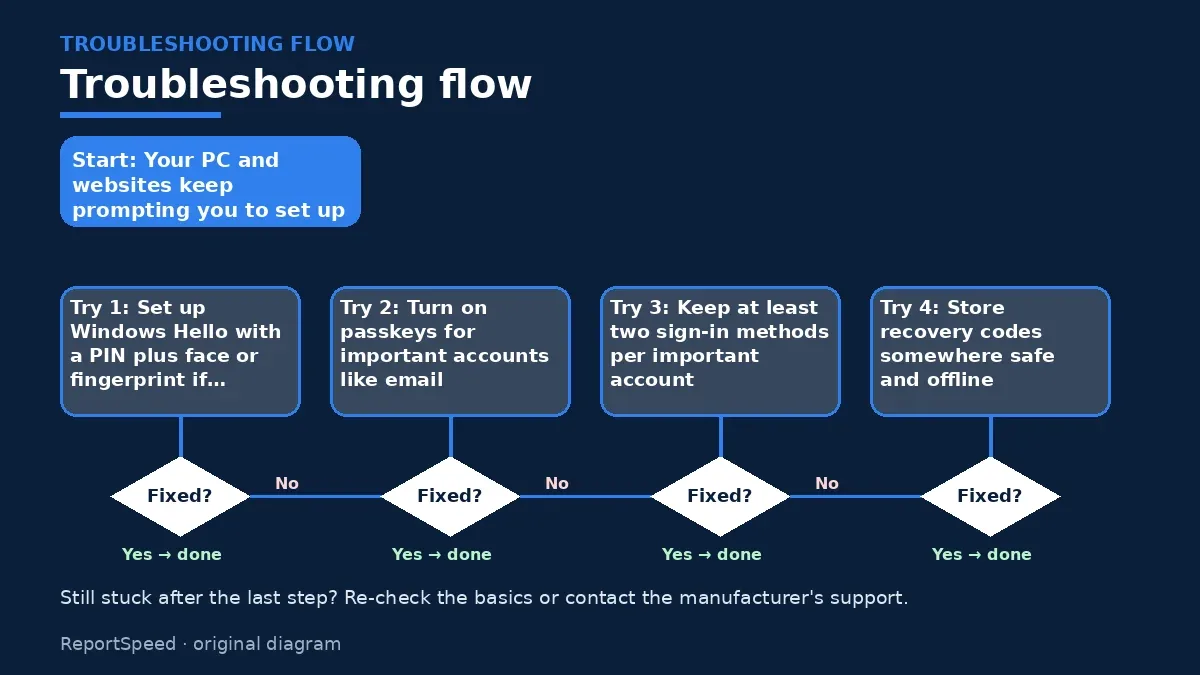
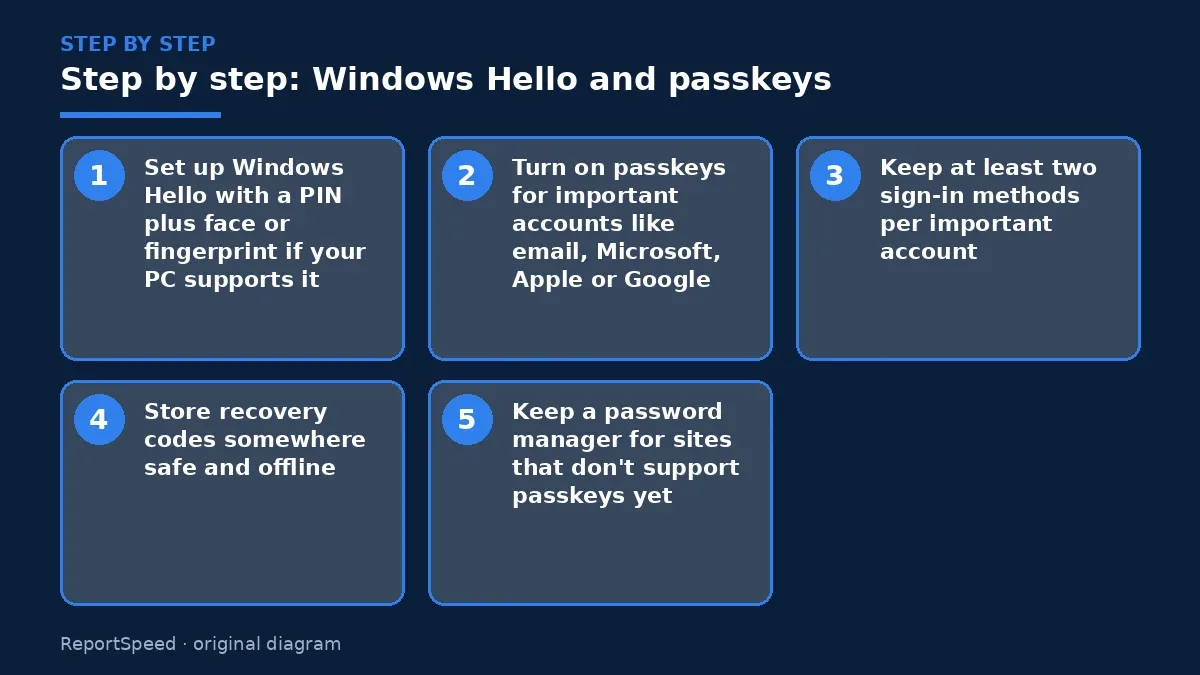
- Set up Windows Hello with a PIN plus face or fingerprint if your PC supports it.
- Turn on passkeys for important accounts like email, Microsoft, Apple or Google.
- Keep at least two sign-in methods per important account, such as a second device or backup codes.
- Store recovery codes somewhere safe and offline.
- Keep a password manager for sites that don't support passkeys yet.

Common mistakes:
- Having only one device with your passkey
- Skipping recovery codes
- Turning off MFA after setting up passkeys
ReportSpeedMan tip: Start with your email account; it's the key that resets everything else.
What I would actually do

start with email, add a passkey plus a second device or backup codes, then move to Microsoft, Apple and Google accounts. I'd keep a password manager for older sites.
The trade-off people miss: a single passkey on a single device is a lockout risk. Backups turn passkeys from fragile to robust.
Signs it worked
You sign in with a glance or fingerprint and can still get in if you lose a device.
Quick FAQ
What if I lose my phone?
Use synced passkeys, a second device or recovery codes to get back in.
Is a PIN weaker than a password?
A Windows Hello PIN is tied to your device, so it's not useful to someone who steals it remotely.
Do all sites support passkeys?
Not yet; use a password manager for the rest.
Wrap-up: Passkeys and Windows Hello are safer than passwords for most people. Set up backups so losing a device isn't a lockout.
Wiki: Multi-Factor Authentication (MFA).
Windows Hello and passkeys: official pages behind this answer
Step-by-step photos

1. Before The problem 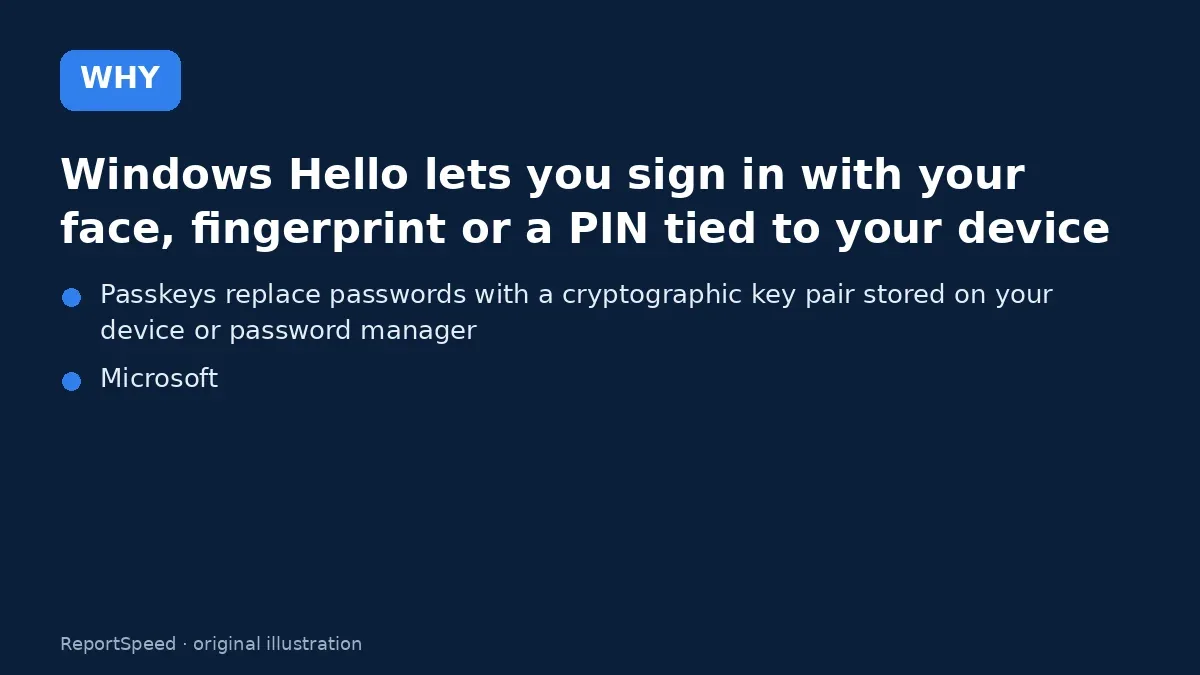
2. Why it happens The cause 
3. The fix The fix 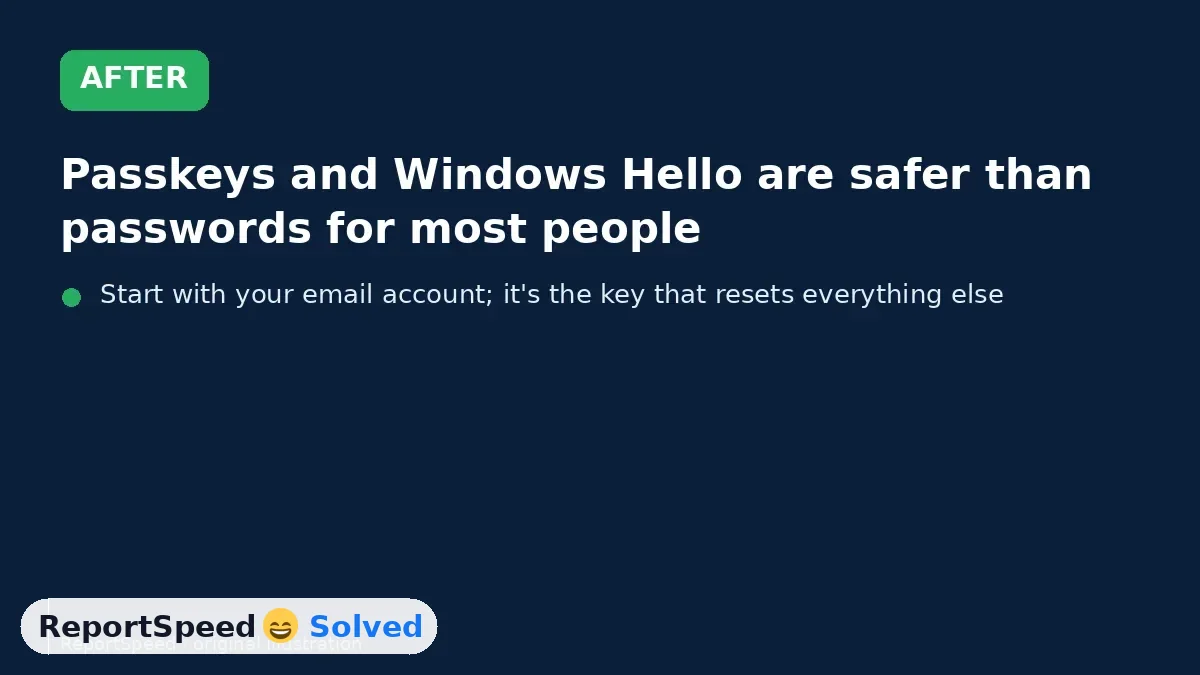
4. After The result
⚡ Speed Summary
- Passkeys and Windows Hello are safer than passwords for most people.
- Start with your email account; it's the key that resets everything else.
- A password you typed into a fake page is gone forever; a passkey simply won't work on the wrong site.

Was this answer helpful?
Tap a star to rate this answer.
Related questions
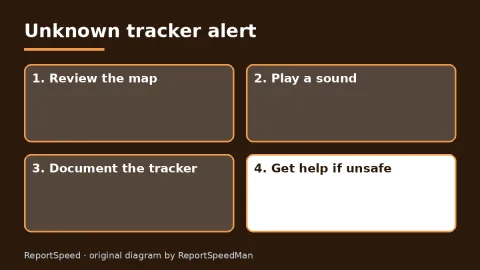
Got an 'AirTag found moving with you' alert? What to do next
Find the tracker, document it, identify the owner, and disable it.
Rate itSolved
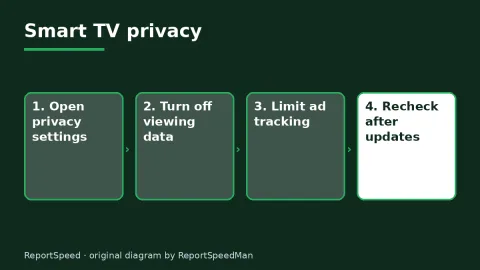
Is my smart TV tracking what I watch? How to turn off ACR
Smart TVs may use ACR to track viewing.
Rate itSolved
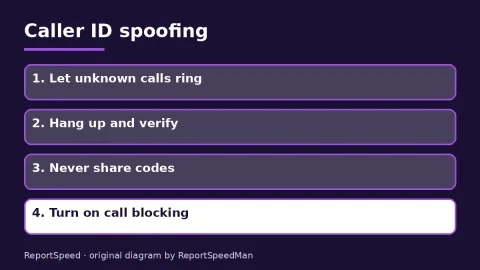
Caller ID spoofing: why scammers show a local number and how to protect yourself
Caller ID can be faked, and spoofing to defraud is illegal.
Rate itSolved
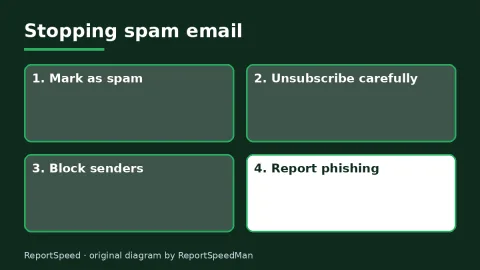
How do I stop spam emails without making it worse?
Mark spam, block repeat senders, unsubscribe only from known companies, and report phishing.
Rate itSolved
Real experiences
No experiences yet. Be the first to share.