


DisplayPort vs HDMI for my gaming monitor, does it matter? New monitor came with both cables. My PC has both ports and so does the monitor. A friend says HDMI is for TVs and DP for PCs, but that sounds too simple. Which gives me the full refresh rate?
DisplayPort vs HDMI for a gaming monitor: which cable should I use?
Concerns & risks
Two cables, two ports, and no clear explanation of which one unlocks everything your monitor can do.
| Device | Use | Note |
|---|---|---|
| Gaming PC to monitor | DisplayPort | Common default for PC monitors |
| Console to TV or monitor | HDMI 2.1 | Consoles output HDMI |
| Laptop with only USB-C | USB-C with DP Alt Mode | Check the port supports video |
| Very high refresh at high resolution | Check spec of both ends | Cable rating must match |
Causes & evidence
Both standards carry video and audio, but the version matters more than the name. DisplayPort is developed by VESA and widely used on PC graphics cards and monitors, with strong support for Adaptive-Sync. HDMI 2.1, per HDMI Licensing, supports higher bandwidth along with gaming features like Variable Refresh Rate and Auto Low Latency Mode. If either the port, the cable or the monitor supports only an older version, you can be capped at a lower refresh rate or resolution.
Laptops add another wrinkle: an HDMI or USB-C port might be wired to the integrated GPU rather than the dedicated one, which can limit refresh rate. Check the laptop's spec page for which port supports the highest output, and use that one for your gaming monitor.
The cable is the cheapest part of your setup, and it's quietly deciding how much of the expensive parts you get to use.
What to do
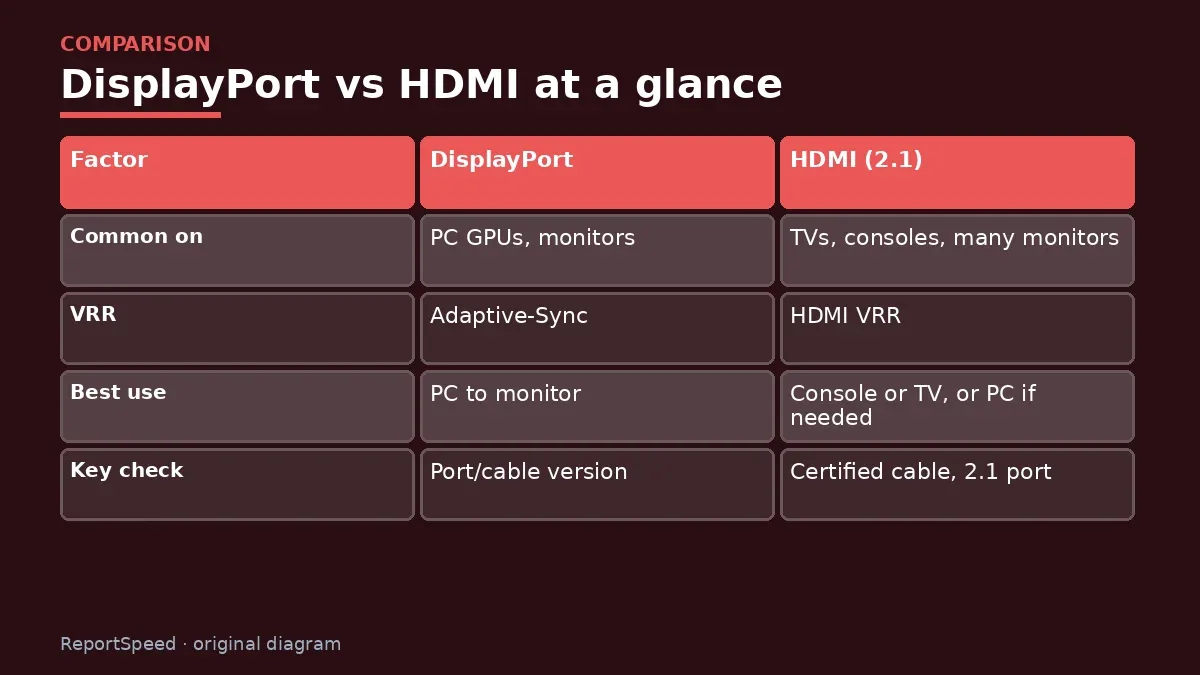
| Factor | DisplayPort | HDMI (2.1) |
|---|---|---|
| Common on | PC GPUs, monitors | TVs, consoles, many monitors |
| VRR | Adaptive-Sync | HDMI VRR |
| Best use | PC to monitor | Console or TV, or PC if needed |
| Key check | Port/cable version | Certified cable, 2.1 port |
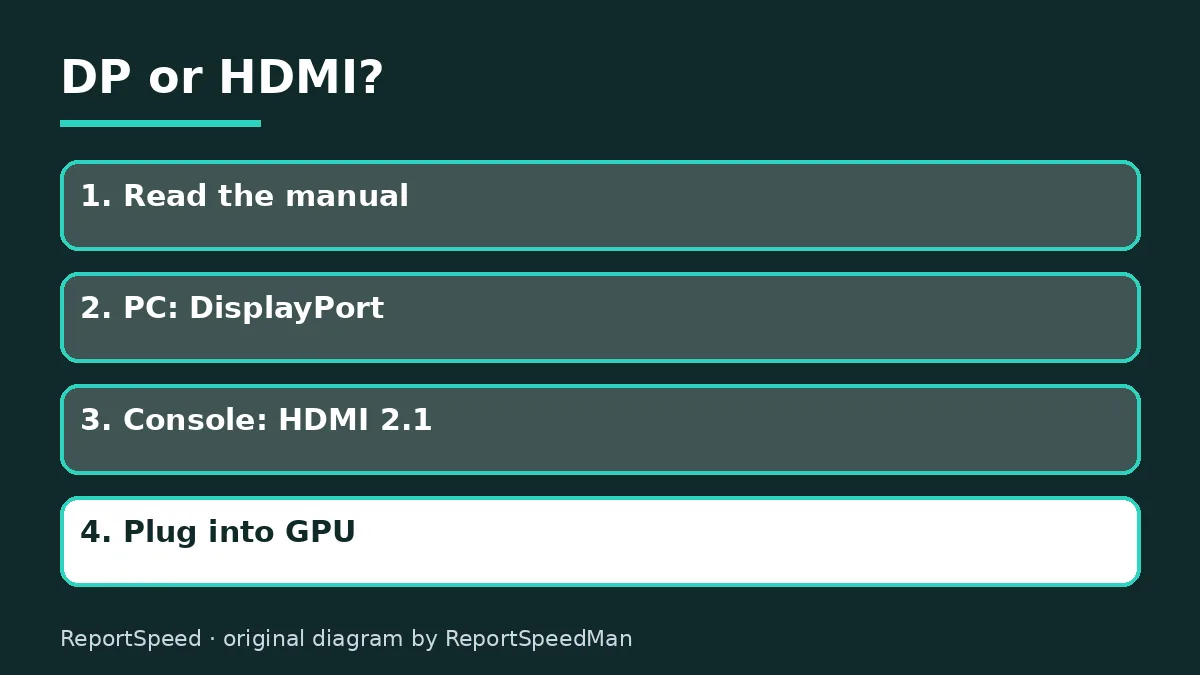
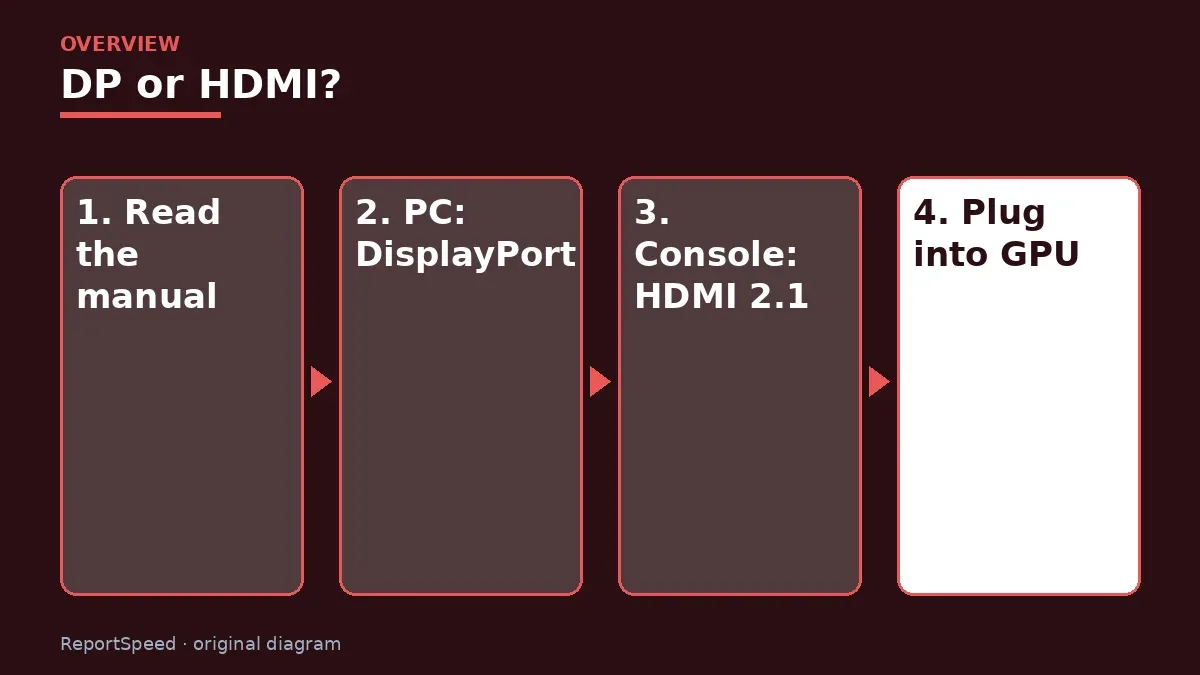
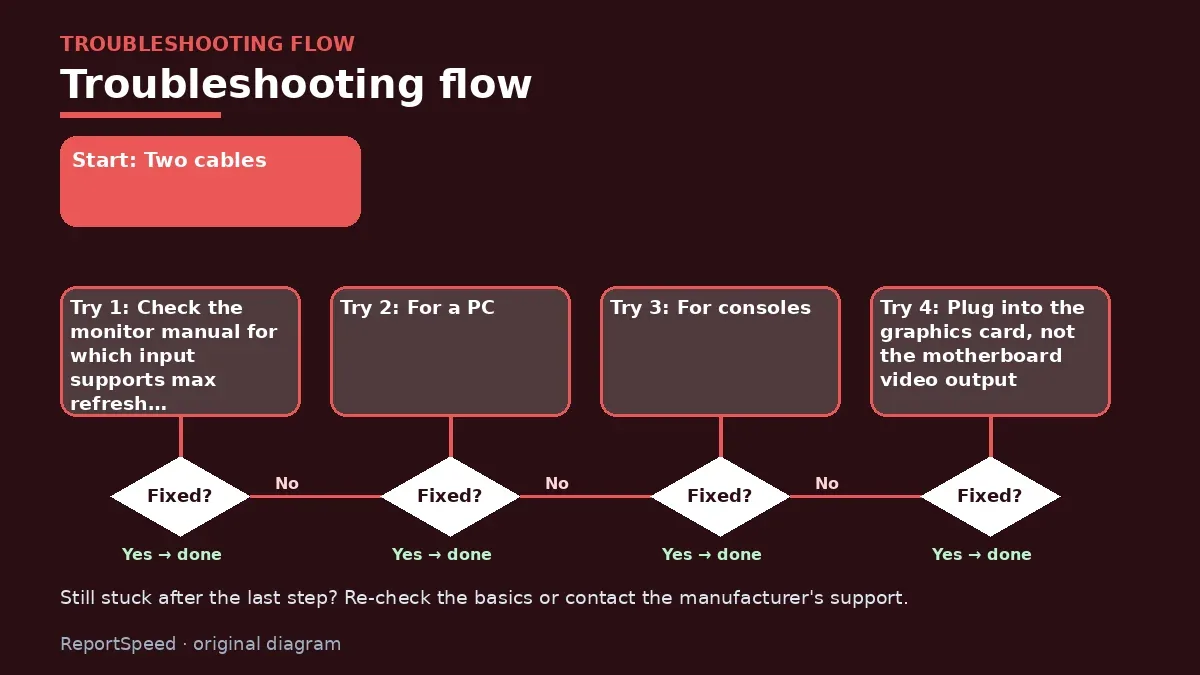
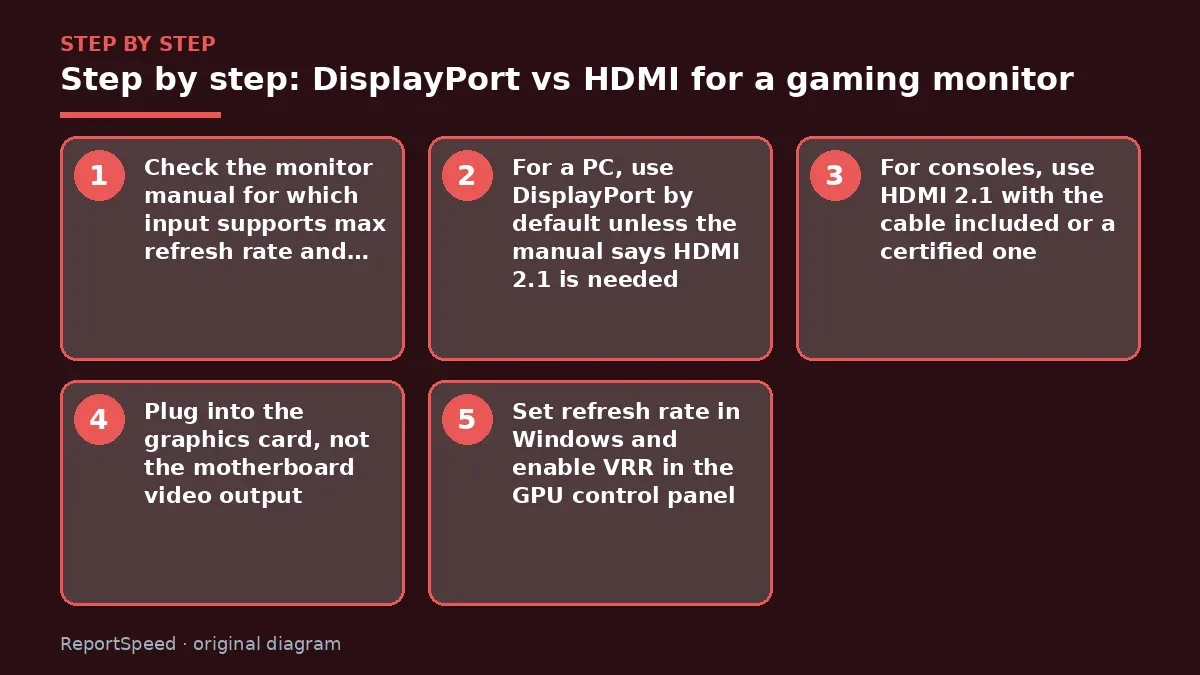
- Check the monitor manual for which input supports max refresh rate and resolution.
- For a PC, use DisplayPort by default unless the manual says HDMI 2.1 is needed.
- For consoles, use HDMI 2.1 with the cable included or a certified one.
- Plug into the graphics card, not the motherboard video output.
- Set refresh rate in Windows and enable VRR in the GPU control panel.
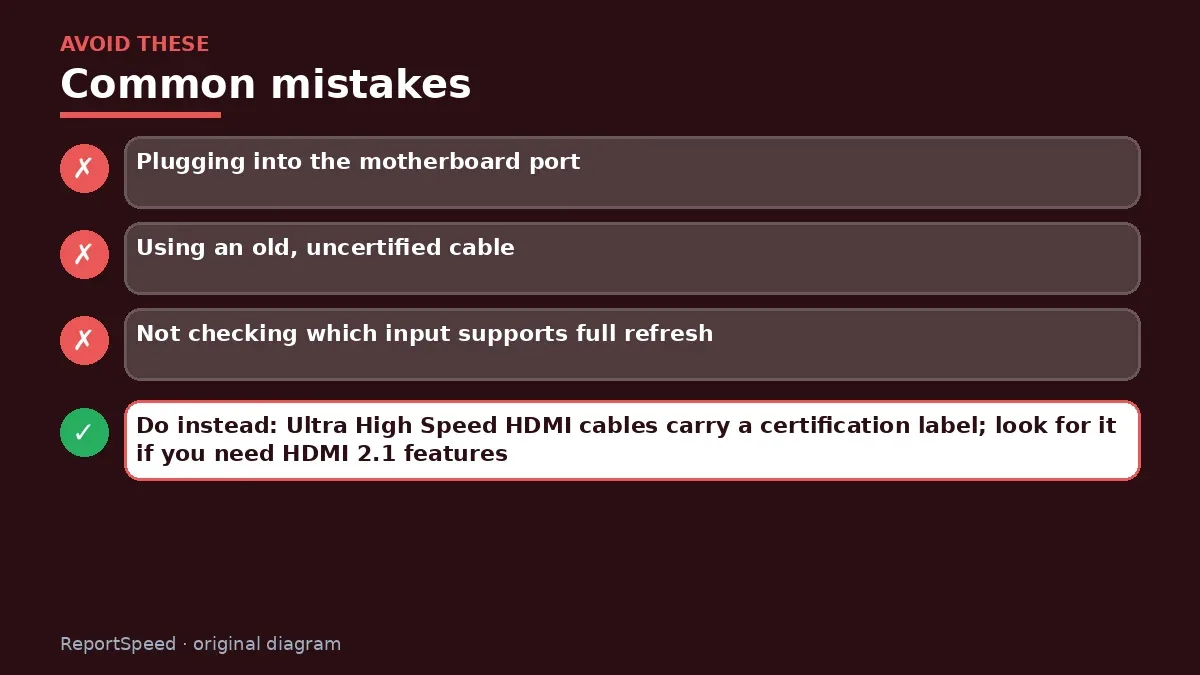
Common mistakes:
- Plugging into the motherboard port
- Using an old, uncertified cable
- Not checking which input supports full refresh
ReportSpeedMan tip: Ultra High Speed HDMI cables carry a certification label; look for it if you need HDMI 2.1 features.
What I would actually do
use DisplayPort for my PC and keep HDMI for consoles, and buy certified cables from the start.
The trade-off people miss: a cable's rating and both device ports decide your limit. A good cable can't fix an old port.
How to tell it worked
It worked if the monitor's info menu shows the full refresh rate and resolution, and VRR is active in your GPU settings.
Quick FAQ
Is USB-C video the same as DisplayPort?
Many USB-C ports carry DisplayPort Alt Mode; check support.
Does cable length matter?
Longer cables may struggle at high bandwidth; use certified, shorter cables.
Can I use adapters?
Adapters can work but may limit refresh or VRR.
Wrap-up: Use DisplayPort for PC gaming by default, HDMI 2.1 for consoles, and always match port and cable versions to your monitor's specs.
Wiki: Refresh Rate and Response Time.
DisplayPort vs HDMI for a gaming monitor: official pages behind this answer
Step-by-step photos

1. Before The problem 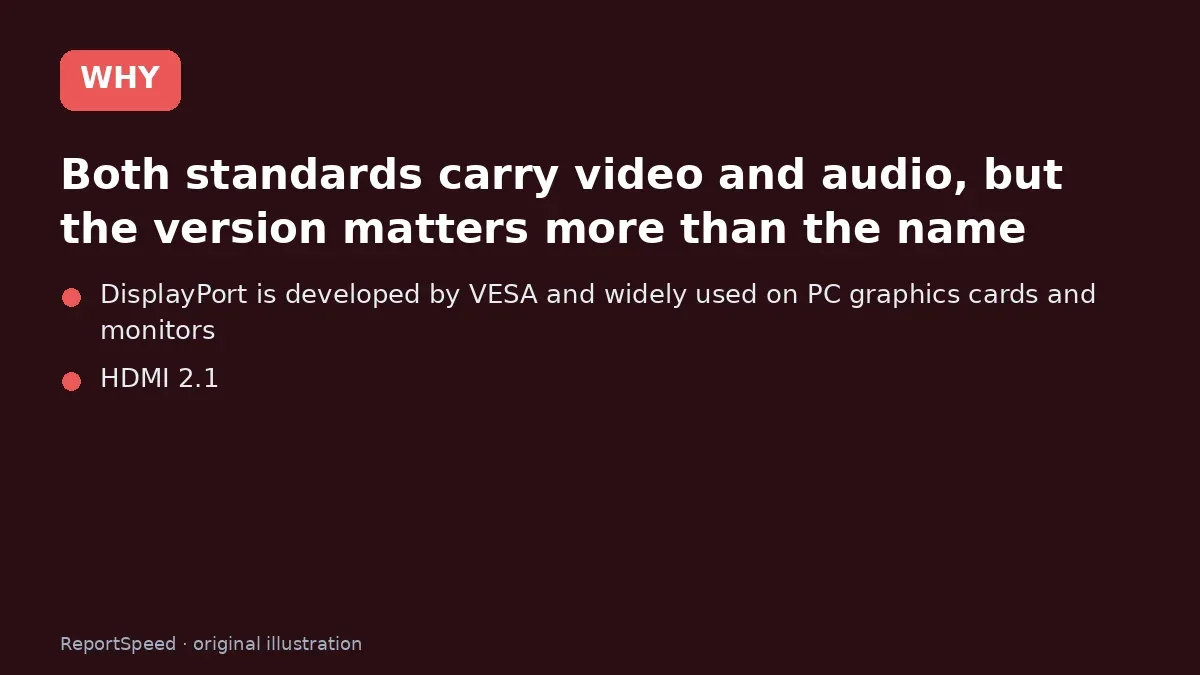
2. Why it happens The cause 
3. The fix The fix 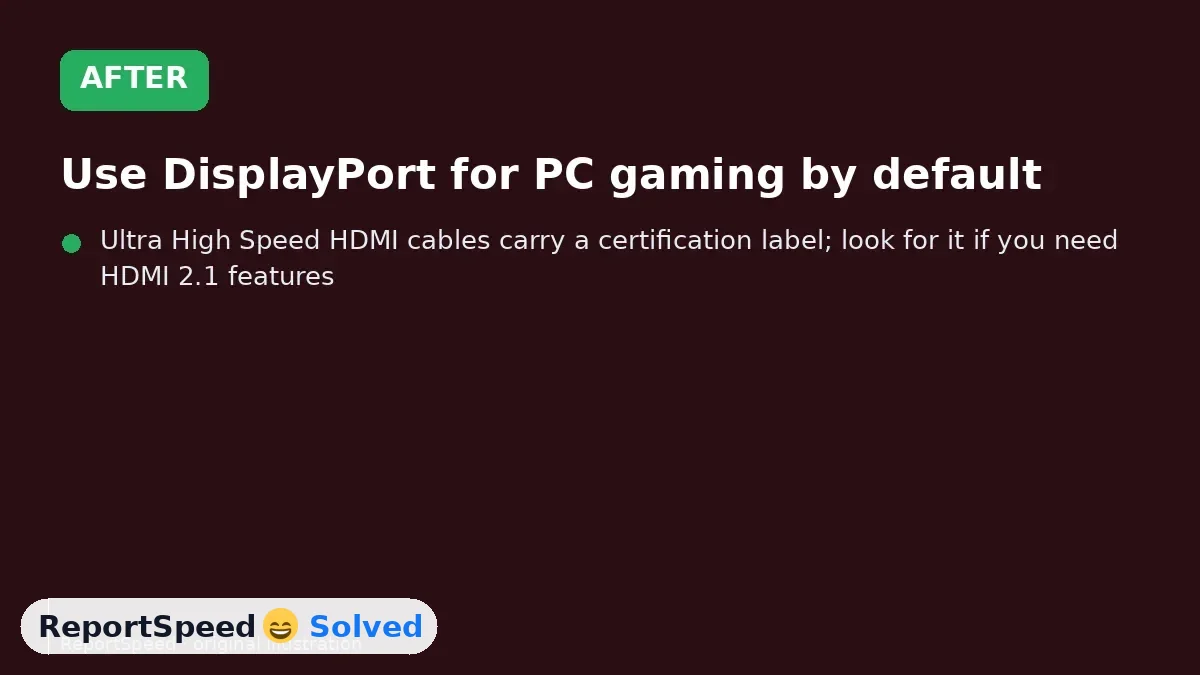
4. After The result
⚡ Speed Summary
- Use DisplayPort for PC gaming by default, HDMI 2.1 for consoles, and always match port and cable versions to your monitor's specs.
- Ultra High Speed HDMI cables carry a certification label; look for it if you need HDMI 2.1 features.
- The cable is the cheapest part of your setup, and it's quietly deciding how much of the expensive parts you get to use.

Was this answer helpful?
Tap a star to rate this answer.
Related questions
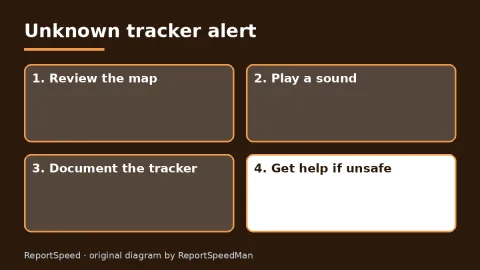
Got an 'AirTag found moving with you' alert? What to do next
Find the tracker, document it, identify the owner, and disable it.
Rate itSolved
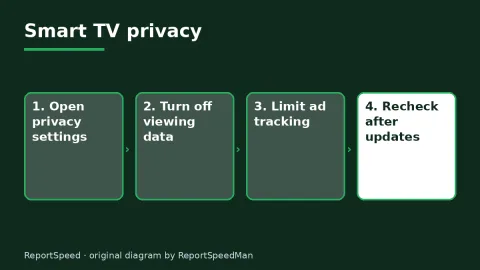
Is my smart TV tracking what I watch? How to turn off ACR
Smart TVs may use ACR to track viewing.
Rate itSolved
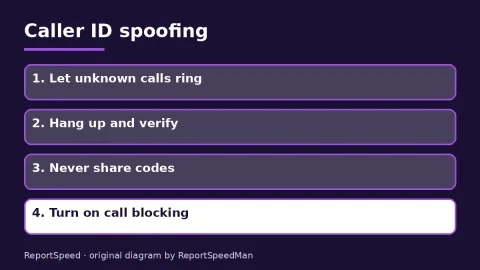
Caller ID spoofing: why scammers show a local number and how to protect yourself
Caller ID can be faked, and spoofing to defraud is illegal.
Rate itSolved
How do I stop spam emails without making it worse?
Mark spam, block repeat senders, unsubscribe only from known companies, and report phishing.
Rate itSolved
Real experiences
No experiences yet. Be the first to share.